
Cybersecurity Merit Badge — Complete Digital Resource Guide
https://merit-badge.university/merit-badges/cybersecurity/guide/
Introduction & Overview
Someone just stole 150 million people’s personal data — names, addresses, Social Security numbers — from a single company’s database. A teenager in another country shut down a hospital’s computer network with a piece of software smaller than a photo on your phone. And right now, while you are reading this sentence, automated programs are trying thousands of stolen passwords against accounts that might include yours. This is the world of cybersecurity, and understanding it is no longer optional.
Cybersecurity is the practice of protecting computers, networks, programs, and data from unauthorized access, damage, or theft. Every time you unlock your phone, log into a game, or send a message, layers of security work behind the scenes to keep your information safe. This merit badge teaches you how those protections work — and how to be part of the solution instead of part of the problem.
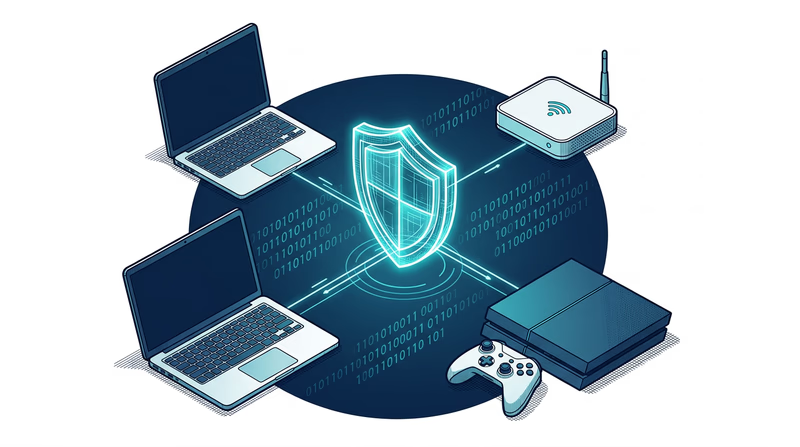
Then and Now
Then: The Wild West of Computing
In the early days of computing, security was barely an afterthought. The first computers in the 1960s and 1970s were enormous machines locked in university basements, and the biggest threat was someone accidentally tripping over a power cable. Passwords were stored in plain text. Networks trusted every connected machine completely.
In 1988, a graduate student named Robert Tappan Morris released what became known as the Morris Worm — one of the first pieces of malware to spread across the internet. It wasn’t designed to cause damage, but a coding mistake made it replicate out of control, crashing roughly 6,000 computers (about 10% of the entire internet at the time). The incident led to the creation of the first Computer Emergency Response Team (CERT) and showed the world that connected computers needed real security.
Through the 1990s and early 2000s, viruses spread mainly through floppy disks and email attachments. Security meant installing antivirus software and hoping for the best. Most people didn’t think about cybersecurity at all.
Now: Everyone Is a Target
Today, cybersecurity is one of the fastest-growing fields in the world. There are over 15 billion internet-connected devices on the planet — more than two for every person alive. Cybercrime costs the global economy trillions of dollars each year. Attacks target everything from personal Instagram accounts to power grids, water treatment plants, and hospital systems.
Modern threats include ransomware that locks your files until you pay, phishing emails that look exactly like messages from your bank, and nation-state hackers backed by entire governments. But here is the encouraging part: the vast majority of successful attacks exploit simple mistakes that you can learn to avoid. Strong passwords, software updates, and knowing how to spot a scam stop most threats before they start.
Get Ready!
You are about to learn skills that protect not just you but your family, your troop, and your community. Cybersecurity knowledge is something you will use every single day — every time you create a password, connect to Wi-Fi, or download an app. By the end of this merit badge, you will understand how hackers think, how defenses work, and how to make smart decisions in a connected world. Let’s get started.
Kinds of Cybersecurity
Cybersecurity is a broad field with many specialties. Here are the main areas you will explore in this merit badge.
Network Security
Network security protects the highways that data travels on. Every time you load a website, send a text, or stream a video, your data crosses networks — home Wi-Fi, cellular towers, undersea cables, and data centers. Network security tools like firewalls and intrusion detection systems watch for suspicious traffic and block attacks before they reach your devices.
Think of network security like a series of locked gates and security checkpoints on a highway. Legitimate traffic passes through quickly, but anything that looks suspicious gets stopped and inspected.
Application Security
Application security focuses on making software safe to use. Every app on your phone, every website you visit, and every program on your computer was written by developers who had to think about how attackers might try to break in. Application security means finding and fixing those weak spots — called vulnerabilities — before someone exploits them.
When a company releases a security update for an app, that is application security in action. Someone found a flaw, and the developers patched it before attackers could take advantage.
Information Security
Information security (often called InfoSec) is about protecting data itself — whether it is stored on a hard drive, traveling across a network, or displayed on a screen. This includes personal information like your name, address, and passwords, as well as sensitive data like medical records, financial information, and government secrets.
InfoSec uses tools like encryption (scrambling data so only authorized people can read it) and access controls (making sure only the right people can reach certain information).
Operational Security
Operational security (OpSec) is about the human side of cybersecurity — the decisions and habits that keep systems safe. Even the best technology fails if people make careless mistakes. OpSec includes policies like “never share your password” and practices like shredding sensitive documents.
Personal and Consumer Security
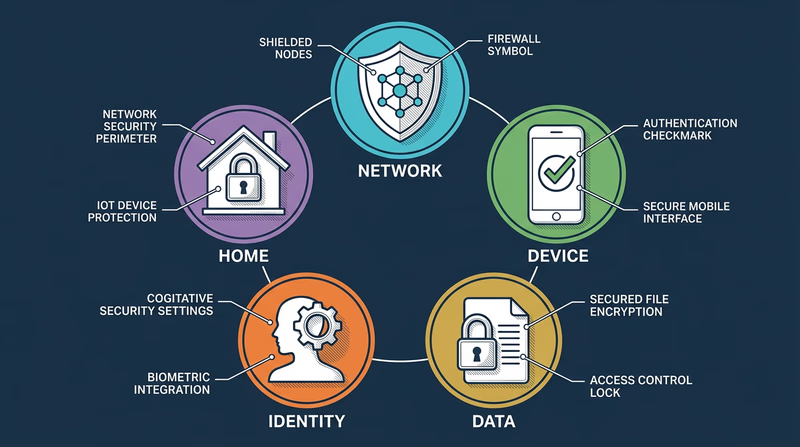
This is the area most directly relevant to your daily life. Personal security covers protecting your own devices, accounts, and identity online. It includes choosing strong passwords, recognizing phishing attempts, securing your home Wi-Fi, backing up your data, and managing your digital footprint — the trail of information you leave behind as you use the internet.
Everything you learn in this merit badge ties back to personal security. Even if you never work in cybersecurity professionally, these skills will protect you for the rest of your life.
Req 1a — Digital Safety Video
Before diving into firewalls and encryption, you need to understand the most basic layer of cybersecurity: keeping yourself safe online. The Digital Safety video from Scouting America covers real situations that young people face every day — from online predators to cyberbullying to oversharing personal information.
Why This Video Matters
You might think, “I already know not to talk to strangers online.” But digital safety goes far beyond that. The video covers situations that are genuinely tricky — moments where the right choice is not always obvious. What do you do when someone you have been chatting with online for months asks to meet in person? What about when a friend shares someone else’s embarrassing photo in a group chat? These gray areas are where real digital safety skills matter.
Key Concepts to Watch For
As you watch the video, pay attention to these core ideas:
- Personal information protection — what counts as personal information and why sharing it can be risky
- Online communication — how conversations with strangers can escalate and warning signs to watch for
- Cyberbullying — what it looks like, how it affects people, and what to do if you see it or experience it
- Reporting — who to talk to and how to report concerning behavior
After the Video
Think about how the scenarios in the video connect to your own online life. Do you use social media? Play online games with voice chat? Text with people you have only met online? The situations in the video are not hypothetical — they happen to real Scouts every day.
Your counselor will want to hear what stood out to you and how you plan to apply what you learned. Be ready to share specific examples from the video, not just general statements like “I learned to be safe online.”
Personal Safety Awareness — Digital Safety Access the official Scouting America Digital Safety video and other youth protection training resources. Link: Personal Safety Awareness — Digital Safety — https://www.scouting.org/training/youth-protection/scouts-bsa/
Req 1b — Digital Footprint
Every search you make, every post you like, every game you play online — each action adds another piece to your digital footprint. It is the collection of all the data you leave behind as you use the internet. Some of it you create on purpose, like a social media post. Some of it is collected without you even realizing, like a website tracking which pages you visit. And once information is out there, getting it back is nearly impossible.
What Is a Digital Footprint?
Your digital footprint has two parts:
- Active footprint — information you deliberately share. This includes social media posts, comments, profile bios, uploaded photos, and messages you send. You have direct control over this.
- Passive footprint — information collected about you without your direct input. This includes your IP address, browser cookies, location data from your phone, and your browsing history. Apps and websites collect this automatically.
Protecting Your Footprint on Social Media
Social media platforms are designed to encourage sharing. That is their business model — the more you share, the more data they have, and the more targeted ads they can sell. Here is how to share responsibly:
- Review your profile. Remove your phone number, home address, school name, and full birthdate from public profiles. A city or state is enough for location.
- Think before you post. Ask yourself: “Would I be comfortable if my school principal, a college admissions officer, or a future employer saw this?” If not, do not post it.
- Check tagged photos. Other people can tag you in photos. Review tags and untag yourself from anything you do not want associated with your name.
- Limit your audience. Most platforms let you restrict posts to friends only. Use this — there is no reason strangers need to see your vacation photos.
Privacy Settings: A Walkthrough
Every major platform has privacy settings, but they are often buried in menus and set to share more by default. Here are the key settings to check:
Privacy Settings Audit
Check these on every platform you use- Profile visibility: Set to “Friends Only” or “Private” instead of “Public.”
- Location sharing: Turn off location tagging on posts. Disable location services for apps that do not need them.
- Contact info: Hide your email and phone number from your public profile.
- Search visibility: Disable “Allow search engines to link to your profile.”
- Third-party app access: Revoke access for apps you no longer use. Each connected app can access your data.
- Ad personalization: Opt out of interest-based advertising where possible.
Mobile Apps and Permissions
When you install an app, it often asks for permissions — access to your camera, microphone, contacts, location, and more. Many apps request far more access than they actually need.
Online Gaming and Voice Chat
Online games create unique privacy risks. Voice chat, screen names, and in-game messaging can all reveal personal information if you are not careful.
- Use a screen name that does not include your real name, age, or location.
- Be cautious in voice chat. Background noise can reveal information — siblings calling you by name, a parent mentioning your school, a TV news anchor naming your town.
- Do not share personal details with online gaming friends, even ones you have played with for a long time. You do not truly know who is on the other side.
Showing Your Counselor
For this requirement, you need to demonstrate privacy settings — not just describe them. Pick one or two platforms you actually use (Instagram, Snapchat, Discord, a gaming platform) and walk your counselor through the settings step by step. Show them what each setting does and explain why you chose the configuration you did.
Protecting Your Digital Footprint — Keys to Cybersecurity A curriculum module from Cyber.org on understanding and managing your digital footprint. Link: Protecting Your Digital Footprint — Keys to Cybersecurity — https://cyber.org/find-curricula/protecting-your-digital-footprint-keys-cybersecurity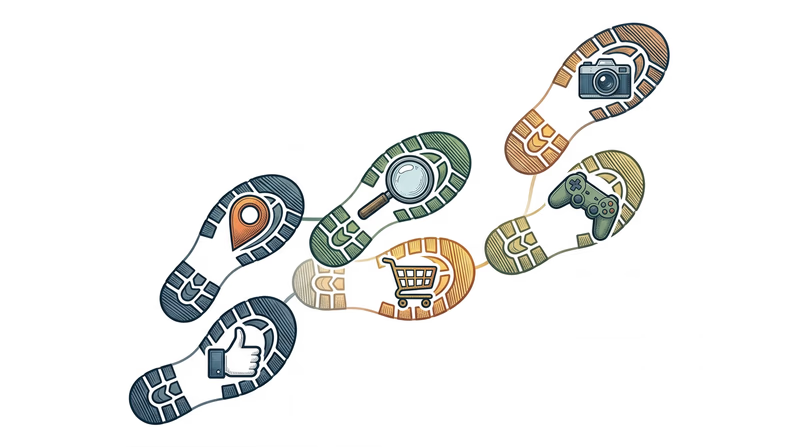
Req 1c — Physical Safety
Cybersecurity is not only about protecting data — it is also about protecting your body. Hours spent staring at screens, hunched over keyboards, and scrolling on phones take a real physical toll. These injuries develop slowly, which makes them easy to ignore until they become serious.
Eye Strain and Digital Eye Fatigue
When you stare at a screen, you blink about 66% less than normal. Your eyes dry out. The muscles that focus your eyes get locked in one position. After a few hours, you might notice blurry vision, headaches, or a burning sensation. Doctors call this computer vision syndrome or digital eye strain, and it affects roughly 50% of regular computer users.
The 20-20-20 Rule
Every 20 minutes, look at something 20 feet away for at least 20 seconds. This relaxes the focusing muscles in your eyes and lets them reset. Set a timer on your phone if you tend to lose track of time while gaming or coding.
Repetitive Strain Injuries
Repetitive strain injuries (RSI) happen when you make the same small motion thousands of times — typing, clicking, swiping, or gripping a game controller. Common types include:
- Carpal tunnel syndrome — pain, tingling, or numbness in your wrist and hand from repetitive wrist motions
- Text neck — neck and upper back pain from looking down at a phone for long periods
- Smartphone pinky — soreness or a dent in your little finger from supporting the weight of your phone
- Trigger finger — stiffness or locking in a finger from repeated gripping or tapping
These injuries are not just for adults with desk jobs. Teenagers who game for hours, type long assignments, or scroll social media constantly are increasingly showing up with these conditions.
Ergonomic Setup
Workstation Ergonomics
Set up your desk to prevent injury- Screen at eye level: The top of your monitor should be at or just below eye level so you look slightly downward.
- Arms at 90 degrees: Your elbows should form a right angle when typing, with your forearms parallel to the floor.
- Feet flat on the floor: If your chair is too high, use a footrest. Dangling feet put strain on your lower back.
- Wrists neutral: Your wrists should be straight, not bent up or down, while typing. A wrist rest can help.
- Take breaks: Stand up and move every 30–45 minutes. Stretch your fingers, wrists, neck, and shoulders.
Handling Electronics Safely
Electronic devices have their own physical hazards beyond ergonomic injuries:
- Heat — laptops can get hot enough to cause mild burns on your skin if used directly on your lap for long periods. Use a hard surface or a lap desk.
- Batteries — lithium-ion batteries in phones and laptops can swell, overheat, or (rarely) catch fire. Never use a device with a visibly swollen battery. Do not charge devices on soft surfaces like beds or couches that trap heat.
- Cables — frayed charging cables can cause electrical shocks or short circuits. Replace damaged cables immediately.
Mobile Device Safety While Moving
Every year, thousands of people are injured — and some are killed — because they were looking at their phone instead of watching where they were going. This is called distracted walking (or distracted cycling), and it is completely preventable.
- Never text or scroll while crossing a street. Stop walking, step to the side, finish your message, then continue.
- Do not use headphones at high volume while walking or biking. You need to hear traffic, cyclists, and other hazards around you.
- Never use a phone while riding a bike. Pull over completely if you need to check a message or map.
- Be aware in parking lots. Drivers backing out of spaces may not see a pedestrian who is looking down at a phone.

Req 2a — Scout Law Online
The Scout Law was written long before the internet existed, but every one of its twelve points applies directly to how you behave online. The challenge is that the internet makes it easy to forget them. Screens create a sense of distance — it is harder to see the impact of your words when you cannot see the other person’s face. This requirement asks you to bridge that gap.
The Scout Law, Refreshed for the Digital Age
You need to pick three points for your counselor. Here is how all twelve connect to online behavior, so you can choose the ones that resonate most with you:
Trustworthy
A Scout is trustworthy — online and offline. This means not creating fake accounts to deceive people, not sharing others’ secrets or private messages, and not pretending to be someone you are not. When you say something online, people should be able to rely on it being true.
Loyal
Loyalty online means standing up for friends when they are being cyberbullied — not just scrolling past. It also means not sharing someone’s personal information or embarrassing moments without their permission, even if “everyone else is doing it.”
Helpful
Being helpful online looks like answering questions in forums, teaching someone a skill through a tutorial, or reporting harmful content so platforms can remove it. It does not mean doing someone’s homework for them or sharing test answers.
Friendly
A friendly Scout treats people online the way they would in person. This means welcoming newcomers to online communities, being patient with people who are learning, and assuming good intentions before jumping to conclusions in text conversations (where tone is hard to read).
Courteous
Courtesy online means using respectful language even during disagreements, not interrupting others in voice chats, and acknowledging other people’s contributions. It also means not spamming, not sending unsolicited content, and respecting people’s time.
Kind
Kindness is the opposite of trolling. It means not posting hurtful comments for laughs, not piling on when someone makes a mistake, and thinking about how your words will affect the person reading them. Behind every screen name is a real person.
Obedient
Being obedient means following the rules — terms of service, school technology policies, and your family’s rules about screen time and online behavior. It also means respecting age restrictions on platforms (you need to be 13 for most social media accounts, for a reason).
Cheerful
A cheerful Scout brings positive energy to online spaces. This does not mean being fake or ignoring problems — it means choosing to contribute constructively instead of complaining, mocking, or tearing others down.
Thrifty
Digital thriftiness includes managing your data usage, not wasting bandwidth on unnecessary downloads, and being mindful of subscription costs. It also means valuing other people’s digital creations — not pirating software, music, or games.
Brave
Being brave online means speaking up when you see cyberbullying, reporting inappropriate content even when it is unpopular, and admitting when you have made a mistake instead of hiding behind anonymity. It takes real courage to do the right thing when no one is watching.
Clean
A clean Scout keeps their digital spaces organized and appropriate. This means keeping your devices free of malware, not visiting or sharing inappropriate content, and maintaining a digital footprint you would be proud to show anyone.
Reverent
Reverence online means respecting others’ beliefs, cultures, and perspectives — even when they differ from your own. It means not mocking, not starting flame wars over differences, and recognizing that the internet connects people from every background imaginable.
Preparing for Your Counselor
Pick the three points of the Scout Law that you find most relevant or challenging to apply online. For each one, think of a specific, real-world example — not just a generic statement. Your counselor will be much more interested in “Last month, someone in my gaming group was getting trolled, and I spoke up to defend them — that’s being Brave” than “Scouts should be brave online.”
Code of Ethics — EC-Council A professional cybersecurity code of ethics that mirrors many Scout Law principles in a technical context. Link: Code of Ethics — EC-Council — https://www.eccouncil.org/code-of-ethics/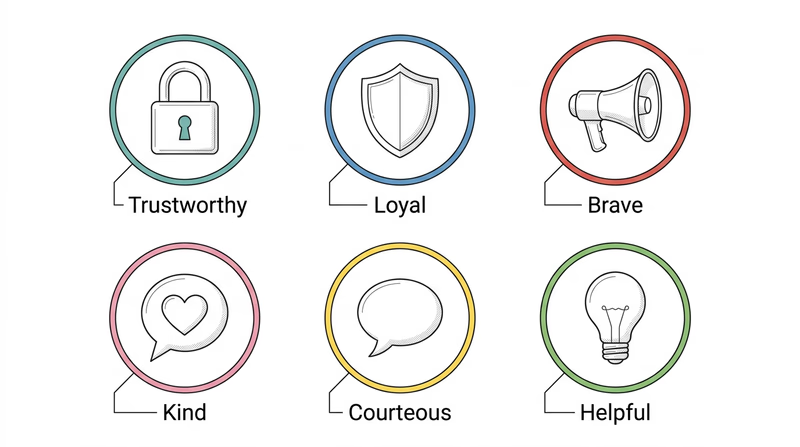
Req 2b — Ethical Behavior
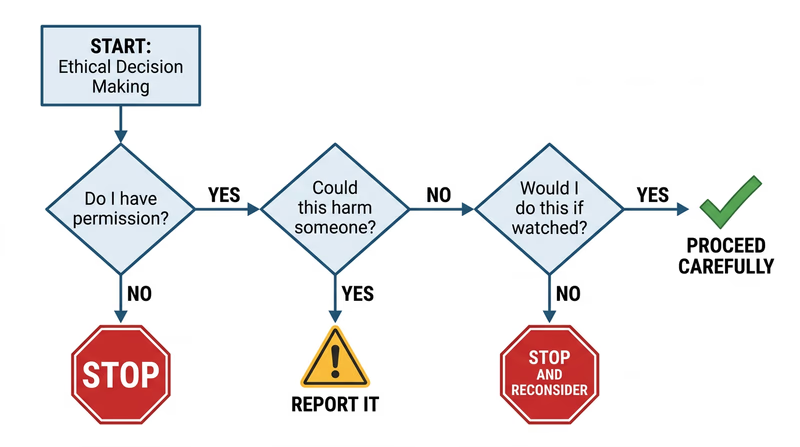
You find an unlocked phone on a library table. The owner stepped away for a moment. You could scroll through their messages, peek at their photos, or post something from their account as a “joke.” Nobody would know. What do you do?
This is the core of cyber ethics — doing the right thing when technology makes the wrong thing easy and anonymous.
The Ethics Spectrum
Not every online action is clearly “right” or “wrong.” Some fall into gray areas that require real judgment. Here is a framework:
Clearly ethical:
- Reporting a phishing email to your email provider
- Logging out of a shared computer when you are done
- Telling a friend their account was hacked
Gray area:
- Using an ad blocker (saves you annoyance but reduces revenue for content creators)
- Reading someone’s public social media posts to learn about them
- Using free public Wi-Fi to check your email
Clearly unethical:
- Accessing someone else’s account without permission, even “as a joke”
- Downloading pirated software, music, or movies
- Sharing someone’s private photos or messages without consent
- Using someone else’s Wi-Fi without their permission
The Three Scenarios
The requirement specifically asks about three situations. Let’s examine each one.
Scenario 1: An Unattended or Unlocked Device
You sit down at a library computer and the previous user is still logged into their email. Or you find a phone on a park bench with no lock screen.
The key principle: access does not equal permission. Just because you can look at someone’s data does not mean you should.
Scenario 2: Seeing Someone’s Password
A classmate types their password in front of you and you catch it. Or you see a sticky note on a monitor with login credentials written on it.
- Do not use it. Even if you think it would be funny to change their wallpaper or send a joke message from their account.
- Do not share it. Telling other people someone’s password is a betrayal of trust, even if you did not steal it intentionally.
- Tell the person (privately and kindly) that their password is visible and suggest they change it. This is the helpful, trustworthy thing to do.
- For the sticky note: If it is in a workplace or school, you might also mention it to the person responsible for IT security.
Scenario 3: An Insecure Website
You discover that a website has a security flaw — maybe personal data is visible in the URL, or you can access pages you should not be able to reach.
- Do not explore the vulnerability. Do not try to access more data or test how far the flaw goes.
- Report it. Contact the website owner or organization. Many companies have a “responsible disclosure” or “bug bounty” program specifically for reporting security issues.
- Document what you saw (screenshot the URL or error, not the exposed data), so you can provide useful information in your report.
Why Good Judgment Matters
Technology changes fast, but ethics do not. You will encounter situations that no rule book covers. The Scout Law gives you a framework:
- Trustworthy: Do not betray someone’s trust just because technology makes it possible.
- Helpful: Use your skills to protect people, not exploit them.
- Brave: Report problems even when it is easier to stay quiet.
Req 3a — Systems to Protect
When most people hear “computer system,” they think of a laptop or desktop. But the reality is far bigger. Computer systems run hospitals, control traffic lights, purify drinking water, and fly airplanes. When these systems get attacked, the consequences go way beyond a frozen screen or lost files — people’s lives can be at risk.
What Counts as a “Computer System”?
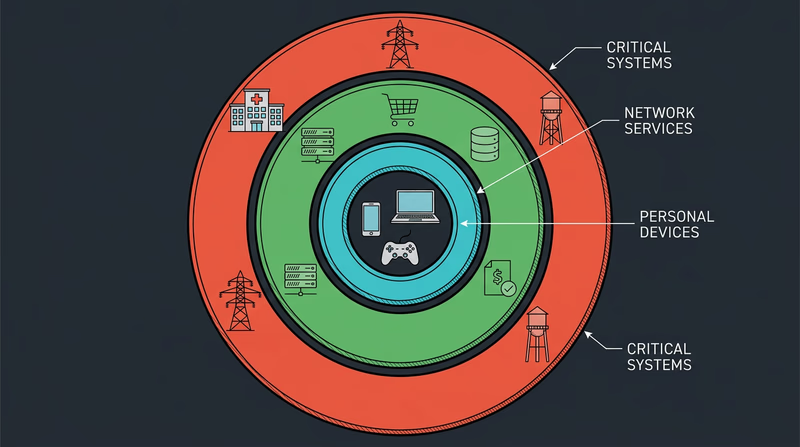
A computer system is any combination of hardware, software, and data working together to perform a task. That includes your laptop, sure — but it also includes the systems behind ATMs, the software managing your school’s grades, and the controllers that keep a power plant running safely.
Here are categories of systems that need cybersecurity protection, with examples of what happens when they are compromised.
Personal Devices and Home Networks
This is the layer closest to you — your phone, laptop, tablet, gaming console, and home Wi-Fi router. These devices store your personal information: photos, messages, passwords, financial data (if you shop online), and location history.
Why protect them?
- Identity theft: a stolen Social Security number or birthdate can be used to open credit cards in your name
- Financial loss: access to payment apps or saved credit cards means direct theft
- Privacy invasion: personal photos, messages, and browsing history exposed to strangers
- Botnet recruitment: compromised devices can be secretly used to attack other systems
Business and Enterprise Systems
Companies and organizations run computer systems that store customer data, process financial transactions, manage inventory, and coordinate employees. A single breach can expose millions of people’s personal information.
Why protect them?
- Customer data protection: names, addresses, credit cards, and Social Security numbers for millions of people
- Financial systems: direct access to money, payment processing, and banking transactions
- Intellectual property: trade secrets, product designs, and competitive advantages worth billions
- Operational continuity: a company that cannot access its own systems cannot serve its customers
Think about the businesses you interact with — your doctor’s office (medical records), your school (grades, personal info), your favorite online store (payment details). Every one of those organizations must protect the data you have entrusted to them.
Critical Infrastructure
This is where cybersecurity becomes a matter of life and death. Critical infrastructure refers to the systems that keep society functioning: power grids, water treatment plants, hospitals, transportation networks, and emergency services.
Why protect them?
- Power grids: a cyberattack on the electrical grid could leave entire cities without power for days or weeks
- Water systems: attackers could tamper with chemical levels in water treatment, making drinking water unsafe
- Hospitals: ransomware has forced hospitals to turn away patients, delay surgeries, and lose access to medical records
- Transportation: air traffic control, train switching systems, and traffic signals all run on computer systems
Choosing Your Three for Your Counselor
The requirement asks you to describe three types and explain why they need protection. You can pick from the categories above or identify your own — government systems, military networks, financial markets, educational institutions, and healthcare systems are all valid choices.
For each one, be ready to explain:
- What the system does — its purpose and what data it handles
- What could go wrong — specific consequences of a successful attack
- Who is affected — not just the organization, but the people who depend on it
Req 3b — The CIA Triad
Every cybersecurity decision — every firewall rule, every password policy, every encryption algorithm — traces back to three principles. They are so central to the field that professionals call them the CIA Triad (no relation to the government agency). If you understand these three concepts, you have the foundation for understanding everything else in cybersecurity.
Confidentiality
Confidentiality means that information is accessible only to the people who are authorized to see it. Your text messages should be readable only by you and the person you sent them to. Your medical records should be accessible only to you and your doctor. Your password should be known only to you.
How confidentiality is maintained:
- Encryption scrambles data so only authorized people can read it
- Access controls limit who can view certain files or systems
- Authentication (passwords, fingerprints, face recognition) verifies that you are who you claim to be
- Physical security keeps unauthorized people away from servers and devices
What happens when confidentiality fails:
When a company suffers a data breach, confidentiality has failed. Names, emails, passwords, credit card numbers — information that was supposed to be private — becomes public. The 2017 Equifax breach exposed the personal data of 147 million people, including Social Security numbers.
Integrity
Integrity means that information is accurate and has not been tampered with. When you send a message, it should arrive exactly as you wrote it. When your bank shows your account balance, that number should be correct. When a hospital looks up your blood type, that record better not have been changed by someone.
How integrity is maintained:
- Hashing creates a unique digital fingerprint of data — if even one character changes, the hash changes completely (you will explore this more in Req 6c)
- Digital signatures prove that a document came from who it claims to be from and has not been altered
- Version control tracks every change to a file, so unauthorized modifications can be detected and reversed
- Checksums verify that downloaded files are complete and uncorrupted
What happens when integrity fails:
Imagine a hacker changes one digit in a wire transfer from $1,000 to $1,000,000. Or modifies a patient’s medical record to show a different blood type. Or alters election results in a database. Integrity failures can cause financial loss, physical harm, or loss of trust in institutions.
Availability
Availability means that systems and data are accessible when authorized users need them. The best encryption and access controls in the world are useless if the system is down and nobody can reach it. A hospital’s electronic medical records are critical — if a cyberattack makes them unavailable during an emergency surgery, lives are at risk.
How availability is maintained:
- Redundancy — backup systems that take over when primary systems fail
- Load balancing — spreading traffic across multiple servers so no single one gets overwhelmed
- DDoS protection — defenses against attacks that flood servers with fake traffic
- Regular backups — copies of data that can be restored if the original is lost or encrypted by ransomware
- Disaster recovery plans — documented procedures for getting systems back online quickly
What happens when availability fails:
Denial-of-Service (DoS) attacks flood a server with so much traffic that legitimate users cannot get through — like a thousand people calling the same phone number at once so no real calls can connect. Ransomware attacks encrypt an organization’s files and demand payment for the decryption key, making data unavailable until the ransom is paid (or backups are restored).
How the Three Work Together
The CIA Triad is a triad because all three principles must be balanced. Focusing too much on one can undermine another:
- Too much confidentiality can hurt availability: if the login process is so strict that authorized users cannot get in, the system is effectively unavailable.
- Too much availability can hurt confidentiality: making data easy to access for everyone means it is easy for attackers too.
- Integrity without availability is pointless: perfectly accurate data that nobody can access helps no one.
Good cybersecurity finds the right balance among all three, based on what the system needs. A military database prioritizes confidentiality. A news website prioritizes availability. A banking system needs all three equally.
What Is the CIA Triad? — Coursera A clear overview of the CIA Triad with examples from real-world cybersecurity applications. Link: What Is the CIA Triad? — Coursera — https://www.coursera.org/articles/cia-triad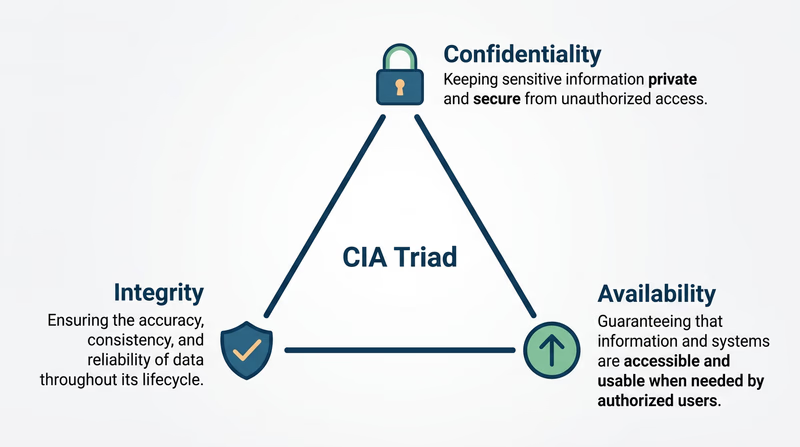
Req 4a — Threats & Vulnerabilities
These three words — vulnerability, threat, and exploit — are the building blocks of cybersecurity language. Every attack, every defense, every news story about a breach comes back to these concepts. Understanding how they fit together is like learning the basic vocabulary of a new language.
Vulnerability
A vulnerability is a weakness or flaw in a system that could be used to cause harm. It is a door left unlocked, a window with a broken latch, a gap in the fence. The vulnerability exists whether or not anyone takes advantage of it.
Examples:
- A website that does not require strong passwords (allowing passwords like “123456”)
- Software that has not been updated and contains a known bug
- A Wi-Fi network that uses outdated encryption
- An app that stores passwords in plain text instead of encrypting them
Think of a vulnerability like a crack in a dam. The crack may sit there for years without causing a flood — but it is always a risk.
Threat
A threat is anything that could exploit a vulnerability to cause damage. Threats can be people (hackers, disgruntled employees), software (malware, ransomware), or events (natural disasters that knock out data centers). A threat is the potential for harm — the person who might notice that unlocked door.
Examples:
- A hacker scanning websites for known vulnerabilities
- A phishing email designed to trick you into revealing your password
- A disgruntled employee who still has access to company systems after being fired
- A power outage that crashes servers without proper backup
Exploit
An exploit is the actual method or action used to take advantage of a vulnerability. It is the moment the unlocked door gets opened. An exploit turns a theoretical risk into a real attack.
Examples:
- A piece of code that takes advantage of a software bug to gain unauthorized access
- Using a stolen password (the vulnerability was weak password requirements) to log into someone’s account
- Sending a specially crafted message to a website’s login form that tricks it into revealing database contents (called a SQL injection)
- Using a known Wi-Fi vulnerability to intercept someone’s data on a public network
How They Fit Together
The relationship is sequential:
- A vulnerability exists (a flaw or weakness)
- A threat recognizes the vulnerability (someone or something that could cause harm)
- An exploit takes advantage of it (the actual attack)
Here is a concrete example using a website you might use:
| Concept | Social Media Example |
|---|---|
| Vulnerability | The site allows unlimited login attempts with no lockout |
| Threat | An attacker with a list of common passwords |
| Exploit | The attacker runs an automated program that tries thousands of passwords against your account until one works (called a brute force attack) |
And another example:
| Concept | Gaming Platform Example |
|---|---|
| Vulnerability | The game’s chat system does not filter links |
| Threat | A scammer who creates fake “free V-Bucks” websites |
| Exploit | The scammer posts links in game chat; players who click enter their login credentials on a fake site, giving the scammer their accounts |
Applying This to Your Life
For your counselor, think about a website or app you actually use. Walk through the three concepts:
- What vulnerability might it have?
- What threat could take advantage of it?
- What would the exploit look like in practice?
You do not need to find a real vulnerability — this is a thought exercise about understanding the concepts.
Hackers & Cyber Attacks — Crash Course Computer Science A fast-paced, entertaining overview of how cyber attacks work from the Crash Course team. Link: Hackers & Cyber Attacks — Crash Course Computer Science — https://www.youtube.com/watch?v=_GzE99AmAQU&list=PL8dPuuaLjXtNlUrzyH5r6jN9ulIgZBpdo&index=33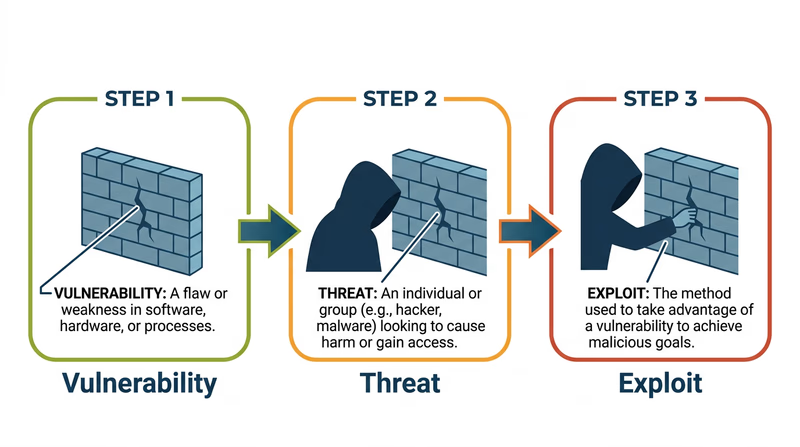
Req 4b — Malware
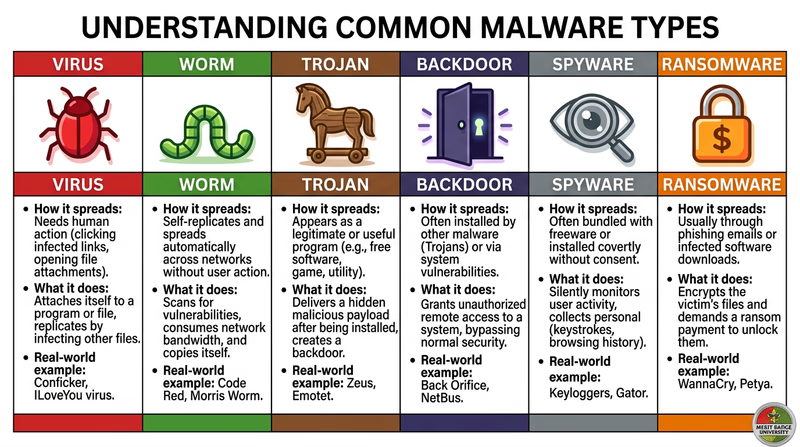
Malware — short for “malicious software” — is any software designed to damage, disrupt, or gain unauthorized access to computer systems. It is the weapon of choice for most cyberattacks. Understanding how malware works is like learning how a burglar thinks — it helps you lock the right doors.
The Malware Family
Before you pick one to research in depth, here is an overview of the major types. Each works differently and causes different kinds of harm.
Virus
A virus attaches itself to a legitimate program or file and spreads when that file is shared or executed. Just like a biological virus, it needs a “host” to travel. You might get one by downloading a file from an untrustworthy source or opening an infected email attachment. Viruses can corrupt files, slow down your computer, or delete data entirely.
Worm
A worm is like a virus that does not need a host. It spreads on its own across networks, replicating itself from computer to computer without any human action. The Morris Worm mentioned in the Introduction was one of the first — it crashed 10% of the internet in 1988.
Trojan
Named after the Trojan Horse from Greek mythology, a Trojan disguises itself as legitimate software. You think you are downloading a free game, a useful utility, or a media player — but hidden inside is malware. Unlike viruses and worms, Trojans do not replicate themselves. They rely on tricking you into installing them.
Backdoor
A backdoor creates a hidden entry point into a system, allowing an attacker to bypass normal authentication. Some backdoors are planted by hackers after an initial break-in; others are accidentally left in software during development. Once a backdoor is in place, an attacker can come and go as they please.
Spyware
Spyware secretly monitors your activity — keystrokes (called a keylogger), websites visited, files opened, and even screenshots. It sends this information back to the attacker. Spyware is often bundled with free software or arrives through phishing attacks. You may never know it is there.
Ransomware
Ransomware encrypts your files — photos, documents, everything — and demands payment (usually in cryptocurrency) for the decryption key. If you do not pay, your files stay locked forever. If you do pay, there is no guarantee the attacker will actually unlock them. Ransomware has become one of the most profitable forms of cybercrime.
How to Research Your Chosen Type
The requirement says to pick one and find out how it works. Here is a framework for your research:
Malware Research Framework
Answer these questions about your chosen type- How does it get onto a computer? (infection method)
- Does it spread to other computers? If so, how?
- What does it do once installed? (payload)
- How does it hide from the user or antivirus software?
- What harm can it cause? (data loss, financial damage, privacy violation, system damage)
- What are one or two real-world examples of this malware in action?
- How can you protect yourself against it?
Protecting Yourself
Regardless of which type you research, the defenses against malware are surprisingly consistent:
- Keep software updated — many malware exploits target known vulnerabilities that patches have already fixed (you will cover this in Req 5b)
- Do not download from untrustworthy sources — stick to official app stores and verified websites
- Do not click suspicious links — in emails, texts, or chat messages (covered in Req 4d)
- Use antivirus software — and keep it updated (covered in Req 5c)
- Back up your data — if ransomware strikes, a recent backup means you do not need to pay
Req 4c — Public Wi-Fi Risks
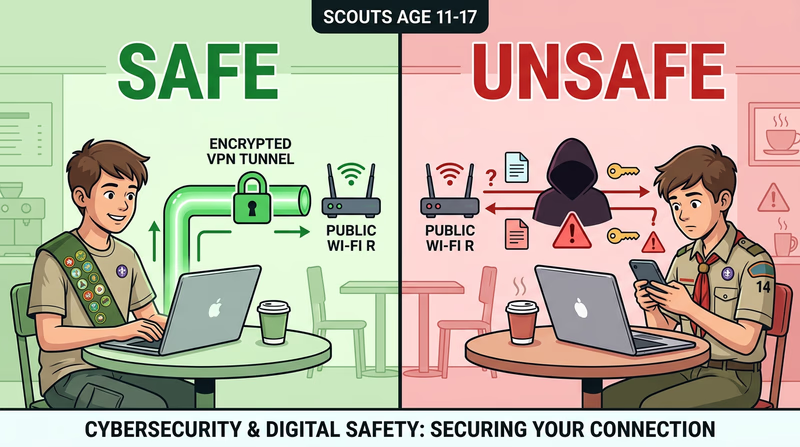
You walk into a coffee shop, a library, or an airport and connect to the free Wi-Fi without a second thought. Millions of people do this every day. But that open network — the one that does not even require a password — is one of the easiest places for an attacker to steal your information. Here is why.
Why Public Wi-Fi Is Risky
Home Wi-Fi networks typically use encryption (like WPA2 or WPA3) and a password that only your family knows. Public Wi-Fi often has no encryption at all, or uses a shared password that everyone in the building knows. This means the data you send and receive can potentially be seen by anyone else on the same network.
Two major risks stand out:
Risk 1: Man-in-the-Middle Attacks
In a man-in-the-middle (MITM) attack, an attacker positions themselves between you and the Wi-Fi router. Instead of your data going directly to the internet, it passes through the attacker’s device first. They can see everything you send — passwords, messages, credit card numbers — and even modify data in transit.
How it works: the attacker uses freely available software to intercept network traffic on the same Wi-Fi network. If you visit a website that is not encrypted (HTTP instead of HTTPS), the attacker can read everything on the page, including anything you type into forms.
Risk 2: Evil Twin Networks
An evil twin is a fake Wi-Fi network set up by an attacker to look like a legitimate one. You think you are connecting to “CoffeeShop_WiFi” but you are actually connecting to the attacker’s hotspot — a device sitting in their backpack. All your traffic flows through their equipment, and they can see everything.
Evil twins are surprisingly easy to create. An attacker can set up a fake hotspot with a smartphone or a small portable router. They name it something that looks official — “Airport_Free_WiFi” or “Library_Guest” — and wait for people to connect.
How to Stay Safe on Public Wi-Fi
You do not need to avoid public Wi-Fi entirely — but you need to use it carefully.
Public Wi-Fi Safety
Follow these rules whenever you connect to public networks- Use a VPN: A Virtual Private Network encrypts all your traffic, making it unreadable even on an insecure network. This is the single most effective protection.
- Verify the network name: Ask a staff member for the exact network name. Do not connect to networks with generic names like “Free WiFi.”
- Use HTTPS only: Look for the padlock icon in your browser. Never enter passwords or payment info on HTTP sites.
- Avoid sensitive activities: Do not access banking, make purchases, or enter important passwords on public Wi-Fi without a VPN.
- Turn off auto-connect: Disable the setting that automatically connects to available networks. Connect manually and only to networks you trust.
- Forget the network: After you disconnect, tell your device to forget the network so it does not reconnect automatically later.
Req 4d — Spoofing & Phishing
You get an email from your bank: “We detected suspicious activity on your account. Click here to verify your identity immediately.” The email looks real — it has the bank’s logo, the right colors, even a professional tone. But the link leads to a fake website designed to steal your password. This is phishing, and it is the most common cyberattack in the world.
What Is Spoofing?
Spoofing is pretending to be someone or something you are not. It is the umbrella technique behind many cyberattacks. Attackers “spoof” trusted identities to trick you into lowering your guard.
Common types of spoofing:
- Email spoofing — sending an email that appears to come from a trusted address (your school, your bank, a friend)
- Caller ID spoofing — making a phone call that shows a fake number on your caller ID
- Website spoofing — creating a fake website that looks identical to a real one
- IP spoofing — disguising the origin of network traffic to bypass security systems
What Is Phishing?
Phishing is a specific attack that uses spoofing to trick you into giving up sensitive information — passwords, credit card numbers, Social Security numbers, or login credentials. The name comes from “fishing” — the attacker casts bait and waits for someone to bite.
Types of Phishing
- Email phishing — mass emails sent to thousands of people, hoping some will click
- Spear phishing — targeted emails crafted for a specific person using personal details (“Hi Marcus, here is the camping trip schedule you asked about”)
- Smishing — phishing via SMS text messages (“Your package could not be delivered. Click to reschedule.”)
- Vishing — phishing via voice calls (“This is the IRS. You owe back taxes. Press 1 to pay immediately.”)
How to Spot a Phishing Attempt
Phishing messages are getting more sophisticated every year, but they still leave clues.
Phishing Red Flags
Check for these warning signs in any suspicious message- Urgency and threats: “Your account will be suspended in 24 hours” or “Act now or lose access.” Legitimate companies rarely threaten you via email.
- Generic greetings: “Dear Customer” or “Dear User” instead of your actual name.
- Suspicious sender address: The display name might say “Apple Support” but the actual email is something like support@apple-verify-id.com. Check the full email address.
- Misspellings and bad grammar: Professional companies proofread their emails. Multiple errors are a red flag.
- Unexpected attachments: Do not open attachments you did not expect, especially .exe, .zip, or .doc files.
- Mismatched links: Hover over a link (without clicking) to see where it actually goes. If the display text says “www.paypal.com” but the URL goes somewhere else, it is a phish.
- Requests for sensitive information: Legitimate companies will never ask for your password, full Social Security number, or credit card number via email.
Recognizing Fake Websites
Phishing emails often lead to fake websites that look nearly identical to the real thing. Here is how to spot them:
- Check the URL carefully. Look for subtle misspellings: “paypa1.com” (with a number 1 instead of the letter l), “arnazon.com” instead of “amazon.com.”
- Look for HTTPS. While HTTPS alone does not guarantee a site is legitimate (attackers can get certificates too), the absence of HTTPS on a login page is a definite red flag.
- Look for visual inconsistencies. Blurry logos, broken formatting, or links that do not work can indicate a hastily created fake site.
- Test non-critical links. On a real company website, the “About Us,” “Contact,” and “Privacy Policy” links all work. On a phishing site, they often lead nowhere.
Dear Valued Customer, 3
We have detected suspicous activity on your account. Your account will be permanantly suspended within 24 hours unless you verify your identity immediatley. 4
Please click the link below to confirm your account information:
https://www.securebank.com/verify Actually goes to: http://s3cure-bank-alerts.com/steal-info 5
Failure to respond will result in permanent account closure.
Sincerely,
The SecureBank Security Team
This email was sent from a no-reply address. Do not respond directly.
6
- Suspicious sender address — display name says "SecureBank" but actual email is from a different domain
- Urgency and threats — pressures you to act immediately without thinking
- Generic greeting — "Dear Valued Customer" instead of your real name
- Spelling errors — "suspicous," "permanantly," "immediatley" — legitimate companies proofread
- Mismatched link — displayed URL looks real but actually goes to a malicious site
- No way to reply — prevents you from contacting the real organization to verify
Req 4e — Current Events
This requirement connects everything you have learned to real events happening in the world right now. You have two options — pick the one that interests you most.
Option 1: Read About a Cybersecurity Incident
Cybersecurity incidents happen almost daily. Finding one to read about is not hard — the challenge is understanding it deeply enough to explain it to your counselor.
Where to Find Articles
Look for reputable cybersecurity news sources that explain incidents in detail:
Krebs on Security In-depth investigative journalism on cybersecurity by Brian Krebs, one of the most respected reporters in the field. Link: Krebs on Security — https://krebsonsecurity.com/ WIRED Security Accessible cybersecurity reporting that explains technical topics for a general audience. Link: WIRED Security — https://www.wired.com/category/security/ SecurityWeek Daily cybersecurity news covering breaches, vulnerabilities, and industry developments. Link: SecurityWeek — https://www.securityweek.com/What to Look For in Your Article
When you read about an incident, try to answer these questions:
- What happened? Was it a data breach, ransomware attack, phishing campaign, or something else?
- How did it happen? What vulnerability was exploited? Use the terms you learned in Req 4a — can you identify the vulnerability, threat, and exploit?
- Who was affected? How many people? What kind of data was exposed?
- What were the consequences? Financial loss, identity theft, service disruptions, legal penalties?
- What could have prevented it? Could better passwords, updates, or employee training have stopped the attack?
Option 2: Watch a Movie or Read a Book
Movies and books love cybersecurity — but they often get the details hilariously wrong. This option asks you to be a critical viewer: separate the realistic depictions from the Hollywood fiction.
Possible Movies and Books
Here are some options to consider (check ratings and get parent/guardian permission):
Movies:
- WarGames (1983) — A teenager accidentally hacks into a military computer. A classic that launched public awareness of hacking.
- The Imitation Game (2014) — The true story of Alan Turing breaking the Enigma code in World War II. Directly relevant to Req 6 — Cryptography.
- Sneakers (1992) — A team of security experts tests systems by trying to break into them (penetration testing).
Books:
- Hacking: The Art of Exploitation by Jon Erickson (advanced, but fascinating)
- Ghost in the Wires by Kevin Mitnick — The memoir of one of the most famous hackers in history
- Countdown to Zero Day by Kim Zetter — The story of the Stuxnet worm (mentioned in Req 3b)
What to Discuss with Your Counselor
For whichever movie or book you choose, consider:
- What cybersecurity concepts were shown? (encryption, hacking, social engineering, malware, etc.)
- What was realistic? Did the hacking scenes show actual techniques, or did someone just type fast and say “I’m in”?
- What was unrealistic? In real life, hacking usually takes days or weeks, not seconds. Progress bars that conveniently reach 100% just in time are pure fiction.
- What lesson does the story teach? Does it show cybersecurity as something to fear, or as a tool for protection?

Req 4f — Attack Surface
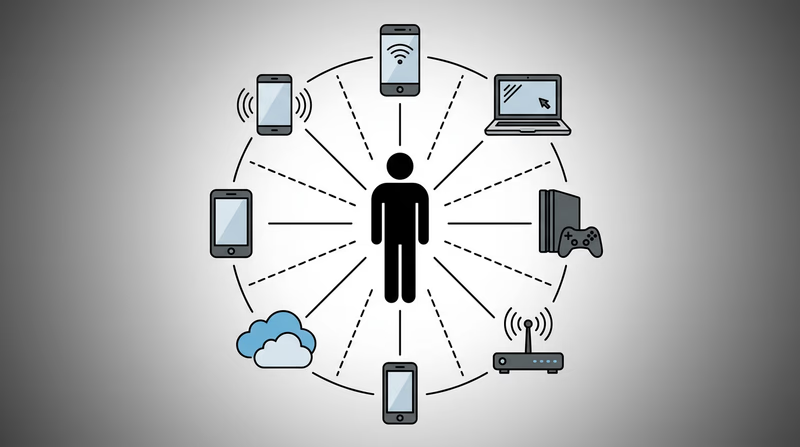
Your attack surface is every possible point where an attacker could try to get into your digital life. Think of it as all the doors, windows, and vents in a building — the more entry points, the harder the building is to secure. Most people have a much larger attack surface than they realize.
What Makes Up Your Attack Surface?
Your attack surface includes everything that connects you to the digital world. Let’s walk through the major categories.
Devices
Every device you own or use regularly is part of your attack surface:
- Your smartphone
- Laptop or desktop computer
- Tablet
- Gaming console (Xbox, PlayStation, Nintendo Switch)
- Smart watch or fitness tracker
- Any other connected device (smart speaker, streaming stick, etc.)
Each device has its own operating system, its own apps, its own vulnerabilities. An attacker who compromises any one of them gains a foothold into your digital life.
Online Accounts
Think about every account you have ever created — and be honest, because the number is probably higher than you think:
- Email accounts
- Social media (Instagram, Snapchat, TikTok, Discord, X, Reddit)
- Gaming platforms (Steam, Epic Games, PlayStation Network, Xbox Live)
- Shopping sites (Amazon, eBay)
- School accounts (Google Classroom, Canvas, Schoology)
- Streaming services (Netflix, Spotify, YouTube, Disney+)
- Cloud storage (Google Drive, iCloud, Dropbox)
- Any forums, communities, or websites with a login
Each account is a potential target. If any two share the same password, compromising one compromises both.
Apps and Software
Every app installed on your devices is part of your attack surface:
- How many apps are on your phone right now? Check — it is probably more than 50.
- Each app has permissions (camera, microphone, location, contacts) that could be exploited
- Apps you installed and forgot about are especially risky — they may not be getting security updates
Home Network
Your home network is its own attack surface:
- Wi-Fi router (is the admin password still the default one printed on the sticker?)
- Connected devices — smart TVs, smart speakers, security cameras, thermostats
- Guest networks — who else has your Wi-Fi password?
- IoT devices (you will explore these more in Req 7)
Personal Information Already Online
Some parts of your attack surface already exist whether you want them to or not:
- Information others have posted about you (photos, mentions, tagged posts)
- Public records (some states make certain records publicly searchable)
- Data from breaches of companies you have done business with
- Your digital footprint from Req 1b
Creating Your List
Here is how to systematically map your attack surface:
Attack Surface Inventory
Go through each category and list everything- Devices: List every device you use regularly, including shared family devices.
- Accounts: Open your email and search for “welcome” or “verify your email” to find accounts you may have forgotten.
- Apps: Go through your phone and computer app lists. Include browser extensions.
- Home network: List your router and every smart or connected device in your home.
- Shared access: Note any accounts where you share passwords with friends or family.
- Old accounts: Include accounts you no longer use but never deleted — these are often the most vulnerable.
What Your List Tells You
Once you see your full attack surface, you will likely be surprised by its size. The goal is not to eliminate everything — you cannot live without digital tools. The goal is to reduce your attack surface where possible and strengthen the parts you keep.
Quick Wins to Shrink Your Attack Surface
- Delete apps you do not use. Every unused app is an unmonitored entry point.
- Close old accounts. That MySpace account from 2008? Close it. That free game you tried once? Delete the account.
- Remove unnecessary permissions. Apps that do not need your location, microphone, or contacts should not have access.
- Change default passwords on your router and any IoT devices.
- Use unique passwords for every account (a password manager helps — covered in Req 5c).
Req 5a — Defense Technologies
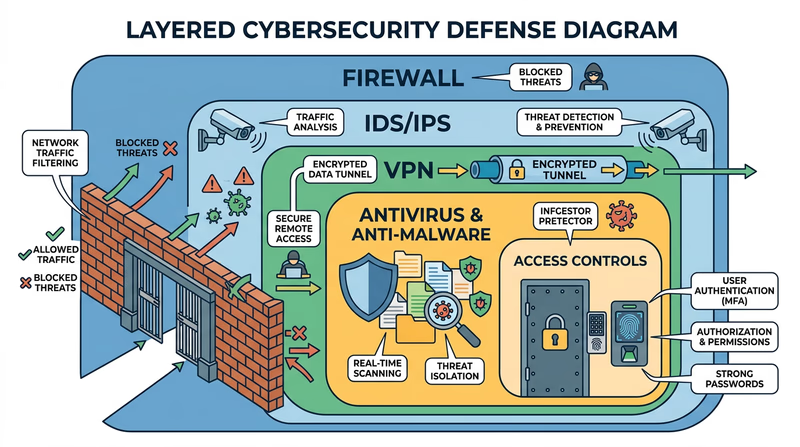
You have spent the last several requirements learning how attackers operate. Now it is time to switch sides and learn about the tools defenders use. Every technology described here exists as a direct response to the threats you studied — firewalls block unauthorized traffic, antivirus catches malware, and VPNs encrypt your connection on risky networks.
Firewalls
A firewall is a barrier between your computer (or network) and the outside world. It inspects incoming and outgoing network traffic and decides what to allow and what to block based on a set of rules.
Think of a firewall as a bouncer at a door. The bouncer has a list of who is allowed in and who is not. Legitimate traffic gets through; suspicious traffic gets turned away.
How it works:
- Examines each data packet (a small chunk of network traffic) for its source, destination, and type
- Compares the packet against its rules — is this traffic expected? Is it from a trusted source? Is it going to an allowed destination?
- Blocks or allows the packet accordingly
- Logs suspicious activity for review
Types of firewalls:
- Software firewalls run on your computer (Windows Firewall, macOS Firewall). They protect that individual device.
- Hardware firewalls are built into your router. They protect your entire home network.
- Cloud firewalls protect servers and online services.
Most home networks use both — your router’s built-in firewall plus the software firewall on each device.
Antivirus and Anti-Malware Software
Antivirus software scans your computer for known malware and removes it. Modern antivirus programs do much more than catch viruses — they detect worms, Trojans, spyware, ransomware, and other threats you learned about in Req 4b.
How it works:
- Signature-based detection — the software has a database of known malware “signatures” (unique code patterns). It scans files and compares them against this database.
- Heuristic analysis — instead of looking for exact matches, it analyzes program behavior. If a program tries to encrypt all your files or send data to an unknown server, the antivirus flags it as suspicious even if it is not in the database.
- Real-time protection — the software runs continuously, scanning files as you download, open, or execute them.
Intrusion Detection and Prevention Systems (IDS/IPS)
An Intrusion Detection System (IDS) monitors network traffic for signs of an attack and alerts administrators when it finds something suspicious. An Intrusion Prevention System (IPS) goes a step further — it detects the attack and automatically blocks it.
How they differ from firewalls:
- A firewall is like a locked door — it keeps unauthorized traffic out based on predefined rules.
- An IDS is like a security camera — it watches for suspicious behavior inside the network and raises an alarm.
- An IPS is like a security guard watching the camera who can tackle an intruder on the spot.
IDS/IPS systems look for patterns that indicate attacks — repeated failed login attempts, unusual data transfers, or network scanning. They are critical for organizations but less common in home networks.
Virtual Private Network (VPN)
A VPN creates an encrypted tunnel between your device and a remote server. All your internet traffic flows through this tunnel, hiding it from anyone trying to snoop — including your internet service provider, hackers on public Wi-Fi (as discussed in Req 4c), and even the Wi-Fi network operator.
How it works:
- Your device connects to a VPN server (run by the VPN provider)
- All your internet traffic is encrypted before leaving your device
- The VPN server decrypts your traffic and forwards it to its destination
- Responses come back to the VPN server, are encrypted, and sent back to you
When to use a VPN:
- On public Wi-Fi networks (coffee shops, airports, hotels)
- When you want to prevent your ISP from tracking your browsing
- When accessing sensitive information on untrusted networks
Access Controls
Access controls determine who can access what resources on a system. This includes:
- Authentication — proving who you are (passwords, biometrics, MFA)
- Authorization — defining what you are allowed to do once authenticated
- Accounting — tracking what you actually did (audit logs)
Access controls follow the principle of least privilege — every user should have the minimum access they need to do their job, and no more. Your school might give you access to Google Classroom but not the admin panel where teachers enter grades.
Choosing Your Three
Pick three of these technologies to discuss with your counselor. For each one, be ready to explain:
- What it does and how it works
- What threats it defends against
- Where you might encounter it in your own life
Req 5b — Installing Updates
This requirement covers two connected tasks: understanding why updates matter and demonstrating how to install them.
Why Updates Matter
That notification nagging you to “Restart to install updates” is not just an annoyance — it might be the most important cybersecurity tool on your device. Software updates fix known vulnerabilities that attackers are actively trying to exploit. Delaying an update is like knowing your front door lock is broken and choosing not to fix it.
What Updates Contain
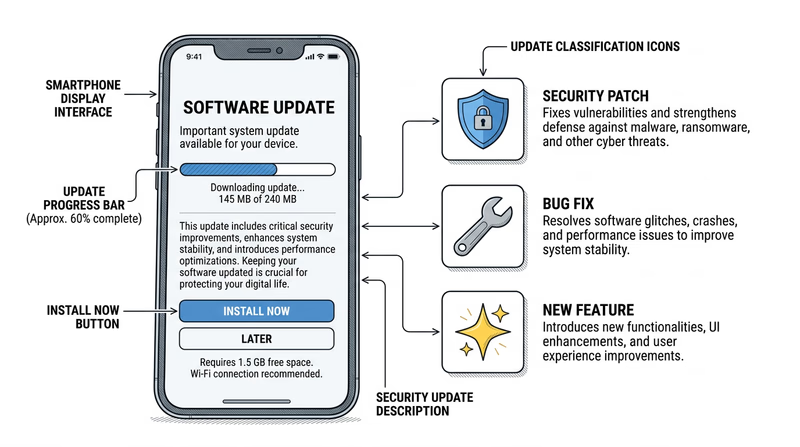
Software updates typically include three types of changes:
- Security patches — fix vulnerabilities that could be exploited by attackers. These are the critical ones.
- Bug fixes — resolve crashes, errors, and unexpected behavior.
- Feature improvements — add new functionality or improve performance.
Security patches are by far the most important. When a security researcher discovers a vulnerability, the software company races to create a patch before attackers can exploit it. Once the patch is released, the clock starts ticking — attackers reverse-engineer the patch to figure out the vulnerability it fixes, then target anyone who has not updated yet.
What Kinds of Problems Updates Prevent
- Malware infections — patches close the security holes that malware uses to get in
- Data breaches — unpatched software is one of the top causes of organizational data breaches
- Ransomware — many ransomware variants specifically target known, unpatched vulnerabilities
- Account compromises — browser and app updates fix flaws that could expose your login credentials
- System instability — bug fixes prevent crashes and data loss
How to Update Your Devices
The exact steps depend on your operating system. Here are the main ones.
Windows
- Open Settings (click the gear icon in the Start menu)
- Click Windows Update (or Update & Security on older versions)
- Click Check for updates
- If updates are available, click Download and install
- Restart when prompted
- After restart, go back to Windows Update — it should say “You’re up to date”
macOS
- Click the Apple menu (top-left corner) → System Settings
- Click General → Software Update
- If an update is available, click Update Now or Upgrade Now
- Enter your password and wait for the installation
- After restart, the Software Update screen should show your system is current
iPhone / iPad
- Open Settings → General → Software Update
- If an update is available, tap Download and Install
- Enter your passcode and agree to the terms
- The device will restart automatically
- To enable automatic updates: Settings → General → Software Update → Automatic Updates → toggle on
Android
- Open Settings → System → System Update (varies by manufacturer)
- Tap Check for update
- If available, tap Download and install
- The device will restart to complete the update
Update Demonstration Prep
Be ready to show your counselor these steps- Open the update settings on your device.
- Check for available updates.
- Show the current version number of your operating system.
- Demonstrate that automatic updates are enabled (or enable them during the demonstration).
- Show how to check for app updates in your app store.
Req 5c — System Security
This is the hands-on heart of the Cybersecurity merit badge. You will pick three of the nine options below and actually do them — not just read about them. Each option teaches a different practical security skill. Read through all nine, then choose the three that interest you most or that you have access to complete.
Option 1: Strong Passwords
A strong password is your first defense against unauthorized access. Here is what makes one strong:
- Length matters most. A 16-character password is exponentially harder to crack than an 8-character one. Aim for at least 12 characters, ideally 16 or more.
- Use a passphrase. String together random, unrelated words: “correct-horse-battery-staple” is much stronger (and easier to remember) than “P@ssw0rd123.”
- Mix character types. Include uppercase, lowercase, numbers, and symbols — but length is more important than complexity.
- Never reuse passwords. If one site gets breached, every account sharing that password is compromised.
Avoid: Your name, birthday, pet’s name, “password,” “123456,” or any single dictionary word.
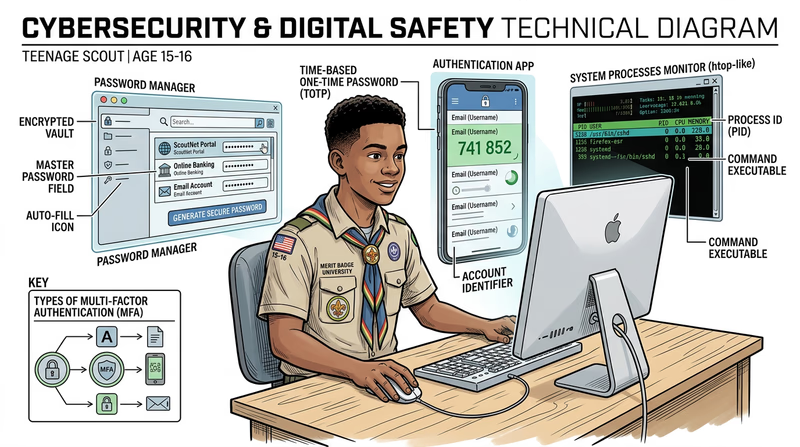
Option 2: Multi-Factor Authentication (MFA)
MFA requires two or more forms of proof before granting access. The three factors are:
- Something you know — a password or PIN
- Something you have — your phone (with an authenticator app) or a security key
- Something you are — a fingerprint, face scan, or other biometric
Even if an attacker steals your password, they cannot get in without the second factor. Authenticator apps like Google Authenticator, Microsoft Authenticator, or Authy generate time-based codes that change every 30 seconds.
Option 3: Password Manager
A password manager stores all your passwords in an encrypted vault protected by one strong master password. It can generate unique, complex passwords for every account and auto-fill them when you log in.
Popular free options include Bitwarden (open source) and the built-in password managers in Chrome, Safari, and Firefox. With a password manager, you only need to remember one password — the master password — and every other account gets a unique, randomly generated one.
Option 4: Virus Scan
Run a full system scan using your device’s built-in antivirus (Windows Defender on Windows, XProtect on macOS) or a reputable third-party scanner. A full scan examines every file on your device and compares it against known malware signatures.
Before scanning, make sure your antivirus definitions are up to date. The scan may take anywhere from 15 minutes to over an hour depending on how many files you have. Screenshot or save the results to show your counselor.
Option 5: Running Processes
Your computer runs dozens (sometimes hundreds) of processes simultaneously — most of them in the background without you knowing. This option teaches you to peek behind the curtain.
- Windows: Open Task Manager (Ctrl+Shift+Esc) or type
tasklistin Command Prompt - macOS: Open Activity Monitor (Applications → Utilities) or type
ps auxin Terminal - Chrome OS: Press Search+Escape to open Task Manager
Look for processes you recognize (your browser, games) and ones you do not. Research any unfamiliar ones — they are usually legitimate system processes, but knowing how to check is an important security skill.
Option 6: Network Connections
Every program that communicates over the internet opens a network connection. You can see all active connections using the command line:
- Windows: Open Command Prompt and type
netstat -an - macOS/Linux: Open Terminal and type
netstat -anorlsof -i
The output shows which programs are connected to which remote servers, on which ports. You will see your browser’s connections to websites, your email client checking for new mail, and potentially background services you did not expect.
Option 7: Data Backup
Backups are your last line of defense against ransomware, hardware failure, and accidental deletion. If your data exists in only one place, it is not safe.
- iPhone: Use iCloud Backup (Settings → your name → iCloud → iCloud Backup) or connect to a computer and use Finder/iTunes
- Android: Use Google Backup (Settings → System → Backup) or connect via USB and copy files manually
Show your counselor the backup process and verify that the backup completed successfully.
Option 8: Home Network Security Checklist
Research home network security from sources like CISA, the NSA, and the FTC (links below). Then create a practical checklist your family can actually follow. Your five items might include changing the default router password, enabling WPA3 encryption, setting up a guest network, enabling automatic updates, or disabling remote management.
Home Network Security — CISA CISA's comprehensive guide to securing your home network against common threats. Link: Home Network Security — CISA — https://www.cisa.gov/news-events/news/home-network-security Best Practices for Securing Your Home Network — NSA The NSA's home network security guide with practical recommendations for families. Link: Best Practices for Securing Your Home Network — NSA — https://media.defense.gov/2023/Feb/22/2003165170/-1/-1/0/CSI_BEST_PRACTICES_FOR_SECURING_YOUR_HOME_NETWORK.PDFOption 9: Find and Fix a Vulnerability
This is the most advanced option. Look for real vulnerabilities in your own environment — a router with the default password, an old device that is not getting updates, a shared account without MFA, or an unused service that is still running. With permission, fix what you find and document what you did.
Choosing Your Three
Pick options that you have the equipment and access to complete. Here is a suggested combination if you are unsure:
- Option 1 (passwords) + Option 2 (MFA) + Option 3 (password manager) — a natural trio that builds a complete authentication security system
- Option 4 (virus scan) + Option 5 (processes) + Option 6 (network connections) — a trio focused on understanding what is happening on your computer
- Option 7 (backup) + Option 8 (home network) + Option 9 (find a vulnerability) — a trio that protects your whole household
Req 6a — Encryption Uses
Encryption is the art of turning readable information into scrambled nonsense that only authorized people can unscramble. It has been used for thousands of years — Julius Caesar shifted letters in his military messages, and the Enigma machine encrypted Nazi communications in World War II. Today, encryption is everywhere. Every time you see a padlock icon in your browser, encryption is at work.
How Encryption Works (The Short Version)
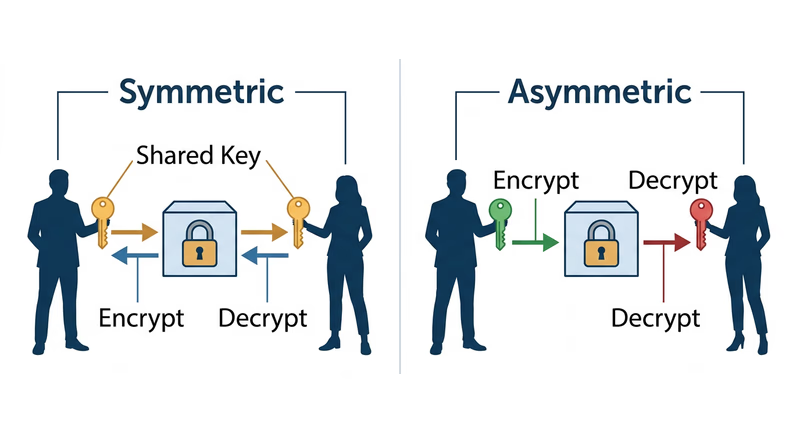
Encryption uses a key (a piece of mathematical information) to scramble data. Only someone with the correct key can unscramble it. There are two main approaches:
- Symmetric encryption — the same key encrypts and decrypts the data. Fast, but both parties must share the key somehow. Think of it as a lockbox where both people have identical keys.
- Asymmetric encryption (public-key cryptography) — uses two mathematically linked keys: a public key (which anyone can see) and a private key (which only you have). Data encrypted with the public key can only be decrypted with the private key. This solves the key-sharing problem.
Three Situations Where Encryption Is Used
Here are several real-world situations to consider for your counselor discussion. You need three — research these or find your own.
1. HTTPS Web Browsing
Every time you visit a website with “https://” in the URL and a padlock icon, your connection is encrypted using TLS (Transport Layer Security). This prevents anyone between you and the website — your ISP, a hacker on the same Wi-Fi, or a government — from reading the data you exchange.
- What is encrypted: Everything you send and receive — login credentials, form submissions, page content, cookies
- Type of encryption: Uses asymmetric encryption to establish the connection, then switches to faster symmetric encryption (usually AES) for the actual data transfer
- Why it matters: Without HTTPS, logging into your email on public Wi-Fi would be like shouting your password across a crowded room
You will explore this hands-on in Req 6b.
2. Messaging Apps (End-to-End Encryption)
Apps like Signal, WhatsApp, and iMessage use end-to-end encryption (E2EE), which means messages are encrypted on your device and only decrypted on the recipient’s device. Not even the app company can read your messages.
- What is encrypted: Text messages, photos, videos, voice calls — everything sent through the app
- Type of encryption: Asymmetric encryption (each user has a public/private key pair). The Signal Protocol is the standard used by most major messaging apps.
- Why it matters: Without E2EE, the company running the messaging service could read your private conversations, and a breach of their servers would expose every message
3. Full-Disk Encryption
Full-disk encryption scrambles everything on your hard drive or phone storage. If someone steals your device, they cannot read your files without your password — even if they remove the hard drive and connect it to another computer.
- What is encrypted: The entire storage device — all files, apps, and system data
- Type of encryption: Symmetric encryption (usually AES-256). Your password or biometric unlocks the decryption key stored in a secure hardware chip.
- Why it matters: Without full-disk encryption, a stolen laptop is an open book. With it, a stolen laptop is a brick.
- Where you see it: BitLocker (Windows), FileVault (macOS), and default encryption on modern iPhones and Android devices
Other Situations to Consider
- VPN connections — encrypt all internet traffic between your device and the VPN server (as discussed in Req 5a)
- Password storage — password managers encrypt your password vault with AES-256
- Digital signatures — prove that a document or software update genuinely came from its claimed source and has not been tampered with
- Email encryption — PGP/GPG encrypts email messages so only the intended recipient can read them (covered in Req 6c)
- Cloud storage — services like iCloud and Google Drive encrypt your files at rest on their servers
Preparing for Your Counselor
For each of your three situations, be ready to explain:
- What data is being protected and from whom
- What type of encryption is used (symmetric, asymmetric, or both)
- Why encryption is important in that specific situation — what would happen without it?
Req 6b — Encrypted Connections
Every modern browser gives you clear visual signals about whether your connection is encrypted. Learning to read these signals takes about 30 seconds — and it is a habit that will protect you for life.
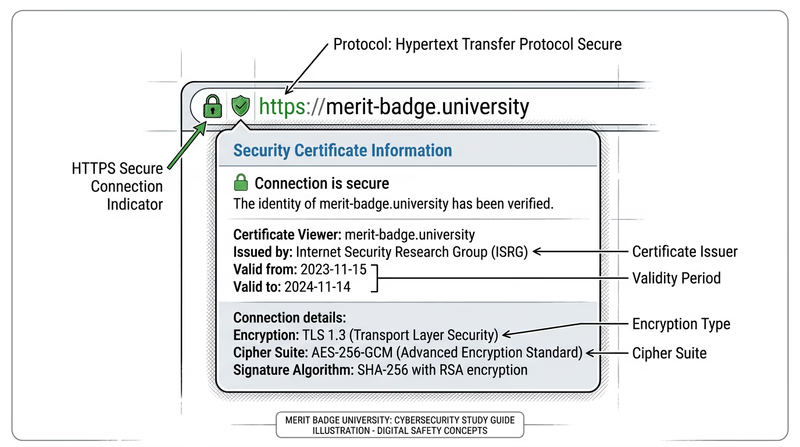
The Padlock Icon
The most visible indicator is the padlock icon in your browser’s address bar. When you see it, your connection to that website is encrypted using TLS (Transport Layer Security).
- Padlock present — your connection is encrypted. Data you send (passwords, form submissions, credit card numbers) is protected in transit.
- No padlock / “Not Secure” warning — the connection is not encrypted. Anything you type can potentially be intercepted by someone on the same network.
HTTPS vs. HTTP
The encryption status is also visible in the URL itself:
- https:// — the “s” stands for “secure.” This connection is encrypted.
- http:// — no encryption. Data is sent in plain text.
Modern browsers are moving toward hiding the “https://” prefix because it is so common, but you can usually click on the address bar to see the full URL.
Viewing Certificate Details
Clicking the padlock icon reveals more information about the encryption:
- Click the padlock in your browser’s address bar
- Look for “Connection is secure” or similar text
- Click for more details to see the certificate information
The certificate tells you:
- Who issued it — a Certificate Authority (CA) like Let’s Encrypt, DigiCert, or Comodo verified that the website owner is who they claim to be
- Who it was issued to — the domain name the certificate covers
- When it expires — certificates must be renewed regularly
- The encryption strength — typically TLS 1.2 or 1.3 with AES-256
What Encrypted Connections Do and Do Not Protect
Encrypted connections protect:
- Data in transit between your device and the server (passwords, messages, financial info)
- The integrity of the data (it cannot be modified without detection)
- Privacy from eavesdroppers on the same network
Encrypted connections do NOT protect you from:
- Phishing sites. A fake website can have a padlock and HTTPS. The padlock means the connection is encrypted, not that the website is trustworthy. A scammer’s site can get a certificate just as easily as a legitimate one.
- Malware on the site. An encrypted connection to a malicious website still delivers malware.
- Data the website collects. Encryption protects data in transit, but once it reaches the server, the website can do whatever its privacy policy allows with it.
Demonstrating for Your Counselor
Show your counselor the following:
- The padlock icon on a website and what happens when you click it
- The difference between https:// and http:// in the address bar
- The certificate details — who issued it, who it is for, and when it expires
- Explain that HTTPS alone does not guarantee a site is trustworthy (just that the connection is encrypted)
Req 6c — Crypto Hands-On
This is where cryptography stops being theory and becomes something you can touch. Pick one of the four options below — each one lets you work with real encryption tools and see how they function.
Option 1: Create Your Own Cipher
A substitution cipher replaces each letter with a different letter, number, or symbol. The simplest version is the Caesar cipher — shift every letter by a fixed number of positions. If you shift by 3, A becomes D, B becomes E, and so on.
To make your cipher more interesting, try:
- A random substitution where each letter maps to a random different letter (not just a shifted alphabet)
- A code book where entire words map to code words or numbers
- A Vigenère cipher that uses a keyword to shift each letter by a different amount
Strengths to discuss: Anyone without the key cannot easily read the message; the more random the substitution, the harder to crack.
Weaknesses to discuss: Simple substitution ciphers can be broken with frequency analysis — in English, the letter “E” appears most often, so the most common symbol in your encrypted message is probably “E.” Modern computers can crack these in seconds.
Option 2: End-to-End Encrypted Messaging
End-to-end encryption (E2EE) means that messages are encrypted on your device and can only be decrypted on the recipient’s device. Nobody in between — not the app company, not your internet provider, not a hacker — can read the message.
Apps with E2EE include Signal (widely considered the gold standard for secure messaging), WhatsApp, and iMessage (between Apple devices).
Why E2EE is more secure than SMS:
- SMS text messages are sent in plain text across cell towers — they can be intercepted
- Your carrier stores SMS messages on their servers
- SMS is vulnerable to SIM swapping attacks
- E2EE messages cannot be read even if the server is breached
For your counselor, install Signal or another E2EE app (with parental permission), send a test message, and explain how the encryption works behind the scenes.
Option 3: Hashing and Checksums
A hash is a fixed-size digital fingerprint of data. Feed any file — no matter how large — through a hashing algorithm, and it produces a unique string of characters. Change even a single character in the file, and the hash changes completely. This makes hashing perfect for verifying that data has not been tampered with.
How to create a hash:
- Windows: Open Command Prompt and type
certutil -hashfile filename SHA256 - macOS/Linux: Open Terminal and type
shasum -a 256 filename - Online: Use a tool like tools4noobs.com/online_tools/hash/
The demonstration:
- Create a text file with a message
- Generate the SHA-256 hash
- Have your counselor or a fellow Scout change one character in the file
- Generate the hash again
- Compare the two hashes — they will be completely different, even though only one character changed
Option 4: PGP Email Encryption
PGP (Pretty Good Privacy) uses public-key cryptography to encrypt emails. You create a key pair — a public key that anyone can use to encrypt messages to you, and a private key that only you have to decrypt those messages.
Steps:
- Install GPG software (Gpg4win for Windows, GPG Suite for macOS, or use the command line
gpgtool) - Generate your key pair
- Export your public key and share it with your counselor
- Import your counselor’s public key
- Encrypt a message using their public key and send it
- Decrypt a message they send you using your private key
This is the most advanced option and gives you direct experience with asymmetric encryption — the same concept that secures HTTPS connections and cryptocurrency transactions.
Encryption, Decryption, and Code Cracking — Khan Academy Interactive exercises on encryption techniques from basic ciphers to modern cryptography. Link: Encryption, Decryption, and Code Cracking — Khan Academy — https://www.khanacademy.org/computing/computers-and-internet/xcae6f4a7ff015e7d:online-data-security/xcae6f4a7ff015e7d:data-encryption-techniques/a/encryption-decryption-and-code-cracking
Req 7 — IoT Devices
Your refrigerator can order groceries. Your doorbell can send video to your phone. Your watch can track your heartbeat and upload it to the cloud. Welcome to the Internet of Things (IoT) — the network of everyday objects connected to the internet. It is incredibly useful and incredibly risky at the same time.
What Is the Internet of Things?
The IoT is the expanding universe of physical devices — beyond traditional computers and phones — that connect to the internet to send, receive, or process data. There are already more IoT devices on Earth than people, and the number is growing by billions each year.
These devices often have limited computing power, minimal security features, and rarely receive software updates after they are sold. This makes them prime targets for attackers — as you learned in Req 3a when discussing the Mirai botnet, which hijacked hundreds of thousands of IoT devices.
Four IoT Devices to Consider
Here are examples organized by where you might encounter them. Choose four that you actually see in your life — your counselor will be more interested in devices you can speak about from personal experience.
Smart Home Devices
Smart speakers and voice assistants (Amazon Echo, Google Home, Apple HomePod):
- Usefulness: Voice-controlled music, timers, weather, smart home control, homework help
- Risks: Always-on microphones that could be exploited to eavesdrop; voice data stored on company servers; could be used to unlock other smart home features without proper authentication
- Protection: Review and delete voice recordings regularly; mute the microphone when not in use; disable purchasing features; keep firmware updated
Smart thermostats and home automation (Nest, Ecobee):
- Usefulness: Save energy by learning your schedule; remote control from your phone; integrate with other smart home systems
- Risks: Reveal when your home is occupied or empty (useful to burglars); could be hijacked to change heating/cooling to extreme levels; part of the larger attack surface on your home network
- Protection: Use strong, unique passwords; keep on a separate Wi-Fi network; update firmware regularly
Wearable Devices
Fitness trackers and smartwatches (Apple Watch, Fitbit, Garmin):
- Usefulness: Track health metrics, navigate, receive notifications, emergency SOS features
- Risks: Collect sensitive health data (heart rate, sleep patterns, menstrual cycles); GPS tracking reveals precise location history and exercise routes; data shared with third-party apps
- Protection: Review app permissions; disable location sharing for fitness apps when possible; use strong authentication; review what data is shared with third parties
Security Devices
Smart cameras and doorbells (Ring, Nest Cam, Arlo):
- Usefulness: Monitor your home remotely, see who is at the door, record security footage
- Risks: If hacked, attackers can watch your home in real-time; footage stored in the cloud could be accessed in a breach; some devices have had vulnerabilities allowing strangers to view cameras
- Protection: Change default passwords immediately; enable two-factor authentication; keep firmware updated; consider using cameras with local (not cloud) storage
Gaming and Entertainment
Gaming consoles (Xbox, PlayStation, Nintendo Switch):
- Usefulness: Online multiplayer gaming, streaming media, voice and video chat with friends
- Risks: Linked to payment methods (credit cards, gift cards); online interactions with strangers; voice chat can expose personal information; account theft is common in gaming
- Protection: Use unique, strong passwords; enable MFA on your gaming accounts; do not share account credentials; monitor linked payment methods; enable parental controls where appropriate
Other IoT Devices to Consider
- Smart TVs — connected to streaming accounts, may have cameras and microphones
- Connected cars — GPS tracking, remote start, cellular connectivity
- Smart appliances — refrigerators, ovens, washing machines with Wi-Fi
- Medical devices — insulin pumps, pacemakers, health monitors
- Smart toys — connected stuffed animals and games that record conversations
General IoT Protection Rules
No matter which four devices you discuss, these principles apply to all of them:
IoT Security Basics
Apply these to every connected device- Change default passwords: Factory-set passwords are publicly known. Change them immediately.
- Keep firmware updated: Check for updates regularly — many IoT devices do not update automatically.
- Use a separate network: Put IoT devices on a guest Wi-Fi network so a compromised device cannot reach your computers and phones.
- Disable unused features: If you do not use voice control or remote access, turn it off. Every feature is a potential entry point.
- Research before buying: Check whether the manufacturer provides regular security updates and for how long.
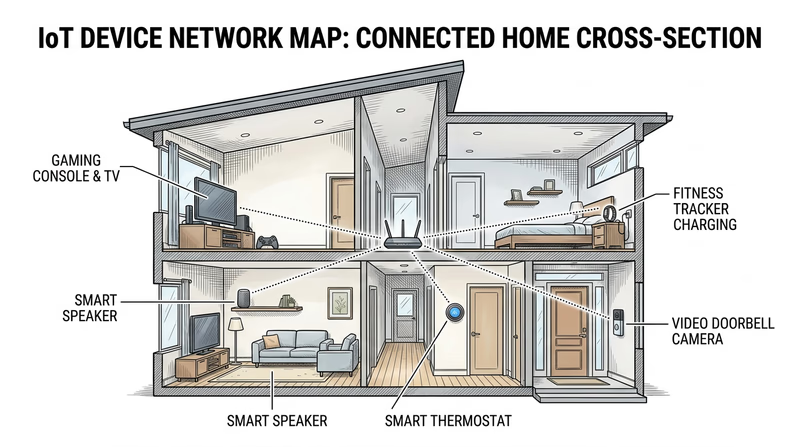
Req 8 — Cybersecurity Activities
This requirement takes everything you have learned and puts it into action. Choose one of the three options — learning about a competition, participating in one, or giving a presentation.
Option A: Learn About a Competition or Activity
The cybersecurity community runs competitions and activities specifically designed for young people. Here are some of the most well-known:
CyberPatriot — The premier youth cyber defense competition, run by the Air & Space Forces Association. Teams of students defend virtual computer networks against simulated attacks. The competition runs from October through March, with regional and national finals.
- Ages: Middle school and high school students
- Time commitment: Weekly practice sessions plus competition rounds (each round is about 6 hours)
- Cost: Registration fee per team (varies, often covered by sponsors)
picoCTF — A free online Capture The Flag competition from Carnegie Mellon University. Participants solve cybersecurity challenges ranging from beginner to expert. “Capture The Flag” (CTF) competitions are the most popular format in cybersecurity — you solve puzzles that test hacking, cryptography, forensics, and web security skills.
- Ages: Middle and high school students (anyone can practice year-round)
- Time commitment: The competition runs for about two weeks; practice challenges are available anytime
- Cost: Free
AFA CyberCamps — Week-long camps that teach cybersecurity fundamentals, often culminating in a mini-competition. Available in many states across the country.
National Cyber League (NCL) — A biannual CTF competition focused on building real-world cybersecurity skills. Has individual and team-based seasons.
CyberPatriot — National Youth Cyber Defense Competition The premier youth cyber defense competition. Learn about teams, seasons, and how to register. Link: CyberPatriot — National Youth Cyber Defense Competition — https://www.uscyberpatriot.org/ picoCTF — Free Cybersecurity Competition A free, beginner-friendly Capture The Flag competition from Carnegie Mellon University with year-round practice challenges. Link: picoCTF — Free Cybersecurity Competition — https://picoctf.org/Option B: Participate in a Competition
If you choose this option, you need to actually compete — either using an existing platform or creating your own challenge for your troop.
Using an existing platform:
- picoCTF practice — set up a team challenge night with your patrol or troop, working through beginner challenges together
- Cyber Threat Defender — a card game from UTSA that teaches cybersecurity concepts through gameplay
- NCF Cybersecurity Gaming Series — online games that test cybersecurity knowledge
Designing your own:
- Create a series of challenges for your troop meeting: password strength tests, phishing email identification, a cipher decoding race
- Set up a scavenger hunt where teams find and fix security issues on practice systems
- Run a “spot the phish” competition using real examples of phishing emails (with personal info redacted)
Option C: Give a Presentation
This option develops your communication skills alongside your technical knowledge. A good presentation teaches others what you have learned.
Topic ideas:
- How to create strong passwords (demo: use a password strength checker to compare weak vs. strong passwords)
- Recognizing phishing emails (demo: show real examples and have the audience identify red flags)
- Setting up multi-factor authentication (demo: walk through the setup process live)
- How encryption works (demo: encode and decode messages with a cipher)
- Public Wi-Fi safety (demo: show how to verify HTTPS and use a VPN)
Presentation tips:
Presentation Checklist
Make your presentation effective and engaging- Keep it under 15 minutes: Your audience will lose focus after that.
- Start with a hook: A surprising fact or real-world incident grabs attention immediately.
- Include visuals: Screenshots, diagrams, or live demonstrations keep people engaged.
- Make it hands-on: Give the audience something to do — solve a cipher, identify a phishing email, check their own password strength.
- End with action items: Give three specific things the audience can do today to improve their security.

Req 9 — Careers
Cybersecurity has a massive workforce shortage — there are hundreds of thousands of unfilled cybersecurity jobs in the United States alone. This means opportunity for you. Whether you choose Option A or B, you will discover that cybersecurity careers are diverse, well-paying, and in extremely high demand.
Option A: Research a Career
Here are cybersecurity career paths to consider. Choose three that interest you, then deep-dive into one.
Security Analyst — The front-line defender. Security analysts monitor networks and systems for suspicious activity, investigate alerts, and respond to incidents. This is often the entry point into cybersecurity careers.
- Education: Bachelor’s degree in cybersecurity, computer science, or related field (some roles accept certifications in lieu of a degree)
- Certifications: CompTIA Security+, Certified Ethical Hacker (CEH)
- Starting salary: $60,000–$85,000
- Growth: Can advance to senior analyst, security engineer, or security architect
Penetration Tester (Ethical Hacker) — Hired to break into systems on purpose. “Pen testers” think like attackers, finding vulnerabilities before real hackers do. Companies pay them to attack their own networks, then fix what they find.
- Education: Bachelor’s degree or equivalent experience; strong technical skills matter most
- Certifications: OSCP (Offensive Security Certified Professional), CEH, GPEN
- Starting salary: $70,000–$100,000
- Growth: Senior pen tester, red team lead, security consultant
Digital Forensics Investigator — The cyber detective. Forensics investigators examine digital evidence after a breach or crime — recovering deleted files, tracing attack paths, and preserving evidence for legal proceedings.
- Education: Bachelor’s in cybersecurity, computer science, or criminal justice
- Certifications: GCFE, EnCE, CFCE
- Starting salary: $55,000–$80,000
- Growth: Senior investigator, forensics manager, expert witness
Other careers to explore:
- Security Engineer — designs and builds secure systems
- Chief Information Security Officer (CISO) — leads an organization’s entire security program
- Cryptographer — develops encryption algorithms and protocols
- Incident Responder — the first to arrive when a breach happens, containing damage and investigating
- Security Software Developer — writes the tools that other security professionals use
- Threat Intelligence Analyst — researches emerging threats and predicts future attack trends
Research Framework
When researching your chosen career, cover these areas:
Career Research Guide
Answer these questions for your chosen career- Training and education: What degree(s) or training programs are recommended? Are boot camps or self-study paths viable alternatives?
- Certifications: Which certifications are required or preferred? What do they cost? How long do they take?
- Experience: What entry-level experience is needed? Are internships, apprenticeships, or lab work available?
- Starting salary: What can you expect to earn in your first role?
- Advancement: What does the career ladder look like? What positions can this role grow into?
- Work environment: Office, remote, government, private sector, military?
- Day-to-day: What does a typical workday look like? What tools and technologies are used?
Option B: Visit a Cybersecurity Organization
If you choose this option, look for organizations in your area:
- Technology companies with security teams
- Government agencies (many have public outreach programs)
- Military installations with cybersecurity units
- Banks and financial institutions (they have large security operations)
- Hospitals and healthcare systems (cybersecurity is critical for patient data protection)
- Universities with cybersecurity programs or research labs
- Managed Security Service Providers (MSSPs) — companies that provide security services to other businesses
During your visit, ask about:
- The different roles on their security team
- How team members got into cybersecurity (education, career changers, military background)
- What a typical day looks like
- What certifications they recommend for someone starting out
- What skills matter most beyond technical knowledge (communication, problem-solving, teamwork)
Paths for Young People Right Now
You do not have to wait for college to start building cybersecurity skills:
- CyberPatriot — competitive experience that looks great on college applications
- picoCTF — free, self-paced challenges that build real skills
- CompTIA ITF+ and Security+ — certifications available to high school students
- Cisco Networking Academy — free online courses in networking and cybersecurity
- Scholarship programs — organizations like CyberCorps offer full scholarships for cybersecurity students who commit to government service after graduation
Extended Learning
A. Congratulations
You have earned the Cybersecurity merit badge — and with it, a skill set that most adults wish they had. You can explain the CIA Triad, spot phishing emails, create strong passwords, understand encryption, and map an attack surface. These are not abstract concepts. They are tools you will use every time you go online for the rest of your life. The world needs more people who understand cybersecurity, and now you are one of them.
What follows are opportunities to go deeper — to move from understanding cybersecurity to genuinely mastering it.
B. Social Engineering: Hacking the Human
Every technical defense in the world can be bypassed if an attacker can convince the right person to open the door. Social engineering is the art of manipulating people — not machines — to gain access to systems, data, or physical spaces. It is the single most effective attack vector, and it was only briefly touched in the merit badge requirements.
Social engineering works because it exploits universal human traits: trust, helpfulness, urgency, fear, and curiosity. A well-crafted social engineering attack does not need a single line of code.
Common Techniques
Pretexting involves creating a fabricated scenario to gain trust. An attacker might call a company’s help desk pretending to be a new employee who locked themselves out of their account. They sound flustered, they know the right jargon, and they just need a password reset — please, their boss is waiting. The help desk agent, wanting to be helpful, resets the password. The attacker is in.
Baiting uses curiosity or greed. A USB drive labeled “Confidential — Employee Salaries” is left in a company parking lot. Someone picks it up and plugs it into their work computer to see what is on it. The drive contains malware that installs itself immediately. Security researchers have tested this — in one study, 48% of dropped USB drives were plugged into computers.
Tailgating (or piggybacking) is following an authorized person through a secured door. Holding a stack of boxes and asking someone to hold the door is usually enough. Most people are too polite to ask for credentials.
Quid pro quo offers something in exchange for information. “Hi, this is IT support. We are running diagnostics and need your password to verify your account is working properly.” The attacker offers help (the quid) in exchange for credentials (the quo).
Why It Matters
You might have the strongest password in the world, two-factor authentication on everything, and a fully updated system — but if someone convinces you to hand over your credentials through a convincing phone call, none of those defenses matter. The best cybersecurity practitioners understand that the human element is always the weakest link, and they train accordingly.
The next time someone asks you for information that seems slightly off — even if they claim to be from a legitimate organization — pause. Verify independently. Call the organization directly using a number you look up yourself, not one the caller provides. Social engineering only works when targets act on emotion instead of logic.
C. How the Internet Actually Works
You use the internet every day, but understanding what happens between pressing Enter and seeing a web page load gives you a huge advantage in cybersecurity. Every attack and defense makes more sense when you understand the underlying infrastructure.
The Journey of a Web Request
When you type a URL into your browser, here is what happens in about 200 milliseconds:
DNS Resolution — Your computer asks a Domain Name System (DNS) server to translate the human-readable domain (like “google.com”) into an IP address (like 142.250.80.46). DNS is the internet’s phone book. If an attacker poisons a DNS server, they can redirect your browser to a fake website without changing the URL — this is one form of DNS spoofing.
TCP Connection — Your computer establishes a connection with the web server using the TCP protocol, which involves a “three-way handshake” (SYN, SYN-ACK, ACK). This handshake ensures both sides are ready to communicate. DDoS attacks often exploit this step by flooding servers with SYN requests without completing the handshake.
TLS Handshake — If the site uses HTTPS (which you learned to check in Req 6b), your browser and the server negotiate encryption. They exchange certificates, agree on encryption algorithms, and establish a shared secret key. This is where the certificate verification you explored becomes critical.
HTTP Request/Response — Your browser sends a request for the web page, and the server responds with HTML, CSS, JavaScript, and images. All of this happens inside the encrypted TLS tunnel.
Rendering — Your browser assembles the response into the web page you see.
Understanding this chain reveals where attacks can happen: DNS (spoofing), TCP (DDoS), TLS (certificate forgery), and HTTP (injection attacks). Every concept from your merit badge maps to a specific step in this process.
Ports and Protocols
Network communication uses ports — numbered channels for different types of traffic. When you looked at network connections in Req 5c option 6, the numbers after the colon in each connection (like :443 or :80) are ports. Port 80 is HTTP, port 443 is HTTPS, port 22 is SSH (secure remote access), and port 25 is email. Firewalls work by controlling which ports are open or closed, letting legitimate traffic through and blocking suspicious connections on unusual ports.
D. Bug Bounties and Responsible Disclosure
Many of the world’s largest companies — Google, Microsoft, Apple, Facebook, and hundreds of others — will pay you cash for finding security vulnerabilities in their products. These programs are called bug bounties, and they represent a legitimate, legal, and sometimes very lucrative path for people with cybersecurity skills.
How Bug Bounties Work
A company publishes a set of rules (called a “scope”) that describes what you are allowed to test and what is off-limits. You search for vulnerabilities within the scope. If you find one, you report it privately to the company through their bug bounty platform. The company verifies the vulnerability, fixes it, and pays you a reward based on its severity.
Platforms like HackerOne and Bugcrowd manage bug bounty programs for hundreds of companies. Payouts range from a few hundred dollars for minor issues to over $100,000 for critical vulnerabilities. Google’s bug bounty program has paid out over $50 million to researchers worldwide.
Responsible Disclosure
Bug bounties are built on the principle of responsible disclosure — the ethical framework you explored in Req 2b. When you find a vulnerability, you report it privately to the company rather than publishing it or exploiting it. The company gets time to fix the issue before it becomes public knowledge. This is the cybersecurity community’s version of the Scout Law in action — being trustworthy and helpful even when you have the power to cause harm.
Getting Started
You do not need to be an expert to start. Many bug bounty platforms have beginner programs with reduced scope and guided tutorials. Combined with CTF experience from Req 8, you can start developing the skills to earn rewards while making the internet safer for everyone.
E. Real-World Experiences
Experiences to Seek Out
Hands-on opportunities to build cybersecurity skills- CyberPatriot competition: Join or form a team through your school or troop. The national competition runs October–March with regional and national finals.
- picoCTF challenges: Work through the free online challenges at picoctf.org. Start with the “General Skills” and “Cryptography” categories.
- Local cybersecurity meetups: Many cities have cybersecurity user groups that welcome students. Search Meetup.com for “cybersecurity” or “infosec” in your area.
- College cybersecurity programs: Visit a university’s cybersecurity lab or attend an open house. Many schools offer summer camps or workshops for high school students.
- GenCyber camps: Free summer cybersecurity camps funded by the NSA and NSF, available at universities across the country. Search “GenCyber” for locations near you.