Req 5b — Installing Updates
This requirement covers two connected tasks: understanding why updates matter and demonstrating how to install them.
Why Updates Matter
That notification nagging you to “Restart to install updates” is not just an annoyance — it might be the most important cybersecurity tool on your device. Software updates fix known vulnerabilities that attackers are actively trying to exploit. Delaying an update is like knowing your front door lock is broken and choosing not to fix it.
What Updates Contain
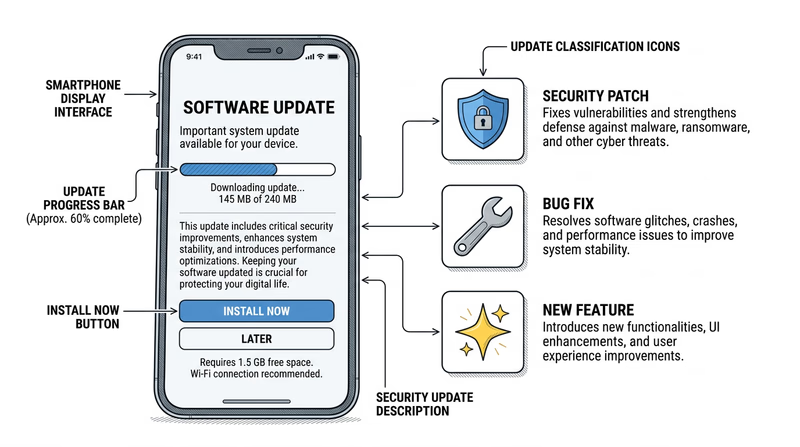
Software updates typically include three types of changes:
- Security patches — fix vulnerabilities that could be exploited by attackers. These are the critical ones.
- Bug fixes — resolve crashes, errors, and unexpected behavior.
- Feature improvements — add new functionality or improve performance.
Security patches are by far the most important. When a security researcher discovers a vulnerability, the software company races to create a patch before attackers can exploit it. Once the patch is released, the clock starts ticking — attackers reverse-engineer the patch to figure out the vulnerability it fixes, then target anyone who has not updated yet.
What Kinds of Problems Updates Prevent
- Malware infections — patches close the security holes that malware uses to get in
- Data breaches — unpatched software is one of the top causes of organizational data breaches
- Ransomware — many ransomware variants specifically target known, unpatched vulnerabilities
- Account compromises — browser and app updates fix flaws that could expose your login credentials
- System instability — bug fixes prevent crashes and data loss
How to Update Your Devices
The exact steps depend on your operating system. Here are the main ones.
Windows
- Open Settings (click the gear icon in the Start menu)
- Click Windows Update (or Update & Security on older versions)
- Click Check for updates
- If updates are available, click Download and install
- Restart when prompted
- After restart, go back to Windows Update — it should say “You’re up to date”
macOS
- Click the Apple menu (top-left corner) → System Settings
- Click General → Software Update
- If an update is available, click Update Now or Upgrade Now
- Enter your password and wait for the installation
- After restart, the Software Update screen should show your system is current
iPhone / iPad
- Open Settings → General → Software Update
- If an update is available, tap Download and Install
- Enter your passcode and agree to the terms
- The device will restart automatically
- To enable automatic updates: Settings → General → Software Update → Automatic Updates → toggle on
Android
- Open Settings → System → System Update (varies by manufacturer)
- Tap Check for update
- If available, tap Download and install
- The device will restart to complete the update
Update Demonstration Prep
Be ready to show your counselor these steps
- Open the update settings on your device.
- Check for available updates.
- Show the current version number of your operating system.
- Demonstrate that automatic updates are enabled (or enable them during the demonstration).
- Show how to check for app updates in your app store.