Req 5c — System Security
This is the hands-on heart of the Cybersecurity merit badge. You will pick three of the nine options below and actually do them — not just read about them. Each option teaches a different practical security skill. Read through all nine, then choose the three that interest you most or that you have access to complete.
Option 1: Strong Passwords
A strong password is your first defense against unauthorized access. Here is what makes one strong:
- Length matters most. A 16-character password is exponentially harder to crack than an 8-character one. Aim for at least 12 characters, ideally 16 or more.
- Use a passphrase. String together random, unrelated words: “correct-horse-battery-staple” is much stronger (and easier to remember) than “P@ssw0rd123.”
- Mix character types. Include uppercase, lowercase, numbers, and symbols — but length is more important than complexity.
- Never reuse passwords. If one site gets breached, every account sharing that password is compromised.
Avoid: Your name, birthday, pet’s name, “password,” “123456,” or any single dictionary word.
Option 2: Multi-Factor Authentication (MFA)
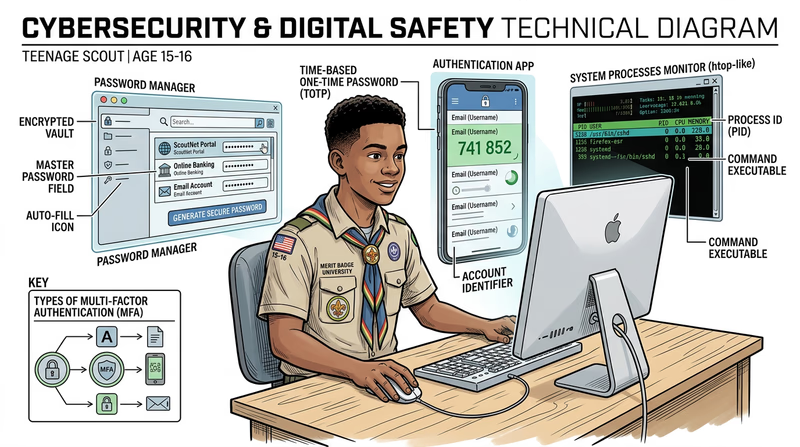
MFA requires two or more forms of proof before granting access. The three factors are:
- Something you know — a password or PIN
- Something you have — your phone (with an authenticator app) or a security key
- Something you are — a fingerprint, face scan, or other biometric
Even if an attacker steals your password, they cannot get in without the second factor. Authenticator apps like Google Authenticator, Microsoft Authenticator, or Authy generate time-based codes that change every 30 seconds.
Option 3: Password Manager
A password manager stores all your passwords in an encrypted vault protected by one strong master password. It can generate unique, complex passwords for every account and auto-fill them when you log in.
Popular free options include Bitwarden (open source) and the built-in password managers in Chrome, Safari, and Firefox. With a password manager, you only need to remember one password — the master password — and every other account gets a unique, randomly generated one.
Option 4: Virus Scan
Run a full system scan using your device’s built-in antivirus (Windows Defender on Windows, XProtect on macOS) or a reputable third-party scanner. A full scan examines every file on your device and compares it against known malware signatures.
Before scanning, make sure your antivirus definitions are up to date. The scan may take anywhere from 15 minutes to over an hour depending on how many files you have. Screenshot or save the results to show your counselor.
Option 5: Running Processes
Your computer runs dozens (sometimes hundreds) of processes simultaneously — most of them in the background without you knowing. This option teaches you to peek behind the curtain.
- Windows: Open Task Manager (Ctrl+Shift+Esc) or type
tasklistin Command Prompt - macOS: Open Activity Monitor (Applications → Utilities) or type
ps auxin Terminal - Chrome OS: Press Search+Escape to open Task Manager
Look for processes you recognize (your browser, games) and ones you do not. Research any unfamiliar ones — they are usually legitimate system processes, but knowing how to check is an important security skill.
Option 6: Network Connections
Every program that communicates over the internet opens a network connection. You can see all active connections using the command line:
- Windows: Open Command Prompt and type
netstat -an - macOS/Linux: Open Terminal and type
netstat -anorlsof -i
The output shows which programs are connected to which remote servers, on which ports. You will see your browser’s connections to websites, your email client checking for new mail, and potentially background services you did not expect.
Option 7: Data Backup
Backups are your last line of defense against ransomware, hardware failure, and accidental deletion. If your data exists in only one place, it is not safe.
- iPhone: Use iCloud Backup (Settings → your name → iCloud → iCloud Backup) or connect to a computer and use Finder/iTunes
- Android: Use Google Backup (Settings → System → Backup) or connect via USB and copy files manually
Show your counselor the backup process and verify that the backup completed successfully.
Option 8: Home Network Security Checklist
Research home network security from sources like CISA, the NSA, and the FTC (links below). Then create a practical checklist your family can actually follow. Your five items might include changing the default router password, enabling WPA3 encryption, setting up a guest network, enabling automatic updates, or disabling remote management.
Home Network Security — CISA CISA's comprehensive guide to securing your home network against common threats. Best Practices for Securing Your Home Network — NSA The NSA's home network security guide with practical recommendations for families.Option 9: Find and Fix a Vulnerability
This is the most advanced option. Look for real vulnerabilities in your own environment — a router with the default password, an old device that is not getting updates, a shared account without MFA, or an unused service that is still running. With permission, fix what you find and document what you did.
Choosing Your Three
Pick options that you have the equipment and access to complete. Here is a suggested combination if you are unsure:
- Option 1 (passwords) + Option 2 (MFA) + Option 3 (password manager) — a natural trio that builds a complete authentication security system
- Option 4 (virus scan) + Option 5 (processes) + Option 6 (network connections) — a trio focused on understanding what is happening on your computer
- Option 7 (backup) + Option 8 (home network) + Option 9 (find a vulnerability) — a trio that protects your whole household