Req 6b — Encrypted Connections
Every modern browser gives you clear visual signals about whether your connection is encrypted. Learning to read these signals takes about 30 seconds — and it is a habit that will protect you for life.
The Padlock Icon
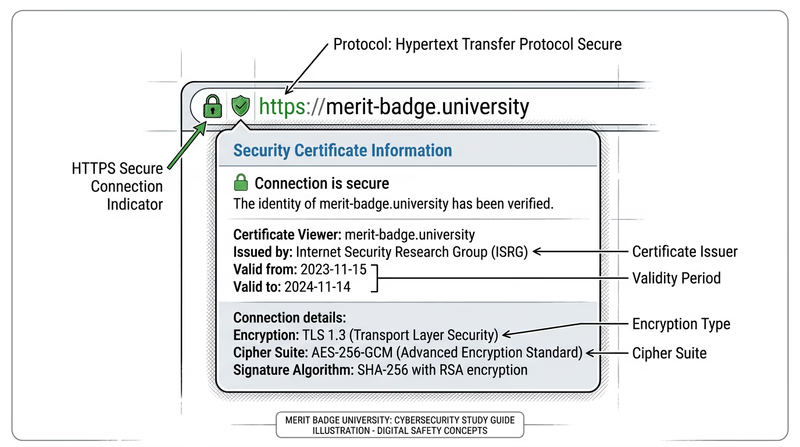
The most visible indicator is the padlock icon in your browser’s address bar. When you see it, your connection to that website is encrypted using TLS (Transport Layer Security).
- Padlock present — your connection is encrypted. Data you send (passwords, form submissions, credit card numbers) is protected in transit.
- No padlock / “Not Secure” warning — the connection is not encrypted. Anything you type can potentially be intercepted by someone on the same network.
HTTPS vs. HTTP
The encryption status is also visible in the URL itself:
- https:// — the “s” stands for “secure.” This connection is encrypted.
- http:// — no encryption. Data is sent in plain text.
Modern browsers are moving toward hiding the “https://” prefix because it is so common, but you can usually click on the address bar to see the full URL.
Viewing Certificate Details
Clicking the padlock icon reveals more information about the encryption:
- Click the padlock in your browser’s address bar
- Look for “Connection is secure” or similar text
- Click for more details to see the certificate information
The certificate tells you:
- Who issued it — a Certificate Authority (CA) like Let’s Encrypt, DigiCert, or Comodo verified that the website owner is who they claim to be
- Who it was issued to — the domain name the certificate covers
- When it expires — certificates must be renewed regularly
- The encryption strength — typically TLS 1.2 or 1.3 with AES-256
What Encrypted Connections Do and Do Not Protect
Encrypted connections protect:
- Data in transit between your device and the server (passwords, messages, financial info)
- The integrity of the data (it cannot be modified without detection)
- Privacy from eavesdroppers on the same network
Encrypted connections do NOT protect you from:
- Phishing sites. A fake website can have a padlock and HTTPS. The padlock means the connection is encrypted, not that the website is trustworthy. A scammer’s site can get a certificate just as easily as a legitimate one.
- Malware on the site. An encrypted connection to a malicious website still delivers malware.
- Data the website collects. Encryption protects data in transit, but once it reaches the server, the website can do whatever its privacy policy allows with it.
Demonstrating for Your Counselor
Show your counselor the following:
- The padlock icon on a website and what happens when you click it
- The difference between https:// and http:// in the address bar
- The certificate details — who issued it, who it is for, and when it expires
- Explain that HTTPS alone does not guarantee a site is trustworthy (just that the connection is encrypted)