Digital Technology Merit Badge — Complete Digital Resource Guide
https://merit-badge.university/merit-badges/digital-technology/guide/
Introduction & Overview
The phone in your pocket has more computing power than every computer NASA used to land astronauts on the Moon — combined. The device you carry around to watch videos, text friends, and check the weather would have filled an entire building sixty years ago. Digital technology is not just a subject you study — it is the invisible engine running nearly every part of modern life.
This merit badge takes you under the hood. You will learn how computers turn music, photographs, and text into ones and zeros, how data travels across the planet in milliseconds, and how to create your own digital projects. You will also learn how to stay safe online and why the technology you throw away matters just as much as the technology you use.

Then and Now
Then — Rooms Full of Wires
The first general-purpose electronic computer, ENIAC, came to life in 1945. It weighed 30 tons, filled a room the size of a gymnasium, and used 18,000 vacuum tubes that burned out so often that engineers spent most of their time replacing them. Programming meant physically rewiring cables and flipping switches — there were no keyboards, no screens, and no software as we know it.
- Storage: Early data was stored on punched cards — stiff paper rectangles with holes punched in specific positions to represent numbers and letters
- Speed: ENIAC could perform about 5,000 additions per second — impressive in 1945, but your phone’s processor handles billions of operations per second
- Access: Only governments, militaries, and large universities could afford computers
By the 1970s, the microprocessor — an entire computer brain shrunk onto a single chip — changed everything. Suddenly, computers could sit on a desk instead of filling a building. The Apple II (1977) and IBM PC (1981) brought computing into homes and schools for the first time.
Now — A Computer in Every Pocket
Today, digital technology is woven into almost everything. Your watch tracks your heart rate. Your car uses dozens of embedded computers. A farmer’s tractor drives itself using GPS. And the smartphone in your pocket connects you to the accumulated knowledge of human civilization in seconds.
- Storage: A microSD card smaller than your fingernail can hold 1 terabyte — enough for 250,000 songs or 500 hours of video
- Speed: Modern processors execute billions of instructions per second and can run artificial intelligence models that generate images, write text, and recognize faces
- Access: Over 5 billion people worldwide now use the internet, and cloud computing lets anyone with a browser access supercomputer-level resources
Get Ready!
You are about to explore the technology that shapes your world every single day. By the end of this badge, you will understand how your devices actually work, how to protect yourself online, and how to use digital tools to create real projects. These are skills that will serve you in school, in your career, and in every aspect of Scouting.

Kinds of Digital Technology
Computing Devices
From towering server racks in data centers to the slim laptop in your backpack, computing devices are the workhorses of the digital world. This category includes desktop computers, laptops, tablets, and smartphones — any device built around a processor, memory, and storage that can run software. Each type trades off between power and portability. A desktop with a dedicated graphics card can render 3D animations, while a tablet lets you sketch designs on a camping trip.
Embedded & IoT Devices
Not all computers look like computers. Embedded systems are specialized computers built into other machines — the chip in your microwave, the controller in a traffic light, the processor in a game controller. The Internet of Things (IoT) takes this further by connecting everyday objects to the internet: smart thermostats, fitness trackers, security cameras, and even water bottles that remind you to hydrate. These devices are often invisible, but they run on the same digital principles you will learn in this badge.
Networking & Communication
Digital technology only becomes truly powerful when devices talk to each other. Networking technology includes everything from the Wi-Fi router in your home to the undersea fiber-optic cables that carry internet traffic between continents. Cell towers, Bluetooth, satellite links, and Ethernet cables all fall into this category. Understanding how networks operate helps you grasp why your video call sometimes freezes and how your email reaches someone on the other side of the planet.
Data & Storage
Every photo, text message, and homework file exists as data — patterns of ones and zeros stored on physical media. Hard drives use spinning magnetic disks. Solid-state drives (SSDs) store data in flash memory chips with no moving parts. Cloud storage saves your files on servers in massive data centers, accessible from any device with an internet connection. Understanding data and storage helps you make smart decisions about backups, file formats, and keeping your information safe.
Software & Applications
Hardware without software is like a guitar without strings — it has potential but cannot do anything useful. Operating systems (Windows, macOS, Linux, Android, iOS) manage your device’s resources. Applications run on top of the operating system to let you browse the web, edit documents, play games, and more. Software ranges from simple calculator apps to complex programs that control spacecraft. In this badge, you will learn how programs work and create several digital projects of your own.
Ready to start your journey through the digital world? Your first stop is learning how to stay safe while you explore it.
Req 1 — Digital Safety Awareness
A single click on the wrong link can expose your personal information to strangers, install malware on your device, or create a digital trail that follows you for years. Before you dive into the exciting parts of digital technology — building projects, exploring networks, and learning how data works — you need to understand how to protect yourself in the digital world.
Why Digital Safety Comes First
This requirement is the very first thing you do for this badge, and there is a good reason for that. Everything else you will learn — using search engines, creating websites, sharing files — involves being online. And being online means navigating risks that are not always obvious.
The Personal Safety Awareness “Digital Safety” video covers critical topics that every Scout needs to understand:
- Protecting personal information — what to share, what to keep private, and why it matters
- Recognizing online threats — phishing, scams, cyberbullying, and predatory behavior
- Making smart choices — how to respond when something online makes you uncomfortable
- Digital footprint — understanding that what you post today can affect you tomorrow
Where to Find the Video
The Digital Safety video is part of Scouting America’s Youth Protection training resources. Your Scoutmaster or merit badge counselor can help you locate it if you have trouble finding it.
Scouting America Youth Protection — Digital Safety Official Scouting America page with the Personal Safety Awareness 'Digital Safety' video and related youth protection resources. Link: Scouting America Youth Protection — Digital Safety — https://www.scouting.org/training/youth-protection/scouts-bsa/Key Concepts to Remember
After watching the video, make sure you can discuss these ideas with your counselor:
Personal Information
Personal information includes your full name, address, phone number, school name, passwords, and photos. Think of personal information like the combination to a lock — you would not give it to a stranger on the street, and you should not share it freely online either. Once information is posted online, it can be copied, screenshotted, and shared without your permission.
Your Digital Footprint
Every website you visit, every post you make, every photo you share creates a trail of data called your digital footprint. Unlike footprints in sand, digital footprints do not wash away. College admissions officers, future employers, and scholarship committees routinely search applicants’ online presence. A post that seems funny at 12 years old might look very different when you are applying to college at 17.
Cyberbullying and Online Pressure
Cyberbullying is using digital devices to harass, threaten, or humiliate someone. It can happen through texts, social media, gaming platforms, or any online space. If you experience or witness cyberbullying:
- Do not respond to the bully — engaging usually makes it worse
- Save the evidence — take screenshots
- Block the person on the platform
- Tell a trusted adult — a parent, teacher, or counselor
Preparing for Your Counselor Discussion
After watching the video, be ready to discuss:
- What types of personal information should you keep private online?
- How can you tell if an online situation is unsafe?
- What steps should you take if you encounter cyberbullying or a suspicious message?
- How does your digital footprint affect your future?

Your digital safety foundation is set. Time to look at where all this technology came from — and where it is headed.
Req 2a — History of Digital Technology
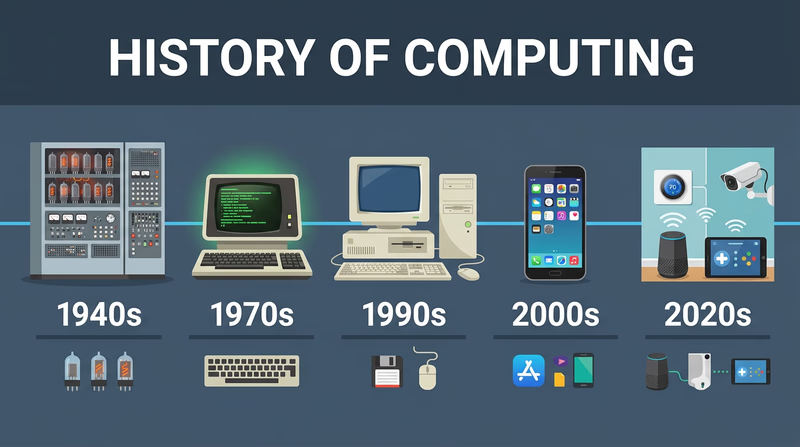
Your grandparents probably did not have a computer in their house growing up. Your parents might remember a time before smartphones. You have never known a world without the internet. Each generation has experienced a completely different relationship with digital technology — and understanding that arc of change helps you appreciate just how fast things are moving.
A Timeline of Digital Breakthroughs
The 1940s–1950s: The Dawn of Computing
The first electronic computers were built to solve military problems during and after World War II. ENIAC (1945) could calculate artillery firing tables. UNIVAC (1951) became the first commercially produced computer — and famously predicted the outcome of the 1952 presidential election on live television, stunning the nation.
These machines used vacuum tubes — glass tubes the size of light bulbs that acted as electronic switches. They generated enormous heat, consumed massive amounts of electricity, and broke down constantly. Programming meant physically rewiring cables or feeding in stacks of punched cards.
The 1960s–1970s: Shrinking the Computer
The invention of the transistor (1947) and then the integrated circuit (1958) replaced fragile vacuum tubes with tiny, reliable silicon chips. By the late 1960s, computers had shrunk from room-sized to refrigerator-sized.
In 1969, the U.S. Department of Defense connected four university computers together in a network called ARPANET — the earliest ancestor of the internet. That same year, NASA used computers with less memory than a modern calculator to guide Apollo 11 to the Moon.
The 1970s brought the microprocessor — an entire computer processor on a single chip. This breakthrough made personal computers possible.
The 1980s: Computers Come Home
The Apple II (1977), IBM PC (1981), and Macintosh (1984) brought computers into homes and schools. For the first time, ordinary families could own a computer. Early home computers used floppy disks that held about 1.44 megabytes — less than a single smartphone photo today.
Video games also exploded during this era. The Atari 2600, Nintendo Entertainment System, and arcade cabinets introduced millions of kids to digital technology for the first time.
The 1990s: The Internet Changes Everything
The World Wide Web went public in 1991, and by the late 1990s, millions of households had dial-up internet connections. The screeching sound of a modem connecting became the soundtrack of a generation. Email replaced letters. Search engines like Yahoo! and early Google made information searchable. Online shopping began with sites like Amazon (founded 1994).
The 2000s: Mobile Takes Over
Apple launched the iPhone in 2007, and smartphones quickly became the most important computing device in most people’s lives. Social media platforms — Facebook, YouTube, Twitter — changed how people communicated, shared news, and built communities. Wi-Fi became standard in homes, schools, and coffee shops.
The 2010s–Today: AI, Cloud & IoT
Cloud computing moved storage and processing power off your device and into massive data centers. Artificial intelligence went from science fiction to everyday reality — powering voice assistants, recommendation algorithms, language translation, and image generation. The Internet of Things connected billions of everyday objects to the network, from doorbells to refrigerators.
Comparing Generations
The best way to prepare for this requirement is to actually sit down and talk with a parent, grandparent, or other adult about their experience with technology. Here are some questions to guide that conversation:
Generational Interview Questions
Use these to guide your conversation- What was the first computer you ever used? Where was it?
- Did you have a computer at home growing up? When did your family get one?
- How did you communicate with friends before texting and social media?
- What did you use to listen to music? (Records? Cassettes? CDs? MP3 players?)
- How did you do research for school projects before the internet?
- When did you get your first cell phone? What could it do?
- What technology change surprised you the most?
The Speed of Change
One of the most striking things about digital technology is how fast it evolves. Moore’s Law — an observation made by Intel co-founder Gordon Moore in 1965 — predicted that the number of transistors on a computer chip would double roughly every two years. This prediction held remarkably accurate for decades, driving exponential growth in computing power while costs dropped.
To put it in perspective:
| Year | Typical Storage | Cost per Gigabyte |
|---|---|---|
| 1980 | 10 MB hard drive | ~$100,000/GB |
| 1995 | 1 GB hard drive | ~$1,000/GB |
| 2005 | 100 GB hard drive | ~$1/GB |
| 2025 | 2 TB SSD | ~$0.05/GB |
The pattern is clear: technology gets dramatically more powerful and cheaper over time.
Computer History Museum — Timeline of Computer History An interactive timeline from the Computer History Museum covering key milestones in computing from the 1930s to today. Link: Computer History Museum — Timeline of Computer History — https://www.computerhistory.org/timeline/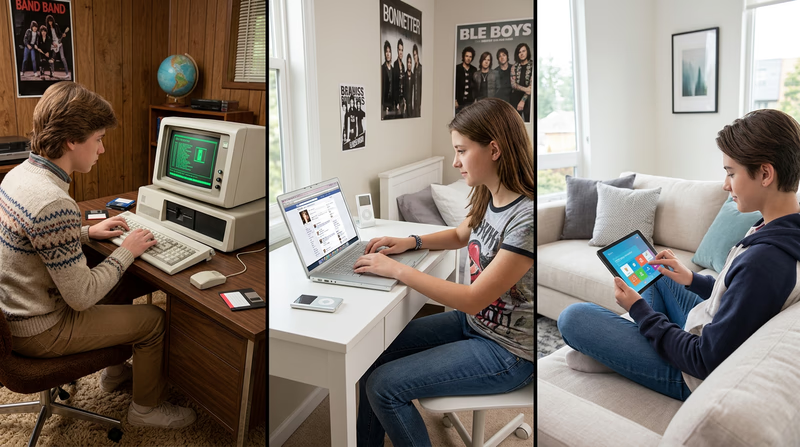
You now have a solid picture of where digital technology came from. Next, let’s look at where it might be going.
Req 2b — Future Technology
In 1995, most people could not have imagined carrying a computer in their pocket that shoots 4K video, navigates with satellite GPS, and connects to billions of other devices. Yet here we are. The technology of 2040 will likely seem just as unimaginable to us today — but we can make some educated guesses based on trends already in motion.
Technologies Taking Shape
Artificial Intelligence Everywhere
AI has already moved from research labs into daily life. Voice assistants answer questions. AI generates images, writes code, and translates languages in real time. But today’s AI is still limited — it cannot truly understand the world the way humans do.
By the time you are an adult, AI will likely be embedded in far more devices and situations:
- Personal AI assistants that know your schedule, learning style, and preferences — helping you study, plan projects, and make decisions
- AI-powered medical diagnosis that catches diseases earlier than human doctors alone
- Autonomous vehicles — cars, trucks, drones, and delivery robots that navigate without human drivers
- Creative AI tools that collaborate with you on music, art, engineering designs, and scientific research
Augmented and Virtual Reality
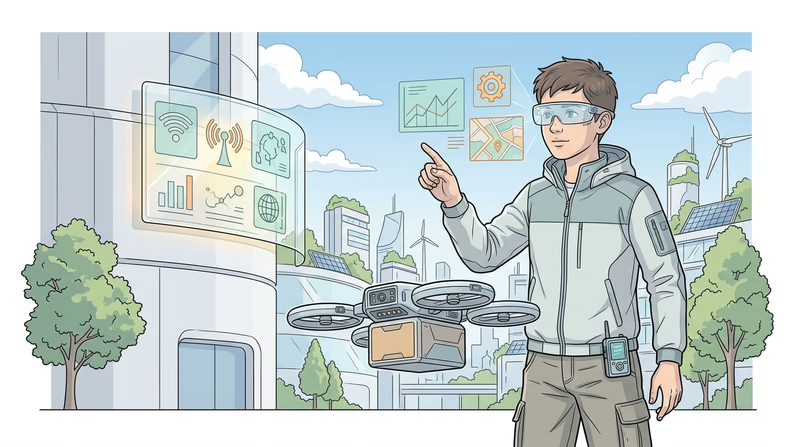
Virtual reality (VR) immerses you in a completely digital environment using a headset. Augmented reality (AR) overlays digital information onto the real world — like seeing directions projected onto the road as you walk, or identifying a plant by pointing your phone at it.
Today’s VR and AR hardware is still bulky and expensive. But lightweight AR glasses may eventually replace smartphones, projecting information, maps, and messages directly into your field of vision. Imagine:
- Attending a Scout meeting virtually, with holographic participants who look like they are sitting right next to you
- Repairing a car engine with step-by-step AR instructions floating above each part
- Exploring a historical battlefield with AR soldiers and events recreated around you
Quantum Computing
Traditional computers store information as bits — each one is either a 0 or a 1. Quantum computers use qubits, which can be 0, 1, or both at the same time (a property called superposition). This allows quantum computers to solve certain problems astronomically faster than any traditional computer.
Quantum computing is still in its early stages — today’s quantum computers are delicate, room-sized machines that need to be cooled to temperatures colder than outer space. But once the technology matures, it could:
- Break current encryption methods (and create new, unbreakable ones)
- Simulate complex chemical reactions to design new medicines and materials
- Optimize logistics problems that would take traditional computers millions of years
Wearable and Implantable Technology
Smartwatches and fitness trackers are just the beginning. Future wearables might include:
- Smart clothing with embedded sensors that monitor your health, adjust temperature, or charge your devices using body heat
- Brain-computer interfaces that let you control devices with your thoughts — already being tested in medical settings to help people with paralysis
- Flexible, rollable screens built into sleeves, bags, or any surface
How to Think About the Future
When imagining future technology, it helps to follow the trends:
- Smaller and more portable — mainframes became desktops became laptops became smartphones. What comes after phones?
- More connected — from standalone devices to local networks to the global internet to the Internet of Things. What happens when everything is connected?
- More intelligent — from manual calculations to automated computing to AI that learns. What happens when AI becomes a partner in daily work?
- More personal — from shared mainframes to personal computers to wearable devices. What happens when technology is literally part of you?
You have traveled from ENIAC to quantum computing. Now it is time to understand the fundamental building block of all digital technology — how information becomes data.
Req 3a — Digitizing Text, Sound & Images
Everything on your phone — every song, every photo, every text message — is stored as nothing more than long strings of ones and zeros. It seems impossible that two simple digits could capture the richness of a symphony or the detail of a photograph, but that is exactly what digitization does. Understanding how it works is one of the most fundamental concepts in all of computing.
What Is Digitization?
Digitization is the process of converting information from the real world (analog) into digital form (binary numbers). The word “digital” comes from “digit” — a number. At its core, every piece of digital data is represented using the binary number system, which uses only two digits: 0 and 1. Each 0 or 1 is called a bit (short for “binary digit”). Eight bits grouped together form a byte.
How Text Is Digitized
Computers store text by assigning a unique number to every character. The earliest system, called ASCII (American Standard Code for Information Interchange), uses 7 bits to represent 128 characters — the English alphabet (uppercase and lowercase), numbers 0–9, punctuation marks, and special control characters.
For example:
- The letter A = 65 in decimal =
01000001in binary - The letter a = 97 in decimal =
01100001in binary - The digit 0 = 48 in decimal =
00110000in binary
ASCII worked fine for English, but it could not represent characters from other languages. Unicode expanded the system to handle over 149,000 characters from virtually every writing system on Earth — including Chinese, Arabic, Hindi, emoji, and even ancient Egyptian hieroglyphics.
How Sound Is Digitized
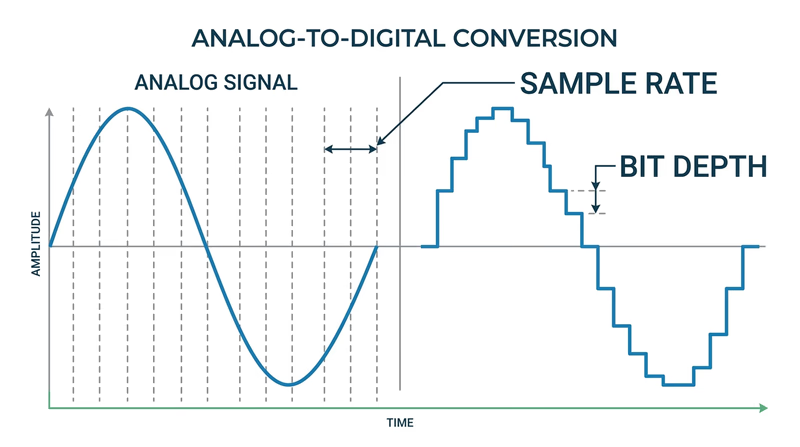
Sound in the real world is a continuous wave — air molecules vibrating at different frequencies and amplitudes. To digitize sound, a computer takes thousands of samples of the sound wave every second, measuring its amplitude at each point. This process is called sampling.
The two key factors in digital audio quality are:
- Sample rate — how many times per second the sound wave is measured. CD-quality audio uses 44,100 samples per second (44.1 kHz). Each sample captures a snapshot of the wave’s position at that instant.
- Bit depth — how many bits are used to describe each sample’s amplitude. CD audio uses 16 bits per sample, which means each measurement can be one of 65,536 possible values. Higher bit depth means more precise measurements.
Think of it like a flipbook: each page shows a single frame, and when you flip through them fast enough, you see smooth motion. Audio sampling works the same way — enough snapshots played back fast enough sound like continuous music.
How Images Are Digitized
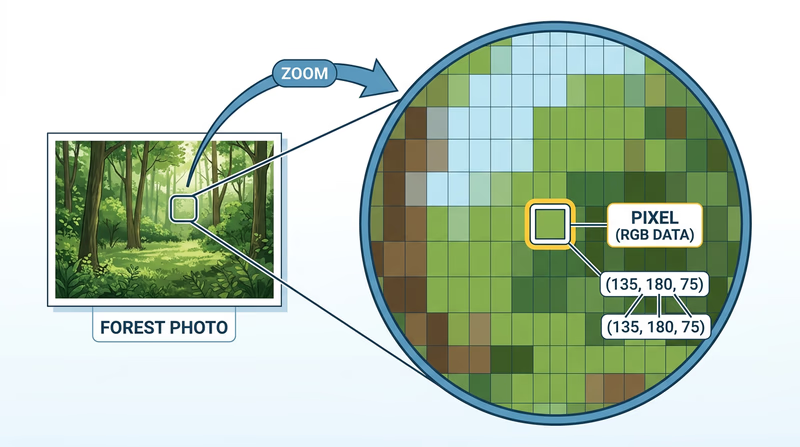
A digital image is made of tiny dots called pixels (short for “picture elements”). Each pixel stores color information as numbers. The more pixels in an image, the more detail it can show — this is why camera specs mention megapixels (millions of pixels).
For color images, each pixel’s color is typically described using three values: the amount of red, green, and blue (RGB) light. Each color channel usually uses 8 bits (values from 0 to 255), giving a total of 24 bits per pixel and 16.7 million possible colors.
For example:
- Pure red = R:255, G:0, B:0
- Pure white = R:255, G:255, B:255
- Pure black = R:0, G:0, B:0
- Scout green = approximately R:0, G:100, B:0
Putting It All Together
| Data Type | How It Is Digitized | Key Units |
|---|---|---|
| Text | Each character assigned a binary number (ASCII/Unicode) | Bits per character (7 for ASCII, up to 32 for Unicode) |
| Sound | Continuous wave sampled thousands of times per second | Sample rate (Hz) and bit depth |
| Images | Grid of pixels, each with RGB color values | Resolution (megapixels) and color depth (bits per pixel) |
The key idea across all three: digitization converts continuous real-world information into discrete numbers that computers can store, process, and transmit. Some detail is always lost in this conversion — a digital photo is not the actual scene, and a digital recording is not the actual performance — but with enough samples, bits, and pixels, the digital version is virtually indistinguishable from the original.
Code.org — How Computers Work: Binary & Data A playlist of short, engaging videos explaining binary, data representation, and how computers process information. Link: Code.org — How Computers Work: Binary & Data — https://www.youtube.com/playlist?list=PLzdnOPI1iJNcsRwJhvksEo1tJqjIQ0HflNow that you know how data gets into a computer, the next question is: how do you make all that data smaller so it does not fill up your storage? That is where compression comes in.
Req 3b — Lossy vs. Lossless Compression
A single three-minute song stored as raw digital audio takes up about 30 megabytes. An uncompressed photo from a modern camera can be 50 megabytes or more. If we stored everything at full size, your phone would run out of space after a handful of photos and songs. Data compression solves this problem by making files smaller — and there are two fundamentally different ways to do it.
Lossless Compression: Nothing Lost
Lossless compression reduces file size without losing any data at all. When you decompress (unpack) the file, you get back the exact original — bit for bit, byte for byte.
How is this possible? Lossless compression works by finding patterns and redundancy in the data and representing them more efficiently.
Imagine you have the text: AAAAAABBBCCCCCCCCDD. Instead of storing every letter, you could write: 6A3B8C2D — same information, fewer characters. This technique is called run-length encoding, and it is one of the simplest forms of lossless compression.
Real lossless algorithms like ZIP, PNG, and FLAC use more sophisticated pattern-matching, but the principle is the same: find repeated patterns and store them using shorthand.
When to Use Lossless
Lossless compression is essential when every bit of data matters:
- Documents and spreadsheets (ZIP, GZIP) — changing even one character in a contract or formula could cause problems
- Software and programs (ZIP) — a single corrupted bit in code can crash an application
- Medical images (PNG) — doctors need every detail to make accurate diagnoses
- Audio production (FLAC, ALAC) — recording studios need perfect copies for editing and mixing
Lossy Compression: Good Enough Is Good Enough
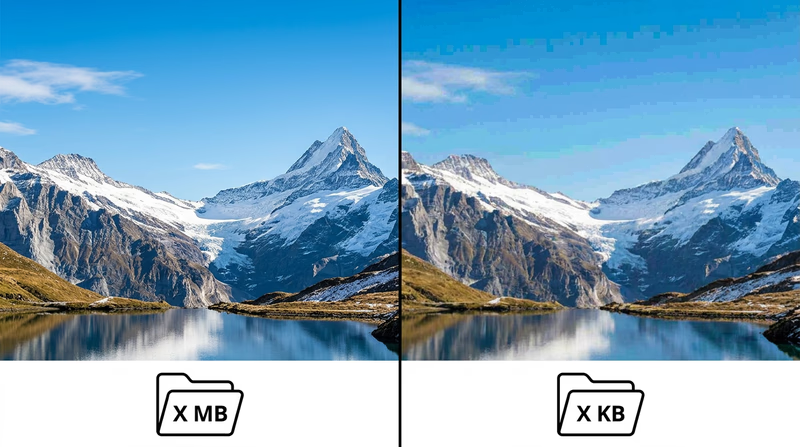
Lossy compression achieves much higher compression ratios by permanently discarding some data — the parts that are least noticeable to human senses. Once the data is thrown away, it is gone forever. You cannot decompress a lossy file back to the exact original.
This sounds alarming, but it works because human perception has limits:
- Audio: Your ears cannot hear frequencies above ~20,000 Hz or very quiet sounds masked by louder ones. MP3 and AAC formats remove these inaudible sounds, shrinking an audio file to about one-tenth its original size with minimal perceptible quality loss.
- Images: Your eyes are more sensitive to changes in brightness than changes in color. JPEG compression takes advantage of this, reducing color detail more aggressively than brightness detail. A JPEG photo might be 10–20 times smaller than the raw original.
- Video: Most frames in a video are very similar to the frames before and after them. Formats like MP4/H.264 store only what changes between frames, dramatically reducing file size.
When to Use Lossy
Lossy compression is the right choice when perfect accuracy is not critical and small size matters:
- Music for listening (MP3, AAC) — streaming services use lossy compression to deliver millions of songs without enormous bandwidth
- Photos for sharing (JPEG) — social media posts, websites, and messaging apps
- Streaming video (MP4, H.264, H.265) — Netflix, YouTube, and video calls would be impossible without lossy video compression
- Voice calls (various codecs) — phone calls compress voice data aggressively since speech does not need CD-quality audio
Side by Side
| Feature | Lossless | Lossy |
|---|---|---|
| Data preserved? | 100% — original perfectly recoverable | Some data permanently removed |
| Compression ratio | Moderate (2:1 to 3:1 typical) | High (10:1 to 50:1 or more) |
| File size | Larger | Much smaller |
| Best for | Documents, code, archival, medical | Streaming, sharing, everyday media |
| Common formats | ZIP, PNG, FLAC, GZIP | JPEG, MP3, AAC, MP4, H.264 |
A Real-World Analogy
Think of lossless compression like packing a suitcase efficiently — you fold clothes tightly and use every inch of space, but everything you packed is still there when you arrive. Lossy compression is like deciding to leave some items at home — you travel lighter, and you might not even miss what you left behind, but you cannot get those items back until you return home.
Khan Academy — Data Compression An interactive lesson from Khan Academy explaining lossless and lossy compression with hands-on examples. Link: Khan Academy — Data Compression — https://www.khanacademy.org/computing/computers-and-internet/xcae6f4a7ff015e7d:digital-information/xcae6f4a7ff015e7d:data-compression/a/compressionYou now understand how data is both stored and compressed. Next, let’s look at the devices that process all this data — and how programming makes them useful.
Req 3c — Programmable Devices
A smartphone with no software is a paperweight. A game console without games is a plastic box. The hardware gives a device its potential, but programming is what unlocks that potential and turns raw circuits into tools that solve real problems. This requirement asks you to think about how software transforms hardware from something that could do things into something that actually does them.
What Makes a Device “Programmable”?
A programmable device has a processor (CPU) that can follow different sets of instructions depending on the software loaded onto it. This is what separates a digital calculator (which does one thing) from a smartphone (which can do almost anything). The key components that make a device programmable are:
- Processor (CPU): The brain that executes instructions
- Memory (RAM): Temporary workspace where the processor holds data it is actively using
- Storage: Where programs and data live permanently (flash memory, SSD, hard drive)
- Input/Output: Ways to receive data (touchscreen, camera, microphone) and produce results (screen, speaker, motor)
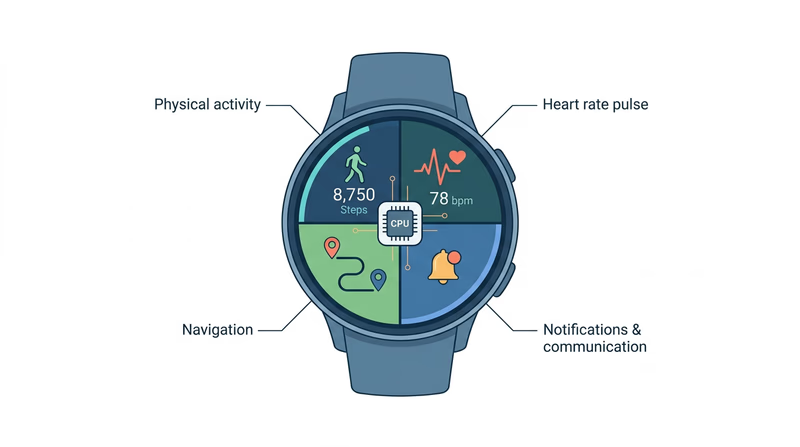
Example 1: Smartwatch
A smartwatch contains sensors (accelerometer, heart rate monitor, GPS receiver, gyroscope), a small processor, and a display. Without programming, these components just sit there generating raw electrical signals.
Software makes the smartwatch useful by:
- Fitness tracking: Programs interpret accelerometer data to count steps, measure distance, and detect whether you are walking, running, or swimming. The heart rate sensor data gets processed into workout summaries, resting heart rate trends, and calorie estimates.
- Navigation: GPS coordinates alone are just numbers. Map software turns them into turn-by-turn directions on your wrist.
- Notifications: Software connects the watch to your phone via Bluetooth, filtering which alerts reach your wrist and displaying them in a readable format.
- Health monitoring: Advanced programs analyze heart rhythm patterns to detect irregular heartbeats and alert you to potential health concerns.
Without its software, the smartwatch would just be a collection of sensors producing meaningless numbers. Programming transforms those numbers into actionable health insights, directions, and communication.
Example 2: Digital Camera (in Your Phone)
Your phone’s camera module includes a lens, an image sensor (which converts light into electrical signals), and a dedicated image processor. The hardware captures raw light data — but the software is what turns that data into the incredible photos you actually see.
Software makes the camera useful by:
- Auto-focus: Programs analyze contrast patterns across the image sensor to determine what is sharp and what is blurry, then adjust the lens position dozens of times per second.
- HDR photography: Software takes multiple photos at different exposures in rapid succession, then combines them into a single image with detail in both bright skies and dark shadows — something no single exposure can capture.
- Night mode: When there is not enough light, programs instruct the camera to take dozens of frames over several seconds, then align and stack them together, computationally brightening the scene while reducing noise.
- Portrait mode: AI software identifies the subject (your face) and the background, then artificially blurs the background to mimic the effect of an expensive DSLR camera lens.
The image sensor itself has not changed dramatically in recent years — but computational photography (software processing) has made phone cameras rival dedicated cameras costing thousands of dollars.
Choosing Your Own Examples
For this requirement, pick two devices that interest you and explain how software makes each one useful. Here are some ideas beyond the two examples above:
Programmable Device Ideas
Pick two and think about how software transforms them- Gaming console: Game engines, online multiplayer networking, controller input mapping
- Smart thermostat: Learning your schedule, adjusting temperature automatically, remote control via app
- Drone: Flight stabilization, obstacle avoidance, GPS waypoint navigation, camera control
- Smart speaker: Voice recognition, natural language processing, music streaming, smart home control
- Car infotainment system: Navigation, hands-free calling, vehicle diagnostics, backup camera display
- 3D printer: Converting digital models into layer-by-layer printing instructions
Now that you understand how programming makes individual devices useful, let’s compare three major categories of computing devices.
Req 3d — Computers, Mobile & Consoles
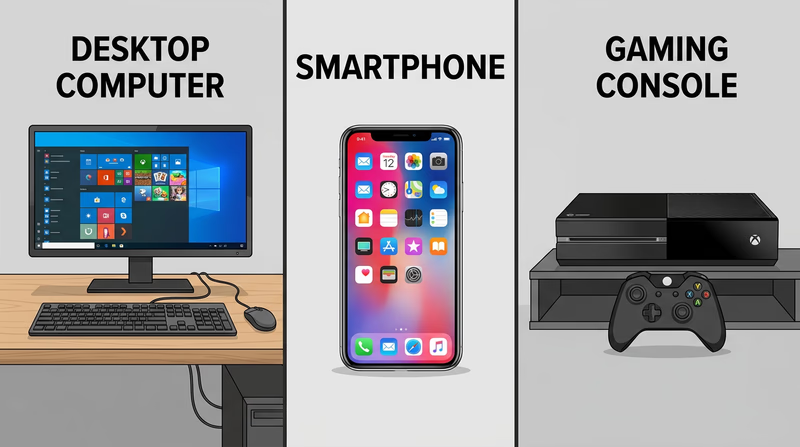
A laptop, a smartphone, and a PlayStation all have processors, memory, storage, and screens. They all run software. They all connect to the internet. So what actually makes them different? The answer lies in what each one is designed to do best — and the trade-offs that come with that focus.
What They Have in Common
All three device categories are built on the same fundamental architecture. Each one contains:
- A processor (CPU) that executes instructions
- Memory (RAM) that holds data the processor is actively using
- Storage (SSD, flash memory, or hard drive) for permanent data
- An operating system that manages hardware resources and runs applications
- Input devices (keyboard, touchscreen, controller) and output devices (screen, speakers)
- Network connectivity (Wi-Fi, Bluetooth, Ethernet, cellular)
Under the hood, all three are computers. The differences come from how these components are configured and what they are optimized for.
Key Differences
Computers (Desktops & Laptops)
Designed for: General-purpose computing — productivity, creative work, programming, gaming, research, and everything else.
- Operating systems: Windows, macOS, Linux, ChromeOS
- Strengths: Most flexible devices. You can install virtually any software, connect external hardware (monitors, printers, scientific instruments), and customize or upgrade components. Desktops allow you to swap in a faster processor, add more RAM, or install a better graphics card.
- Input: Full-size keyboard and mouse/trackpad — optimized for typing, precision tasks, and productivity
- Trade-offs: Least portable (desktops are stationary; laptops are portable but heavier than phones). Typically more expensive.
Mobile Devices (Smartphones & Tablets)
Designed for: Portability, communication, and quick access to information and media.
- Operating systems: Android (Google), iOS (Apple), iPadOS
- Strengths: Always with you. Cellular connectivity means internet access almost anywhere. Built-in sensors (GPS, accelerometer, camera, compass) enable apps that desktop computers cannot easily replicate. Touch interfaces feel natural for browsing, social media, and media consumption.
- Input: Touchscreen — great for tapping, swiping, and casual use, but less efficient for long documents or precision work
- Trade-offs: Smaller screens. Less processing power than desktops (to save battery). Limited storage. Harder to do complex creative work or multitask with multiple windows.
Gaming Consoles
Designed for: High-performance gaming and entertainment.
- Operating systems: Custom systems (PlayStation OS, Xbox OS, Nintendo Switch OS)
- Strengths: Hardware is specifically optimized for rendering graphics and running games smoothly. Because every console of the same model has identical hardware, game developers can fine-tune performance perfectly — no need to worry about different configurations. Also serve as media centers for streaming services.
- Input: Game controllers with joysticks, triggers, and buttons — designed for precise, comfortable gaming over long sessions
- Trade-offs: Very limited software selection compared to computers. You cannot install a word processor, spreadsheet, or coding environment. Not portable (except the Nintendo Switch). Cannot be upgraded — the hardware is fixed for the console’s entire lifespan.
Comparison Table
| Feature | Computer | Mobile Device | Gaming Console |
|---|---|---|---|
| Primary purpose | General-purpose | Communication & portability | Gaming & entertainment |
| Software flexibility | Very high | Moderate (app stores) | Low (games & streaming) |
| Portability | Low (desktop) / Medium (laptop) | Very high | Low |
| Upgradeable? | Yes (especially desktops) | No | No |
| Input method | Keyboard & mouse | Touchscreen | Game controller |
| Typical price range | $300–$3,000+ | $200–$1,500 | $250–$500 |
| Battery powered? | Laptops yes, desktops no | Yes | No (except Switch) |
The Lines Are Blurring
These categories used to be more distinct, but they are converging. Modern smartphones are powerful enough to edit 4K video. Gaming consoles can stream Netflix and browse the web. Laptops with high-end graphics cards rival consoles for gaming performance. Cloud gaming services like Xbox Cloud Gaming let you play console-quality games on a phone or tablet.
GCFGlobal — Computer Basics: Understanding Computers Free lessons from GCFGlobal covering the fundamentals of different computing devices, how they work, and how to use them. Link: GCFGlobal — Computer Basics: Understanding Computers — https://edu.gcfglobal.org/en/computerbasics/You now understand the devices. Next, let’s explore how they talk to each other through networks.
Req 3e — Computer Networks
When you send a text to a friend across town or share a file with your patrol over Wi-Fi, you are using a computer network. Networks are the invisible highways that let devices share data, resources, and communication — and understanding how they work is fundamental to understanding the digital world.
What Is a Computer Network?
A computer network is two or more devices connected together so they can share data and resources. That is the simplest definition, and it covers everything from two laptops connected by a single cable to the billions of devices linked through the internet.
Networks need three things to function:
- Devices (also called nodes or hosts) — computers, phones, printers, servers, or any hardware that sends or receives data
- A connection medium — the physical or wireless link between devices (Ethernet cables, Wi-Fi radio waves, fiber-optic cables)
- Protocols — shared rules that govern how data is packaged, addressed, sent, and received (the most common set is TCP/IP, which is the foundation of the internet)
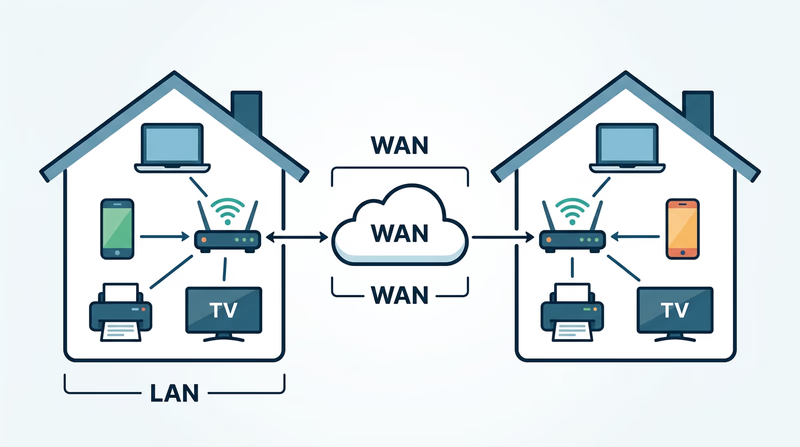
LAN: Local Area Network
A Local Area Network (LAN) connects devices in a small, defined area — your home, a classroom, a Scout meeting hall, or a single building.
Characteristics of a LAN:
- Coverage: Small area — typically a single building or campus
- Ownership: Usually owned and managed by one person or organization (your family manages your home Wi-Fi; your school manages its network)
- Speed: Very fast — modern LANs typically run at 1 Gbps (gigabit per second) or higher over Ethernet, and 100+ Mbps over Wi-Fi
- Connection methods: Ethernet cables (wired) and Wi-Fi (wireless)
- Common equipment: Router, switch, access point
Everyday LAN examples:
- Your home Wi-Fi network connecting your phone, laptop, smart TV, and printer
- A school computer lab where all the desktops share one printer and internet connection
- A Scout camp office with a few computers networked together
WAN: Wide Area Network
A Wide Area Network (WAN) connects devices or networks across large geographic areas — cities, states, countries, or the entire globe. The internet itself is the largest WAN ever built.
Characteristics of a WAN:
- Coverage: Large area — city-wide, nationwide, or worldwide
- Ownership: Usually operated by telecommunications companies (ISPs like Comcast, AT&T, Verizon) or large organizations. No single entity owns the entire internet.
- Speed: Varies widely — from a few Mbps in rural areas to 10+ Gbps on fiber backbone connections
- Connection methods: Fiber-optic cables (including undersea cables), satellite links, cellular towers, microwave relays
- Common equipment: Routers, modems, fiber-optic switches, cellular towers
Everyday WAN examples:
- The internet — connecting billions of devices worldwide
- A company with offices in New York, London, and Tokyo connected through a private WAN
- Cellular data networks that let you use your phone anywhere with coverage
LAN vs. WAN at a Glance
| Feature | LAN | WAN |
|---|---|---|
| Area covered | Single building or campus | Cities, countries, worldwide |
| Owned by | Individual or single organization | Telecom providers or shared infrastructure |
| Speed | Very high (1–10 Gbps typical) | Varies (10 Mbps to 10 Gbps) |
| Cost | Low (your router costs ~$50–$200) | High (undersea cables cost hundreds of millions) |
| Example | Your home Wi-Fi | The internet |
| Latency | Very low (under 1 ms) | Higher (10–100+ ms depending on distance) |
How LANs and WANs Work Together
Here is what happens when you load a webpage:
- Your laptop sends a request over your home LAN (via Wi-Fi to your router)
- Your router forwards the request to your internet service provider through your WAN connection (cable, fiber, or DSL modem)
- The ISP routes the request through the internet backbone (the global WAN) — possibly across undersea fiber-optic cables
- The request reaches the web server (which is on its own LAN in a data center)
- The server sends the webpage back along the reverse path
This entire round trip typically takes less than a second — even when the server is on another continent.
Submarine Cable Map An interactive map showing every undersea internet cable in the world — zoom in to see the cables that connect continents and carry the internet's data. Link: Submarine Cable Map — https://www.submarinecablemap.com/You have now covered all the fundamentals of digital data — how it is stored, compressed, processed, and transmitted. Time to move into the world of software and learn how the programs running on your devices actually work.
Req 4a — Programs, Apps & How They Run
When you tap an app icon on your phone, a chain of events fires off in milliseconds: the processor loads instructions from storage, shuffles data through memory, and paints results on your screen — billions of operations happening faster than you can blink. Understanding how this works gives you a deeper appreciation for every piece of software you use.
What Is a Program?
A program (also called software, application, or app) is a set of instructions that tells a computer what to do. Just as a recipe tells you the steps to make a meal, a program tells the CPU the steps to accomplish a task — whether that is displaying a webpage, sorting a spreadsheet, or rendering a video game frame.
Programs are written by humans in programming languages like Python, Java, JavaScript, C++, or Swift. These languages use words and symbols that humans can read and write. Before a program can run, it is usually translated into machine code — the binary ones and zeros that the CPU actually understands.
There are different levels of software:
- Operating System (OS): The master program that manages all hardware and provides a platform for other software to run. Examples: Windows, macOS, Android, iOS, Linux.
- Applications: Programs that perform specific tasks on top of the OS. Examples: web browsers, word processors, games, photo editors.
- Utilities: Smaller programs that help maintain the system. Examples: antivirus software, file managers, backup tools.
How the CPU Executes a Program
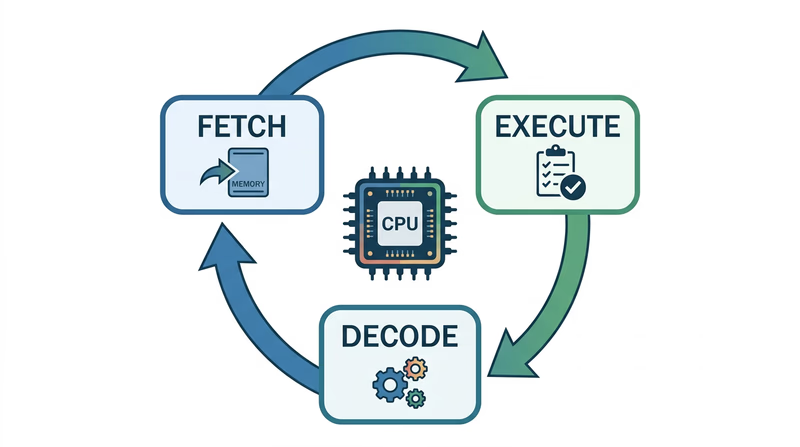
The CPU (Central Processing Unit) is the brain of the computer. It follows a simple but incredibly fast cycle called the fetch-decode-execute cycle:
- Fetch: The CPU grabs the next instruction from memory (RAM)
- Decode: The CPU figures out what the instruction means — is it “add two numbers”? “Load data from storage”? “Display a pixel on screen”?
- Execute: The CPU carries out the instruction
- Repeat: The CPU moves to the next instruction and starts again
Modern CPUs perform this cycle billions of times per second. The speed is measured in gigahertz (GHz) — a 3 GHz processor performs 3 billion cycles per second.
Most modern CPUs also have multiple cores — essentially multiple brains that can work on different instructions simultaneously. A quad-core processor can execute four instruction streams at once, which is why your computer can play music, download a file, and display a webpage all at the same time.
The Role of Memory (RAM)
RAM (Random Access Memory) is the computer’s short-term workspace — a fast, temporary storage area where the CPU keeps the data and instructions it needs right now.
Think of it this way:
- Storage (SSD/hard drive) is like a filing cabinet — it holds everything permanently but takes time to open and retrieve items
- RAM is like your desk — it holds the files you are currently working with, so you can access them instantly
- CPU is like your brain — it processes information from your desk (RAM), not directly from the filing cabinet (storage)
When you open an app, the operating system copies the program’s instructions and data from storage into RAM, where the CPU can access them quickly. The more RAM your device has, the more apps and data it can keep “on the desk” at once. When you close an app or shut down, the contents of RAM disappear — that is why it is called volatile memory.
The Loading Process Step by Step
Here is what happens when you tap an app icon:
- The OS receives your tap and identifies which app you want
- The OS finds the app’s program files on storage (SSD/flash memory)
- The program code is copied from storage into RAM
- The CPU begins reading instructions from RAM using the fetch-decode-execute cycle
- The app’s interface appears on screen as the CPU processes drawing instructions
- The app continues running — responding to your input, processing data, updating the display — until you close it
Cache: The Secret Speed Boost
Between RAM and the CPU, there is an even faster (but much smaller) memory called cache. The CPU keeps its most frequently used data in cache so it does not have to wait for RAM. Think of cache as a sticky note on your desk with the numbers you use most often — even faster to glance at than opening a folder.
Modern CPUs have multiple levels of cache (L1, L2, L3), each progressively larger but slightly slower. The fastest cache (L1) can deliver data to the CPU in about one nanosecond — one billionth of a second.
Code.org — How Computers Work: CPU & Memory A clear, visual explanation of how the CPU and memory work together to run programs, from the Code.org 'How Computers Work' series. Link: Code.org — How Computers Work: CPU & Memory — https://www.youtube.com/watch?v=DKGZlaPlVLYYou now know how programs work inside a computer. Next, think about the programs you use in your own life — and why they matter.
Req 4b — Software You Use
You probably use dozens of apps every day without thinking much about them. This requirement asks you to slow down and actually consider why you use specific software — what problem does each one solve, and how would your life be different without it?
How to Choose Your Four
Pick apps that serve different purposes so you can show your counselor the range of ways software helps your life. Avoid naming four apps that all do the same thing (like four different games). Instead, think across categories:
Communication & Social
These apps connect you with other people:
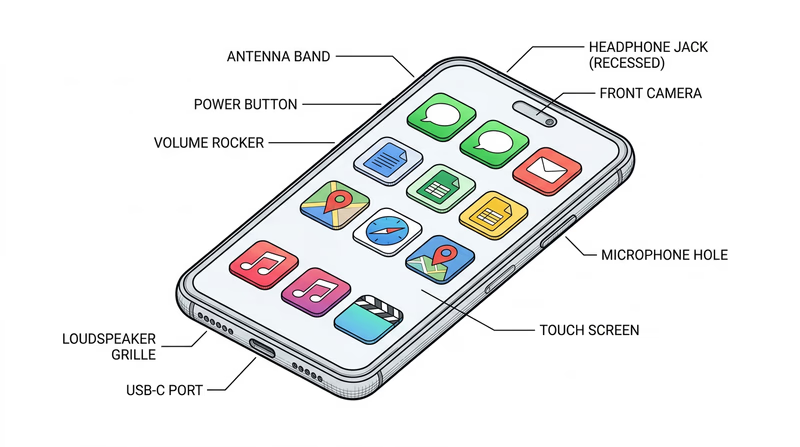
- Messaging apps (iMessage, WhatsApp, Discord) — instant text, voice, and video communication with friends, family, and Scout groups
- Email (Gmail, Outlook) — formal communication for school, organizations, and official correspondence
- Video calling (Zoom, FaceTime, Google Meet) — face-to-face conversations regardless of distance; used for virtual troop meetings, family catch-ups, and school classes
Productivity & School
These apps help you get work done:
- Google Docs / Microsoft Word — writing reports, essays, and letters with formatting, spell-check, and collaboration features
- Google Sheets / Excel — organizing data, tracking budgets, creating charts, managing lists
- Google Slides / PowerPoint — building visual presentations for school projects or troop events
- Google Classroom / Canvas — managing assignments, submitting homework, communicating with teachers
Navigation & Travel
- Google Maps / Apple Maps — turn-by-turn navigation, finding businesses, estimating travel times, street view
- Weather apps — planning for outdoor activities, checking forecasts before campouts
Entertainment & Media
- Music streaming (Spotify, Apple Music) — access to millions of songs on demand
- Video streaming (YouTube, Netflix) — educational content, entertainment, tutorials
- E-book readers (Kindle, Apple Books) — carrying an entire library in your pocket
Health & Fitness
- Fitness trackers (Apple Health, Fitbit) — monitoring activity, sleep, and exercise
- Nutrition apps — tracking meals, planning diets for camping trips
Scouting-Specific
- Scoutbook — tracking merit badges, rank advancement, and service hours
- Hiking apps (AllTrails) — finding trails, tracking hikes, downloading offline maps for areas without cell service
Explaining How Each One Helps
When you talk to your counselor, go beyond just naming the app. Explain the specific benefit it provides. Here is the difference:
Weak answer: “I use Google Maps.”
Strong answer: “I use Google Maps for navigation. Last month, my family was driving to a campout at a state park we had never visited. Maps gave us turn-by-turn directions, estimated our arrival time so we could plan dinner, and showed us where the nearest gas station was when we were running low. Without it, we would have needed to print paper maps and hope we did not miss a turn.”
A Framework for Your Discussion
For each of your four apps, prepare answers to these questions:
App Analysis Questions
Answer these for each of your four choices- What is the app’s main purpose?
- What specific problem does it solve for you or your family?
- Can you describe a time it was particularly helpful?
- How would you accomplish the same task without this app?
- Does the app use any of the digital technology concepts you have learned (networks, data storage, sensors)?
You have identified the software that helps you every day. Now let’s look at the software that tries to hurt you — malware — and how to defend against it.
Req 4c — Malware & Protection
In 2017, a single piece of malware called WannaCry infected more than 200,000 computers across 150 countries in just a few days. It locked users out of their files and demanded ransom payments. Hospitals cancelled surgeries. Factories shut down production lines. The attack exploited a known vulnerability that many organizations had simply failed to patch. Understanding malware and knowing how to defend against it is not optional — it is a survival skill for the digital world.
What Is Malware?
Malware is short for “malicious software” — any program designed to damage, disrupt, or gain unauthorized access to a device or network. Malware is created by cybercriminals, and it comes in many forms:
Types of Malware
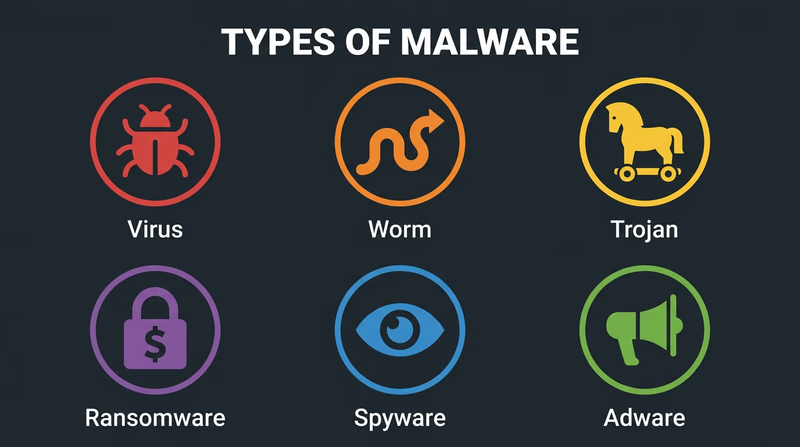
Viruses attach themselves to legitimate files or programs. When you open the infected file, the virus activates and can spread to other files on your device or to other devices on your network. Like a biological virus, it needs a “host” to spread.
Worms are similar to viruses but do not need a host file. They spread automatically across networks by exploiting security vulnerabilities. A worm can infect thousands of devices without anyone clicking or downloading anything.
Trojans (named after the Trojan Horse) disguise themselves as useful or harmless programs. You download what looks like a free game or helpful utility, but hidden inside is malicious code that steals data, installs other malware, or gives an attacker remote access to your device.
Ransomware encrypts your files — photos, documents, everything — and demands payment (usually in cryptocurrency) for the decryption key. Even if you pay, there is no guarantee you will get your files back.
Spyware secretly monitors your activity — tracking which websites you visit, recording your keystrokes (to steal passwords), and sometimes activating your camera or microphone without your knowledge.
Adware bombards you with unwanted advertisements and pop-ups. While less dangerous than other types, it slows your device and can serve as a gateway for more serious malware.
How Malware Gets In
Understanding infection methods helps you avoid them:
- Phishing emails and messages — Fake emails that look like they come from trusted sources (your bank, a teacher, a shipping company) with links to malicious websites or infected attachments
- Malicious downloads — Software from unofficial sources, pirated games, or “free” versions of paid apps
- Infected websites — Visiting compromised websites that automatically attempt to install malware (called “drive-by downloads”)
- Removable media — USB drives found in public places that contain malware (a surprisingly common attack method)
- Unpatched software — Old software with known security holes that attackers target
How to Protect Your Devices
Keep Software Updated
Software updates often include security patches that fix vulnerabilities. When your phone or computer asks you to install an update, do it promptly. The WannaCry attack succeeded because organizations had not installed a patch that Microsoft had released two months earlier.
Use Strong, Unique Passwords
- Make passwords at least 12 characters long
- Use a mix of uppercase letters, lowercase letters, numbers, and symbols
- Never reuse the same password across multiple accounts
- Consider using a password manager to generate and store unique passwords for every account
Enable Two-Factor Authentication (2FA)
Two-factor authentication requires something you know (your password) and something you have (a code sent to your phone or generated by an app). Even if someone steals your password, they cannot access your account without the second factor.
Install and Update Antivirus Software
Antivirus programs scan your device for known malware, block suspicious downloads, and quarantine infected files. Keep the antivirus definitions updated so it can recognize the latest threats.
Be Skeptical of Links and Downloads
- Do not click links in unexpected emails or messages, even if they appear to come from someone you know
- Download software only from official app stores or trusted websites
- If an offer seems too good to be true (free premium software, “you won a prize”), it almost certainly is
Back Up Your Data
Regular backups protect you against ransomware and hardware failure. Use both:
- Cloud backups (iCloud, Google Drive, OneDrive) for automatic, continuous protection
- Local backups (external hard drive) for an offline copy that ransomware cannot reach
Device Security Checklist
Review these regularly- Operating system is set to auto-update
- Antivirus software is installed and current
- Two-factor authentication is enabled on important accounts
- Passwords are strong, unique, and stored in a password manager
- Data is backed up in at least two locations
- Bluetooth and Wi-Fi are turned off when not in use
- Unknown USB drives are never plugged into your devices
You know how to protect your devices. Now let’s explore a different kind of digital technology you encounter every day — the codes and tags embedded in the products around you.
Req 4d — Barcodes, QR Codes & RFID
Pick up almost any product around you — a snack bar, a textbook, a water bottle — and you will find some form of machine-readable code on it. These codes are the silent workhorses of modern commerce, logistics, and information sharing. They let machines read data instantly without anyone typing a single character.
Barcodes
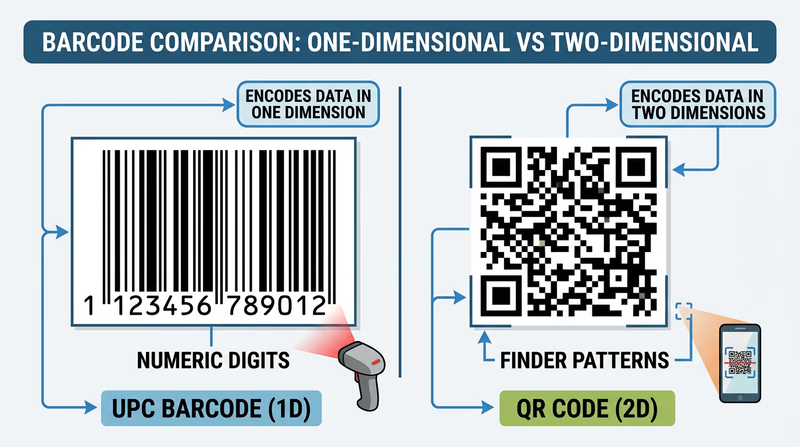
A barcode is a pattern of parallel lines (bars) and spaces of varying widths that represent data. A laser scanner or camera reads the pattern and converts it back into numbers. The most common type is the UPC (Universal Product Code), which you see on virtually every product sold in a store.
What Data Does a Barcode Contain?
A standard UPC barcode contains a 12-digit number. This number does not describe the product directly — it is a reference code that the store’s computer system looks up in a database to find the product name, price, and inventory information.
The 12 digits break down as:
- First digit: Product category (0 = standard grocery, 2 = weighted items like produce, 3 = health/beauty)
- Next 5 digits: Manufacturer identification number
- Next 5 digits: Specific product code (assigned by the manufacturer)
- Last digit: A check digit used to verify the barcode was scanned correctly
Examples of Barcode Use
- Retail stores: Every item scanned at checkout uses a barcode to look up its price and track inventory
- Libraries: Books have barcodes linking to the library’s catalog — scanning a book instantly checks it out or returns it
- Shipping and logistics: Packages have barcodes that track them through every sorting facility from origin to destination
- Hospital patient wristbands: Barcodes on wristbands link to patient records, ensuring the right medication goes to the right person
QR Codes
A QR code (Quick Response code) is a two-dimensional square pattern of black and white modules that stores data both horizontally and vertically. Unlike barcodes, which store data in only one direction, QR codes use both dimensions — allowing them to hold far more information.
What Data Does a QR Code Contain?
A QR code can store up to 7,089 numeric characters or 4,296 alphanumeric characters — enough for a full website URL, a paragraph of text, contact information, or Wi-Fi network credentials. The data is encoded directly in the pattern itself, so a QR code can function without any external database.
QR codes also include error correction — even if part of the code is damaged, dirty, or obscured, it can still be read. This is why some QR codes include logos in the center without breaking.
Examples of QR Code Use
- Restaurant menus: Scan a table-top QR code to load the menu on your phone (this became widespread during the COVID-19 pandemic)
- Payments: Mobile payment systems like Venmo, Cash App, and WeChat Pay use QR codes to transfer money instantly
- Event tickets: Concert and movie tickets often use QR codes instead of paper tickets — your phone screen is scanned at the door
- Product information: Scan a QR code on food packaging to see nutritional details, sourcing information, or recipe ideas
- Wi-Fi sharing: A QR code can store your network name and password, letting guests connect by scanning instead of typing
RFID Tags
RFID (Radio Frequency Identification) uses radio waves to wirelessly transmit data from a small tag to a reader. Unlike barcodes and QR codes, RFID does not require line of sight — the tag can be read through packaging, clothing, or even walls, depending on the frequency used.
An RFID system has two parts:
- Tag: A tiny chip connected to an antenna, embedded in a sticker, card, or plastic case. Tags can be passive (powered by the reader’s radio signal — no battery needed) or active (has its own battery and can transmit over longer distances).
- Reader: Sends radio waves and receives the tag’s response
What Data Does an RFID Tag Contain?
RFID tags typically store a unique identification number (like a serial number) that links to a database. Some tags can store additional data — up to several kilobytes — including product details, ownership information, or access credentials.
Examples of RFID Use
- Contactless payments: Credit cards and phones with tap-to-pay use NFC (Near Field Communication), a short-range form of RFID, to transmit payment information
- Access cards: Hotel key cards, building access badges, and transit cards (like subway passes) use RFID to grant entry
- Inventory management: Retail stores like Walmart use RFID tags on clothing and merchandise to track inventory in real time — a reader can scan an entire shelf of tagged items in seconds without opening boxes
- Pet identification: Veterinarians implant tiny RFID microchips under a pet’s skin. If a lost pet is found, a shelter can scan the chip to identify the owner
- Toll collection: E-ZPass and similar systems use RFID transponders on car windshields to collect tolls without stopping
Comparing All Three
| Feature | Barcode | QR Code | RFID Tag |
|---|---|---|---|
| Format | 1D (lines and spaces) | 2D (square pixel grid) | Radio waves |
| Data capacity | ~20 digits | Up to 7,089 characters | Varies (typically 96–512 bits) |
| Requires line of sight? | Yes | Yes | No |
| Read distance | Inches | Inches to feet | Inches to hundreds of feet |
| Cost per unit | Very low (printed ink) | Very low (printed ink) | Low to moderate (chip + antenna) |
| Can be read through materials? | No | No | Yes |
| Multiple items scanned at once? | No | No | Yes |
You have mastered the physical side of digital data — how it is stored, compressed, processed, and encoded onto products. Now let’s explore how all that data moves across the internet.
Req 5a — How Data Travels Online
When you stream a video, the data does not travel in one continuous stream from a server to your screen. Instead, it gets chopped into tiny pieces, each piece takes its own path through a maze of routers and cables, and they all arrive at your device where they are reassembled in the correct order — often in less than a second. Here is how the internet actually moves data.
How Data Travels: The Basics
All data on the internet — whether it is an email, a video frame, or a webpage — is broken into small chunks called packets. Each packet contains:
- A piece of the actual data (the payload)
- The sender’s IP address (where it came from)
- The recipient’s IP address (where it is going)
- A sequence number (so packets can be reassembled in order)
Packets travel independently through the network. Two packets from the same email might take completely different routes through different cities and still arrive at the same destination. This design, called packet switching, makes the internet resilient — if one path is congested or broken, packets automatically reroute.
Method 1: Wired Connections
Fiber-Optic Cables
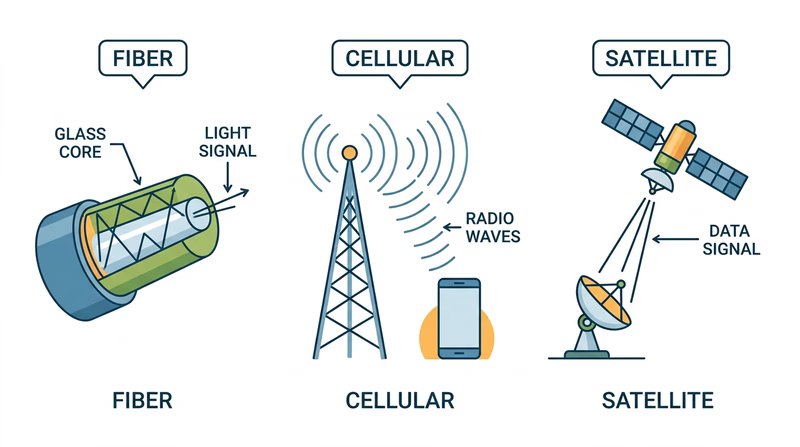
Fiber-optic cables transmit data as pulses of light through thin strands of glass or plastic. Light travels incredibly fast — close to 186,000 miles per second — making fiber the fastest method of internet data transfer.
- Speed: Up to 100 Gbps on modern fiber connections (consumer fiber plans typically offer 1–5 Gbps)
- How it works: A laser or LED at one end converts electrical data signals into light pulses. These pulses bounce along the inside of the glass fiber through a process called total internal reflection. At the other end, a photodetector converts the light back into electrical signals.
- Where it is used: Internet backbone connections between cities and continents (including undersea cables), fiber-to-the-home broadband, data center connections
Copper Cables (Ethernet and DSL)
Traditional copper cables carry data as electrical signals. Two main types:
- Ethernet cables connect devices within a building (LAN). Modern Ethernet (Cat6 and Cat6a) supports speeds up to 10 Gbps over short distances.
- DSL (Digital Subscriber Line) uses existing telephone copper wires to deliver internet to homes. DSL is slower than fiber (typically 10–100 Mbps) but available in more areas because it uses the phone lines already installed in most buildings.
Method 2: Wireless Connections
Wi-Fi
Wi-Fi uses radio waves to transmit data between a router and your devices over short distances (typically within a building).
- Speed: Wi-Fi 6 supports up to 9.6 Gbps in theory; real-world speeds are typically 100–500 Mbps
- How it works: Your router converts wired internet data into radio signals. Your device’s Wi-Fi antenna receives these signals and converts them back. The latest standard, Wi-Fi 6E, uses a wider range of radio frequencies to reduce congestion.
- Range: Typically 50–100 feet indoors, depending on walls and interference
Cellular Networks (4G/5G)
Cellular networks use a system of cell towers to provide mobile internet access over large areas.
- Speed: 4G LTE delivers 10–50 Mbps typically; 5G can reach 100 Mbps to over 1 Gbps
- How it works: Your phone communicates with the nearest cell tower via radio waves. The tower connects to the internet backbone through fiber-optic cables. As you move, your connection seamlessly hands off from one tower to the next.
- Where it is used: Mobile internet access anywhere with cell coverage — streaming, navigation, messaging, and more
Satellite Internet
Satellite internet beams data between ground stations and orbiting satellites using radio waves.
- Speed: Traditional satellite: 12–100 Mbps. Newer low-orbit systems (like SpaceX’s Starlink): 50–200 Mbps
- How it works: Your dish antenna sends a signal to a satellite orbiting Earth. The satellite relays the signal to a ground station connected to the internet backbone. Responses follow the reverse path.
- Where it is used: Rural and remote areas where laying cables is impractical — including on ships at sea, in wilderness areas, and in developing regions
Comparing Transfer Methods
| Method | Speed | Range | Best For |
|---|---|---|---|
| Fiber-optic | Up to 100 Gbps | Thousands of miles (backbone) | High-speed backbone, home broadband |
| Ethernet (copper) | Up to 10 Gbps | 100 meters per segment | LAN connections, office networks |
| Wi-Fi | Up to 9.6 Gbps | 50–100 feet indoors | Home and office wireless networking |
| Cellular (5G) | Up to 1+ Gbps | Miles from tower | Mobile internet access |
| Satellite | Up to 200 Mbps | Global | Remote and rural areas |
You now know how data physically moves across the internet. Next, let’s use that internet to actually find information — and learn how search engines work.
Req 5b — Search Engine Research
Billions of webpages exist on the internet, and search engines are the tools that help you find the right one in seconds. But getting useful results requires more than typing a few words and clicking the first link. This requirement teaches you how to search effectively — a skill you will use for the rest of your life.
How Search Engines Work
When you type a query into Google, Bing, or DuckDuckGo, you are not searching the entire internet in real time. Instead, you are searching the search engine’s index — a massive pre-built catalog of webpages that the engine has already discovered and analyzed.
The process works in three stages:
Crawling: Automated programs called web crawlers (or “spiders”) constantly browse the internet, following links from page to page and downloading content. Google’s crawlers visit billions of pages.
Indexing: The search engine analyzes each crawled page — its text, images, links, structure — and stores this information in a searchable database (the index).
Ranking: When you search, the engine scans its index for pages matching your query and ranks them by relevance using complex algorithms. Factors include keyword matches, page authority, freshness, and hundreds of other signals.
Search Strategies for This Requirement
You need to find ideas from at least three different websites about conducting a court of honor or campfire program. Here are strategies to get the best results:
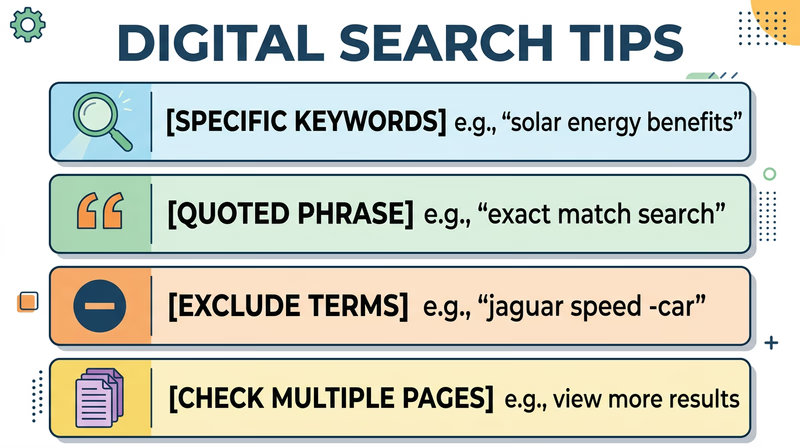
Use Specific Search Terms
Vague queries produce vague results. Be specific:
- Too broad: “Scout ceremony”
- Better: “troop court of honor ceremony ideas”
- Even better: “court of honor ceremony program script Scouts BSA”
Use Quotation Marks for Exact Phrases
Putting a phrase in quotes forces the search engine to find pages with those exact words in that exact order:
"court of honor"— finds pages with this specific phrase, not just pages mentioning “court” and “honor” separately"campfire program" activities songs— combines an exact phrase with additional keywords
Exclude Irrelevant Results with the Minus Sign
If your results include topics you do not want, use a minus sign to filter them out:
"court of honor" -military— excludes military results"campfire program" -summer camp -commercial— filters out summer camp business results
Look Beyond the First Page
The first few results are not always the best. Scroll past ads and check results on pages 2 and 3 for less popular but potentially more useful sources.
Evaluating Your Sources
Not every website is reliable. Before using information from a site, evaluate it with the CRAAP test:
| Criterion | What to Ask |
|---|---|
| Currency | When was the page last updated? Is the information current? |
| Relevance | Does the content actually address your specific topic? |
| Authority | Who wrote it? Is the author or organization qualified? |
| Accuracy | Can you verify the information from other sources? |
| Purpose | Is the page trying to inform, sell, or persuade? |
For Scout-related topics, look for content from:
- Official Scouting organizations and councils
- Established Scouting blogs and resource sites
- Experienced Scout leaders sharing tested programs
- Educational and nonprofit organizations
Research Planning Checklist
Complete these steps for your counselor- Search for court of honor OR campfire program ideas using at least 3 different search queries
- Find ideas from at least 3 different websites (not all from the same source)
- Note the URL, website name, and author (if available) for each source
- Write down 2-3 specific ideas from each website
- Be ready to explain what search terms you used and how you refined your search
- Evaluate whether each source seems reliable using the CRAAP criteria
Ideas to Get You Started
Here are some angles to explore in your research:
For Court of Honor:
- Ceremony flow and program order
- How to recognize rank advancements and merit badge completions
- Guest speaker suggestions
- Decorations and setup ideas
- Roles for Scouts during the ceremony
For Campfire Program:
- Song selection and leading techniques
- Skit ideas appropriate for mixed audiences
- Storytelling tips and campfire stories
- How to structure a program with variety (songs, skits, cheers, quiet moments)
- Campfire opening and closing ceremonies
You have learned to harness the power of search engines. Now let’s explore how the internet keeps your data safe while it travels.
Req 5c — HTTPS & Security Certificates
Every time you log into a website, check your grades, or buy something online, you are trusting that nobody in between — no hacker at the coffee shop, no rogue network operator — can read what you are sending. That trust rests on a system called HTTPS and the security certificates that power it.
What Is HTTPS?
HTTPS stands for HyperText Transfer Protocol Secure. It is the secure version of HTTP, the protocol your browser uses to communicate with websites. The “S” at the end stands for “Secure” — and it makes a critical difference.
When you visit a website using plain HTTP:
- Data travels between your browser and the server as plain text
- Anyone monitoring the network (on the same Wi-Fi, for example) could potentially read your passwords, messages, and personal information
- There is no verification that the website is actually who it claims to be
When you visit a website using HTTPS:
- All data is encrypted — scrambled into unreadable code that only your browser and the server can decode
- Even if someone intercepts the data, they see gibberish instead of your password
- The website’s identity is verified through a security certificate
How to Check for HTTPS
Identifying a secure connection is straightforward:
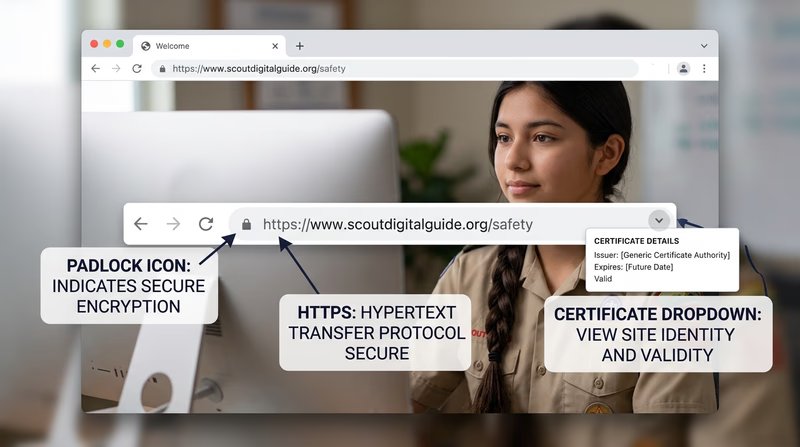
- Look at the URL: It should start with
https://(not justhttp://) - Look for the lock icon: Most browsers display a padlock icon in the address bar next to secure URLs
- Click the lock: Clicking the padlock icon reveals details about the security certificate — who issued it, who it was issued to, and when it expires
What Is a Security Certificate?
A security certificate (also called an SSL/TLS certificate) is a digital document that proves a website is who it claims to be. Think of it like a driver’s license for websites — it is issued by a trusted authority and confirms the website’s identity.
A certificate contains:
- The domain name the certificate was issued for (e.g.,
www.google.com) - The organization that owns the website
- The Certificate Authority (CA) that issued it — a trusted organization like Let’s Encrypt, DigiCert, or Comodo that verifies website identities
- The expiration date — certificates are valid for a limited time and must be renewed
- The public encryption key used to establish the secure connection
How to Tell If a Certificate Can Be Trusted
Not all certificates are equally trustworthy. Here is what to check:
Signs of a Trustworthy Certificate
Certificate Trust Checklist
Verify these before entering sensitive information- The padlock icon appears with no warnings or errors
- The certificate has not expired (check the valid dates)
- The domain name on the certificate matches the website you intended to visit
- The certificate was issued by a recognized Certificate Authority (CA)
- Your browser does not display any security warnings or error pages
Warning Signs
- “Not Secure” warning: Your browser explicitly warns you the site is not using HTTPS — avoid entering passwords or personal information
- Certificate error page: Your browser blocks the page and shows a warning like “Your connection is not private.” This can mean the certificate is expired, the domain does not match, or the certificate was issued by an untrusted authority.
- Mismatched domain: The certificate says
secure-banking.example.combut you are visitingsecure-bankng.example.com(notice the typo) — this is a common phishing technique
How Encryption Works (Simplified)
When your browser connects to an HTTPS website, they perform a “handshake” to establish a secure connection:
- Your browser says “I want a secure connection” and sends a list of encryption methods it supports
- The server responds with its security certificate and chosen encryption method
- Your browser verifies the certificate with the Certificate Authority
- If the certificate checks out, your browser and the server exchange encryption keys
- From this point on, all data between you and the server is encrypted — unreadable to anyone who intercepts it
This entire handshake happens in milliseconds, before the webpage even starts loading.
Try It Yourself
To prepare for this requirement, practice viewing a certificate:
- Open your browser and navigate to any HTTPS website (try
https://www.google.com) - Click the padlock icon in the address bar
- Look for an option like “Certificate” or “Connection is secure” and click it
- Review the certificate details: who issued it, who it was issued to, and the expiration date
- Try visiting a site with a known bad certificate (your school IT department may be able to demonstrate this) and notice how your browser warns you
You now understand how the internet keeps your data safe. Time to put your digital skills to work on some hands-on projects.
Req 6 — Hands-On Digital Projects
This is the hands-on heart of the Digital Technology merit badge. You will choose three of the eight options below and create real digital projects. Each one builds practical skills with different types of software. Remember: for every project, you must back up your files to a separate device (USB drive, cloud storage, or external hard drive) and share the finished work with your counselor.
Option A: Spreadsheet or Database Project
Tools you can use: Google Sheets, Microsoft Excel, LibreOffice Calc, Apple Numbers
For the food budget:
- List every meal (Friday dinner through Sunday breakfast)
- Include ingredients, quantities, and costs
- Use formulas to calculate totals per meal and a grand total
- Consider per-person costs by dividing by the number of patrol members
For the troop roster:
- Create columns for Name, Rank, Patrol, and Phone Number
- Enter data for your troop (or create sample data with at least 10–15 entries)
- Demonstrate sorting by rank, by patrol, and alphabetically by name
- Consider using data validation or dropdown lists for rank and patrol fields
Option B: Word Processing Letter
Tools you can use: Google Docs, Microsoft Word, LibreOffice Writer, Apple Pages
Your letter should include:
- A proper header with your troop number and contact information
- The date and a greeting
- Clear details: What is the event? When and where is it? What should families bring?
- A call to action (RSVP instructions)
- Professional formatting: consistent fonts, appropriate spacing, and a polished appearance
Focus on using word processing features like headers, bold/italic text, bulleted lists, and spell check. A well-formatted letter shows real word processing skills.
Option C: Graphics Design Project
Tools you can use: Google Drawings, Canva, Microsoft Publisher, GIMP (free), Adobe Express
For the campsite plan:
- Draw a bird’s-eye view of the campsite layout
- Include tent locations, fire ring, cooking area, water source, latrine, and gathering area
- Add labels and a simple legend
- Consider compass orientation and spacing between elements
For the event flyer:
- Include a catchy headline, event details (date, time, location), and contact information
- Add at least one image or illustration
- Use design principles: clear hierarchy, readable fonts, contrasting colors
- Make it something you would actually want to post on a bulletin board
Option D: Presentation
Tools you can use: Google Slides, Microsoft PowerPoint, Apple Keynote, LibreOffice Impress
Strong presentation tips:
- Keep text minimal — bullet points, not paragraphs. Your slides should support your speaking, not replace it.
- Every slide needs at least one visual element (photo, diagram, chart, or illustration)
- Use a consistent design theme across all slides
- Include a title slide and a conclusion or summary slide
- Pick a topic you are passionate about — it will show in your presentation
Option E: Digital Photography
What you will demonstrate:
- Taking a clear, well-composed photograph of a real troop activity
- Transferring the photo from one device to another (phone to computer, for example)
- Methods: email attachment, AirDrop/Nearby Share, USB cable, cloud upload, or messaging app
This is the most straightforward option, but take it seriously — focus on getting a good photo with clear composition and adequate lighting, not just a quick snapshot.
Option F: Voice Recording
Tools you can use: Voice Memos (iPhone), Sound Recorder (Android/Windows), Audacity (free, all platforms)
What to record: Consider recording something useful — a patrol meeting summary, a trail description, or a reflection on a Scouting experience. Make sure the recording is clear and audible.
Transfer methods: Email the file, upload to cloud storage, transfer via USB, use AirDrop/Nearby Share, or use a messaging app.
Option G: Blog
Tools you can use: WordPress.com, Blogger, Google Sites, Wix, or even a Google Doc formatted as a blog
Your blog needs:
- At least five entries covering different Scouting activities
- At least two photographs or illustrations
- Each entry should have a date, a title, and substantive content (not just “We went camping. It was fun.”)
Option H: Webpage
Tools you can use: Google Sites, WordPress.com, Wix, or even hand-coded HTML in a text editor
Your webpage needs:
- At least three articles (about your troop’s activities, upcoming events, history, etc.)
- At least two photographs or illustrations
- At least one external link to a relevant website
- A clean, organized layout that is easy to navigate
The same safety rules apply — get parent and counselor approval before publishing online.
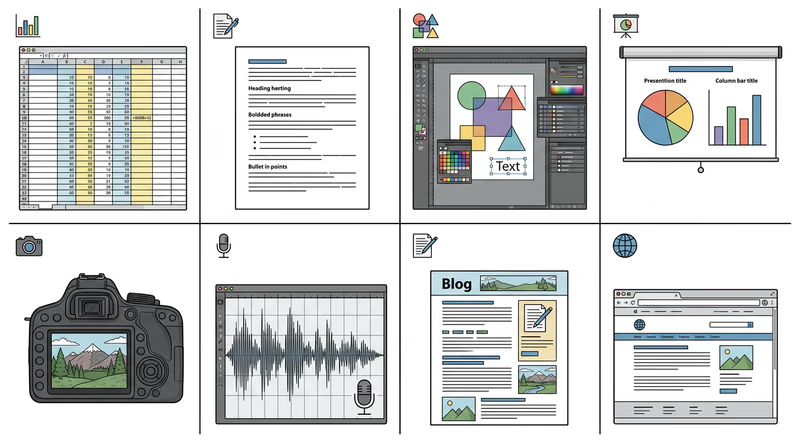
For All Projects: Back Up Your Work
No matter which three options you choose, you must back up your files to a separate device. This reinforces the data protection principles from Req 4c. Options include:
- USB flash drive — copy files directly
- Cloud storage — Google Drive, iCloud, OneDrive, Dropbox
- Email to yourself — simple but effective for small files
- External hard drive — for larger projects
You have built real digital projects. Now let’s make sure you understand the laws that protect the digital work of others — and your own.
Req 7a — Copyrights, Patents & Trademarks
If you spent months building an app, writing a song, or designing a logo, you would not want someone to copy it and claim it as their own. Intellectual property (IP) law exists to protect the things people create with their minds — giving creators the right to control and benefit from their work. In the digital world, where copying is as easy as pressing Ctrl+C, these protections matter more than ever.
Copyright
What it protects: Original creative works — books, music, movies, photographs, software code, artwork, blog posts, and websites.
How it works: Copyright protection is automatic. The moment you create an original work and fix it in a tangible form (write it down, record it, save the file), it is copyrighted. You do not need to register it or put a © symbol on it, though both can help if you ever need to prove ownership.
What it gives the creator:
- The exclusive right to reproduce (copy) the work
- The right to create derivative works (adaptations, remixes)
- The right to distribute, perform, and display the work publicly
- The right to license others to do any of the above
How long it lasts: In the United States, copyright lasts for the life of the creator plus 70 years.
Why it exists: Without copyright, creators would have little incentive to invest time and effort in new works. Why spend a year writing a novel if anyone could immediately copy and sell it? Copyright ensures that creators can earn a living from their work.
Patents
What they protect: Inventions — new and useful processes, machines, manufactured items, or compositions of matter. In the tech world, patents cover things like new chip designs, algorithms, device mechanisms, and manufacturing processes.
How they work: Unlike copyright, patent protection is not automatic. You must apply to the U.S. Patent and Trademark Office (USPTO), describe your invention in detail, and prove that it is genuinely new, useful, and non-obvious. The application process can take years and cost thousands of dollars.
What they give the inventor:
- The exclusive right to make, use, and sell the invention for a limited time
- The right to license the invention to others (often for royalty payments)
How long they last: Utility patents last 20 years from the filing date. Design patents last 15 years.
Why they exist: Patents encourage innovation by guaranteeing inventors a period of exclusivity to profit from their inventions. In exchange, the inventor must publicly disclose how the invention works — so after the patent expires, anyone can use the idea. This system balances rewarding inventors with eventually sharing knowledge with everyone.
Trademarks
What they protect: Brand identifiers — names, logos, slogans, sounds, and other symbols that distinguish one company’s products from another’s.
Examples: The Nike “swoosh” logo, Apple’s apple icon, McDonald’s golden arches, the NBC three-note chime, the phrase “Just Do It.”
How they work: Trademark rights develop through use in commerce — the more you use a distinctive brand mark, the stronger your rights become. You can register a trademark with the USPTO for additional legal protection, but registration is not required.
What they give the owner:
- The exclusive right to use the mark in connection with specific goods or services
- The right to prevent others from using confusingly similar marks
- Protection against brand impersonation and consumer confusion
How long they last: Trademarks can last indefinitely, as long as the owner continues to use the mark and maintains the registration.
Why they exist: Trademarks protect both businesses and consumers. They ensure that when you buy a product with a recognized brand, you know what you are getting. Without trademarks, anyone could sell a low-quality phone and put an Apple logo on it.
Trade Secrets
What they protect: Valuable business information that derives its value from being kept secret — formulas, processes, customer lists, algorithms, strategies, and proprietary data.
Famous examples: The Coca-Cola formula, Google’s search ranking algorithm, KFC’s “11 herbs and spices” recipe.
How they work: Trade secrets are protected not by registration but by secrecy. The owner must take reasonable steps to keep the information confidential — non-disclosure agreements (NDAs), restricted access, encryption, and security measures. If the secret becomes public (through legitimate means like independent discovery or reverse engineering), the protection is lost.
What they give the owner:
- Legal recourse against anyone who steals, leaks, or misappropriates the secret
- No time limit — as long as the information stays secret, it is protected
Why they exist: Some innovations are better protected as secrets than patents. A patent requires public disclosure (and expires after 20 years), while a trade secret can theoretically last forever. The Coca-Cola formula, for instance, has been a trade secret for over 130 years — far longer than any patent could provide.
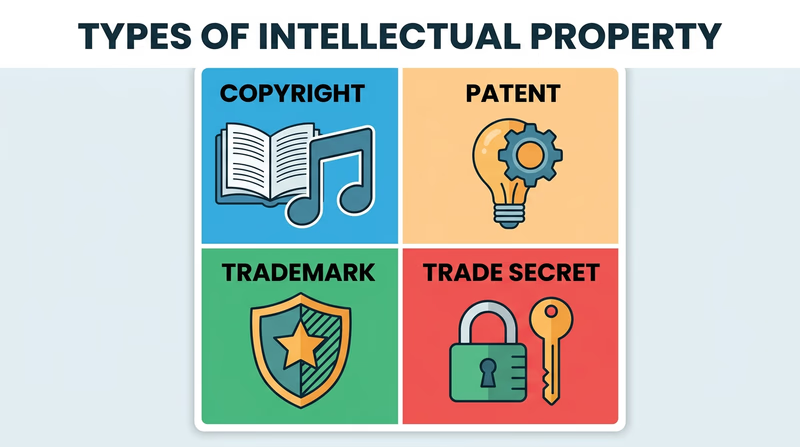
Quick Comparison
| Type | What It Protects | Registration Required? | Duration |
|---|---|---|---|
| Copyright | Creative works | No (automatic) | Life + 70 years |
| Patent | Inventions | Yes (USPTO application) | 20 years |
| Trademark | Brand identifiers | Recommended but not required | Indefinite (with use) |
| Trade Secret | Confidential business info | No (maintained by secrecy) | Indefinite (while secret) |
Now that you understand IP protections, let’s look at a specific ethical question that comes up constantly in the digital world.
Req 7b — Software Sharing Ethics
Your friend offers you a copy of a game that costs $60. “I already bought it — just copy it from my USB drive.” It seems harmless. But is it legal? The answer depends entirely on the license that came with the software.
Software Licenses: The Rules of the Game
When you buy or download software, you are not actually buying the program itself — you are buying a license to use it. The license is a legal agreement that spells out exactly what you can and cannot do with the software. This is true for everything from big-budget video games to simple mobile apps.
Different licenses allow different things:
Commercial Software (Proprietary License)
Most paid software — Microsoft Office, Adobe Photoshop, major video games — comes with a proprietary license that restricts copying and sharing.
Typical rules:
- You may install the software on a limited number of devices (often just one)
- You may not copy the software for friends
- You may not redistribute it
- You purchased a license for your personal use only
Accepting a copy of proprietary software from a friend is software piracy — a violation of copyright law, even if neither of you profits from it. It does not matter that your friend bought a legitimate copy. Their license covers them, not you.
Freeware
Freeware is software the creator distributes for free. You can download, use, and often share freeware without paying anything.
Examples: VLC Media Player, 7-Zip, Audacity (basic version), many mobile apps
If your friend offers you a copy of freeware, that is perfectly fine — the license explicitly allows free distribution.
Open-Source Software
Open-source software is released under licenses that allow anyone to use, study, modify, and distribute the software — often including the actual source code (the human-readable programming instructions).
Examples: Linux, Firefox, LibreOffice, GIMP, Python, Blender
Accepting a copy of open-source software from a friend is completely permissible. In fact, sharing is encouraged — it is a fundamental principle of the open-source movement.
Shareware and Freemium
Shareware lets you try the software for free with limitations (time-limited trial, reduced features). You are expected to pay if you continue using it.
Freemium software is free for basic use but charges for premium features.
Sharing the free version is usually fine. Sharing a cracked or unlocked premium version is not.
The Simple Test
When a friend offers you a copy of a program, ask yourself:
Can I Accept This Copy?
Run through this decision checklist- Is the software free (freeware or open source)? If yes, accepting is fine.
- Is it a free trial or demo? If yes, accepting the trial version is fine.
- Is it paid/commercial software? If yes, accepting a copy is likely piracy unless the license specifically allows multiple installations or sharing.
- Does the license specifically allow the friend to share their copy? Read the license terms — some family plans or multi-device licenses allow sharing.
- Is your friend offering you their legitimate account credentials to use paid software? This is usually against the terms of service and not permissible.
Why It Matters
Software piracy might seem victimless, but it has real consequences:
- Developers lose income, which can mean fewer updates, fewer new features, or the company going out of business
- Independent developers and small studios are hit hardest — a game from a three-person studio depends on every sale
- You could face legal consequences — copyright infringement can result in fines or lawsuits
- Pirated software often contains malware — cracked programs are a common way cybercriminals distribute viruses and trojans (as you learned in Req 4c)
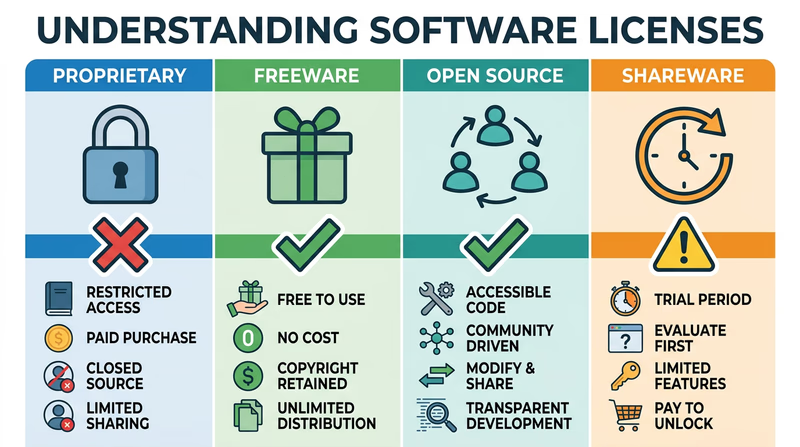
You understand the ethics of software sharing. Now let’s explore a real-world example of intellectual property law in action.
Req 7c — IP Disputes in the News
Intellectual property disputes are not abstract legal theory — they involve billions of dollars, shape the technology products you use every day, and set the rules for how companies compete. Finding and analyzing a real case brings everything you learned in Req 7a to life.
How to Find a Case
Search for recent IP disputes using these strategies:
Search terms to try:
intellectual property lawsuit technology 2025patent dispute tech companycopyright infringement software casetrademark lawsuit recenttrade secret theft technology
Reliable sources for legal news:
Reuters — Intellectual Property News Reuters' dedicated intellectual property news section covering major patent, copyright, and trademark cases worldwide. Link: Reuters — Intellectual Property News — https://www.reuters.com/legal/intellectual-property/ Ars Technica — Law & Disorder Technology policy and legal coverage written for a general audience — explains complex cases in accessible language. Link: Ars Technica — Law & Disorder — https://arstechnica.com/tech-policy/ The Verge — Policy & Law The Verge's coverage of technology law and policy, including IP disputes involving major tech companies. Link: The Verge — Policy & Law — https://www.theverge.com/policyNotable Cases to Research
If you are having trouble finding a case on your own, here are some well-documented disputes you can research. Each involves a different type of intellectual property:
Patent: Apple vs. Samsung (Smartphones)
Apple sued Samsung in 2011, claiming that Samsung’s Galaxy phones copied the iPhone’s design — including the rounded rectangle shape, the icon grid layout, and touch gestures. The case lasted years, went to the U.S. Supreme Court, and resulted in Samsung paying Apple over $500 million. This case raised fundamental questions about how much protection a product’s visual design should receive.
Copyright: Google vs. Oracle (Software Code)
Google used parts of Oracle’s Java programming language to build the Android operating system. Oracle argued this was copyright infringement. Google argued it was “fair use.” After a decade-long legal battle, the U.S. Supreme Court ruled 6-2 in Google’s favor in 2021, finding that Google’s use of the Java API was fair use. This decision has major implications for how software developers can use and build upon existing code.
Copyright: AI-Generated Content Disputes
Multiple lawsuits have been filed by artists, writers, and news organizations against AI companies, arguing that AI training on copyrighted works without permission constitutes infringement. These cases — involving companies like OpenAI, Stability AI, and others — are still unfolding and could reshape how copyright law applies to artificial intelligence.
Trade Secret: Waymo vs. Uber (Self-Driving Cars)
Google’s self-driving car division (Waymo) sued Uber in 2017, alleging that a former engineer stole 14,000 confidential files about their self-driving technology before joining Uber. The case settled with Uber paying Waymo approximately $245 million in equity. It highlighted how trade secret theft can shortcut years of research and development.
Analyzing Your Case
When you discuss your chosen case with your counselor, be prepared to cover:
Case Analysis Framework
Prepare these points for your counselor discussion- What type of intellectual property was at stake? (Copyright, patent, trademark, or trade secret)
- Who were the parties involved? What does each company or person do?
- What specifically was the dispute about? What did the plaintiff claim?
- What was the defendant’s argument?
- How was the case resolved? (Court ruling, settlement, ongoing)
- Do you agree with the outcome? Why or why not?
- How does this case affect ordinary technology users?

You have covered the legal side of digital technology. Now let’s shift to the environmental side — what happens to all these devices when they reach the end of their lives.
Req 8 — Responsible Tech Disposal
This requirement covers the environmental impact of digital technology. You will choose two of the five options below. Each one explores a different angle of the e-waste problem — from the hazardous chemicals inside your devices to the organizations working to solve the crisis.
Option A: Hazardous Chemicals in Devices
The world generates over 50 million tons of electronic waste (e-waste) each year — and less than 20% of it is properly recycled. The rest ends up in landfills, incinerators, or informal recycling operations in developing countries where workers — sometimes children — disassemble electronics by hand without protective equipment.
Why Proper Disposal Matters
Digital devices contain both valuable materials and dangerous substances. When devices are thrown in the trash and end up in landfills:
- Toxic chemicals leach into groundwater and soil, contaminating drinking water and farmland
- Valuable materials are permanently lost — the gold, copper, and rare earth elements in your phone are non-renewable
- Air pollution occurs when e-waste is burned to recover metals
- Human health suffers in communities near informal e-waste processing sites
Hazardous Chemicals in Digital Devices
| Chemical | Where It Is Found | Health/Environmental Risk |
|---|---|---|
| Lead | Solder on circuit boards, CRT monitors, some batteries | Damages nervous system, kidneys, and brain development in children |
| Mercury | LCD backlights, switches, some batteries | Toxic to the nervous system; accumulates in fish and water supplies |
| Cadmium | Rechargeable batteries (NiCd), semiconductors, some plastics | Causes kidney damage and is classified as a human carcinogen |
| Brominated flame retardants | Plastic casings, circuit boards | Disrupts hormone function; persists in the environment for decades |
| Lithium | Lithium-ion batteries (phones, laptops, tablets) | Flammable and reactive; can cause fires in landfills and recycling facilities |
| Arsenic | Some semiconductor chips (gallium arsenide) | Carcinogenic; contaminates groundwater |
Option B: Certified Recyclers
Not all recycling operations handle e-waste responsibly. Certified recyclers meet strict environmental and safety standards that protect workers, communities, and the environment.
Why Certification Matters
Uncertified recyclers may:
- Ship e-waste to developing countries where it is processed unsafely
- Dump hazardous materials illegally
- Fail to properly wipe personal data from devices before resale
- Use acid baths and open burning to extract metals — releasing toxic fumes
Recognized Certifications
- e-Stewards: The highest standard for e-waste recycling. Certified facilities cannot export hazardous e-waste to developing countries, must protect worker health, and must ensure data destruction.
- R2 (Responsible Recycling): Requires facilities to manage materials safely, track where materials go, and protect data security.
Option C: Research a Recycling Organization
Many organizations collect old electronics for recycling or refurbishment. Search for organizations in your area using terms like “electronics recycling near me” or “e-waste collection [your city].” Some well-known national organizations include:
- Best Buy — accepts most electronics for free recycling at any store location
- Goodwill — partners with Dell Reconnect to refurbish or responsibly recycle donated computers
- Call2Recycle — specializes in battery collection and recycling at thousands of drop-off points
When researching, find out:
- What types of devices do they accept?
- What happens to the devices after collection? (Refurbished and resold? Disassembled for materials? Shredded?)
- Are they certified by e-Stewards or R2?
- Do they wipe data from devices?
Option D: Visit a Recycling Center
If there is an electronics recycling facility near you, arrange a visit. This is the most hands-on option and gives you a firsthand look at the recycling process.
What to observe and ask about:
- How are devices sorted when they arrive?
- How is personal data erased from devices?
- What materials are recovered (metals, plastics, glass)?
- Where do the recovered materials go?
- What cannot be recycled, and how is it disposed of?
- What safety precautions do workers take when handling hazardous components?
Option E: Battery Recycling
Batteries require special recycling because they contain hazardous chemicals and can catch fire if damaged or improperly handled. Never throw batteries in the regular trash.
Types of Batteries and Recycling Methods
| Battery Type | Common Uses | Recycling Method |
|---|---|---|
| Lithium-ion | Phones, laptops, tablets, power tools | Shredded in controlled environment; lithium, cobalt, and nickel recovered |
| Alkaline (AA, AAA, D) | Remote controls, flashlights, toys | Steel casing recycled; zinc and manganese recovered |
| Lead-acid | Car batteries, UPS systems | 99% recyclable; lead and acid recovered separately |
| Button cells | Watches, hearing aids, key fobs | Mercury and silver recovered |
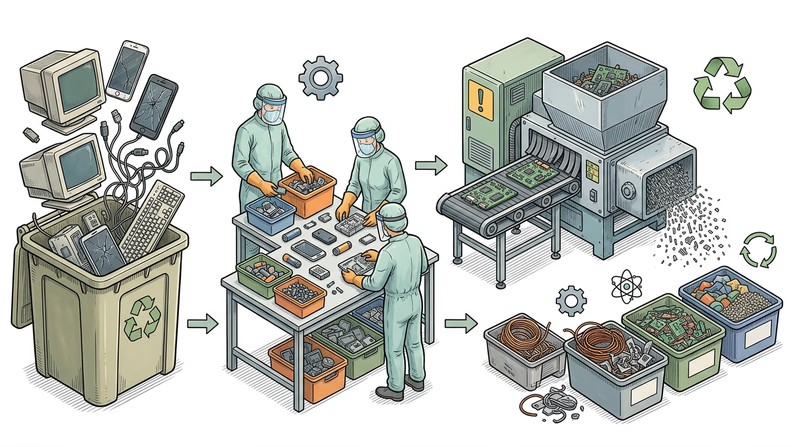
Connecting to the Scout Oath
The Scout Law tells us to be thrifty and to leave places better than we found them. Responsible technology disposal is a direct extension of these principles. Every device you recycle properly is one less source of groundwater contamination, one less pile of toxic waste in a landfill, and one more batch of valuable materials returned to the supply chain.
You have considered the environmental impact of technology. Your final requirement connects digital technology to your future — through careers and hobbies.
Req 9 — Tech Careers & Hobbies
This requirement asks you to look ahead — either toward a potential career in digital technology or toward a hobby you could pursue using the skills you have built throughout this badge. Choose one of the two options below.
Option A: Explore a Tech Career
Digital technology careers are among the fastest-growing and highest-paying fields in the economy. Here are some paths worth researching:
Software Developer / Engineer
What they do: Write the code that powers apps, websites, operating systems, and everything in between. Front-end developers build what users see; back-end developers build the systems behind the scenes; full-stack developers do both.
Education: Bachelor’s degree in computer science (typical) or coding bootcamp + portfolio. Many successful developers are self-taught.
Median salary: $130,000–$150,000/year (U.S.)
Cybersecurity Analyst
What they do: Protect organizations from cyberattacks. They monitor networks for threats, investigate security breaches, set up defenses, and develop security policies — much of what you learned in Req 4c at a professional level.
Education: Bachelor’s degree in cybersecurity, computer science, or IT. Professional certifications (CompTIA Security+, CISSP) are highly valued.
Median salary: $110,000–$130,000/year
Data Scientist / Data Analyst
What they do: Use statistics, programming, and machine learning to find patterns and insights in large datasets. They help companies make data-driven decisions about products, marketing, operations, and strategy.
Education: Bachelor’s or master’s degree in data science, statistics, computer science, or mathematics.
Median salary: $100,000–$140,000/year
UX/UI Designer
What they do: Design how apps and websites look and feel. UX (User Experience) designers research how people use technology and design intuitive interfaces. UI (User Interface) designers create the visual elements — buttons, layouts, colors, and typography.
Education: Bachelor’s degree in design, human-computer interaction, or related field. A strong portfolio matters more than the specific degree.
Median salary: $90,000–$120,000/year
Network / Systems Administrator
What they do: Set up, maintain, and troubleshoot the computer networks and servers that organizations depend on — connecting the LAN and WAN concepts you learned in Req 3e to real infrastructure.
Education: Bachelor’s degree in IT or computer science. Certifications (CompTIA Network+, Cisco CCNA) are important.
Median salary: $85,000–$105,000/year
Bureau of Labor Statistics — Computer and IT Occupations Detailed career profiles from the Bureau of Labor Statistics covering education requirements, salary data, job outlook, and typical duties for every major IT career. Link: Bureau of Labor Statistics — Computer and IT Occupations — https://www.bls.gov/ooh/computer-and-information-technology/home.htmCareer Research Guide
Cover these points in your counselor discussion- What does a typical day look like in this career?
- What education or training is needed? How long does it take?
- What does it cost (college tuition, bootcamp fees, certification exams)?
- What is the job outlook — is the field growing or shrinking?
- What is the typical starting salary? What about with 10+ years of experience?
- What career advancement opportunities exist (senior roles, management, specialization)?
- What about this career interests you personally?
Option B: Explore a Tech Hobby
The skills from this badge open doors to hobbies that are creative, social, and technically rewarding. Here are some ideas:
Coding and App Development
Build your own apps, games, or websites. Start with free resources like Scratch, Python, or web development tutorials. Many successful apps started as hobby projects by teenagers.
Robotics and Electronics
Build and program robots using platforms like Arduino, Raspberry Pi, or LEGO Mindstorms. This combines programming with hands-on building — perfect for Scouts who like working with their hands and their minds.
Digital Photography and Videography
Go beyond snapping photos — learn composition, lighting, and editing. Free tools like DaVinci Resolve (video) and GIMP (photos) give you professional-level editing capabilities. Share your work on photography communities or start a YouTube channel about Scouting.
3D Printing and Design
Design objects in free CAD software like Tinkercad or Fusion 360, then print them on a 3D printer. Many libraries, makerspaces, and schools have 3D printers available. Create custom camping gear, badge display cases, or troop decorations.
Game Development
Create your own video games using free engines like Unity, Godot, or Unreal Engine. Start small — a simple puzzle game teaches you programming, art, sound design, and project management.
Podcasting or Blogging
Build on the skills from Req 6 to create ongoing content. Start a Scouting podcast, a technology review blog, or a channel focused on your other hobbies.
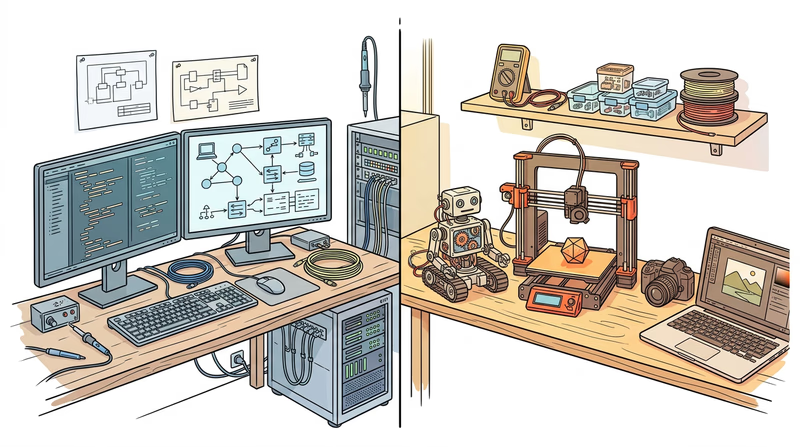
Congratulations — you have worked through every requirement of the Digital Technology merit badge. Head to the Extended Learning page to discover where your digital skills can take you next.
Extended Learning
A. Beyond the Badge
You have navigated digital safety, dissected how data is stored and compressed, explored networks and the internet, built real digital projects, wrestled with intellectual property law, and confronted the environmental impact of technology. That is a serious breadth of knowledge — and every bit of it will serve you as technology continues to evolve.
But earning the badge is a starting point, not a finish line. The digital world moves fast, and the Scouts who keep learning will be the ones shaping what comes next.
B. Building Your Own Computer
One of the most satisfying ways to deepen your understanding of digital technology is to build a computer from parts. When you assemble a PC yourself, the abstract concepts from this badge — CPU, RAM, storage, networking — become tangible objects you hold in your hands and connect together.
What You Will Learn
Building a computer teaches you how every component works together. You will select a motherboard (the main circuit board that connects everything), a CPU (which you studied in Req 4a), RAM modules, a storage drive (SSD or NVMe), a power supply (PSU), and a case to hold it all. If you want to play games, you will also choose a graphics card (GPU).
Getting Started
You do not need a huge budget. A capable general-purpose computer can be built for $400–$600. Here is how to approach it:
- Research components using sites like PCPartPicker, which checks compatibility between parts and compares prices across retailers
- Watch build guides on YouTube — channels like Linus Tech Tips and JayzTwoCents have step-by-step tutorials for first-time builders
- Ground yourself before handling components to avoid static electricity damage (an anti-static wrist strap costs a few dollars)
- Take your time — a first build typically takes 2–4 hours, and that is perfectly fine
- Install the operating system — consider trying Linux (free) alongside or instead of Windows
The satisfaction of pressing the power button and watching a computer you built boot up for the first time is hard to beat. And once you understand the hardware, troubleshooting problems and upgrading components becomes second nature.
PCPartPicker — Build Guides Curated PC build guides at every budget level with compatibility checking, price comparison, and community reviews. Link: PCPartPicker — Build Guides — https://pcpartpicker.com/guide/C. Learning to Code
If the Digital Technology badge sparked your interest in software, learning to program is the single most powerful next step you can take. Programming is the skill that turns you from a technology user into a technology creator.
Where to Start
The best first language depends on what you want to build:
- Python — The most popular first language. Clean, readable syntax. Used for web development, data science, AI, automation, and scripting. Free to install and thousands of tutorials available.
- JavaScript — The language of the web. Every website you visit uses JavaScript. Learning it lets you build interactive websites, browser extensions, and web apps.
- Scratch — A visual, block-based language from MIT designed for beginners. Great if you are under 13 or have never programmed before. You drag and snap code blocks together instead of typing syntax.
Free Resources
- freeCodeCamp (freecodecamp.org) — A complete web development curriculum with interactive exercises and certifications, entirely free
- The Odin Project (theodinproject.com) — A full-stack web development curriculum with real-world projects
- CS50 by Harvard (cs50.harvard.edu) — Harvard’s famous introduction to computer science, available free online with video lectures, problem sets, and a supportive community
- Codecademy (codecademy.com) — Interactive coding lessons in multiple languages with a free tier
From Hobby to Impact
Programming is not just a career skill — it is a superpower for Scouting. You could:
- Build a website for your troop (extending what you started in Req 6h)
- Create a campout planning app that calculates gear lists and meal plans
- Automate merit badge tracking with a custom spreadsheet script
- Program a Raspberry Pi weather station for your campsite
- Develop a nature identification app using machine learning
D. Cybersecurity Challenges and CTFs
If the malware and security topics in Req 4c and Req 5c caught your attention, Capture the Flag (CTF) competitions are the perfect next step. CTFs are cybersecurity challenges where participants solve puzzles involving cryptography, web security, reverse engineering, and forensics.
What CTFs Teach You
CTF challenges are designed to be educational. Each one teaches a specific security concept:
- Cryptography challenges — decode encrypted messages using classical and modern techniques
- Web exploitation — find and exploit vulnerabilities in intentionally insecure websites
- Forensics — analyze disk images, network traffic captures, and file metadata to find hidden information
- Reverse engineering — figure out how a program works without seeing its source code
Getting Started with CTFs
- picoCTF (picoctf.org) — Designed specifically for middle and high school students by Carnegie Mellon University. Problems range from beginner to advanced, with hints and learning resources built in.
- OverTheWire Bandit (overthewire.org/wargames/bandit/) — A series of challenges that teach Linux command-line skills and basic security concepts in a progressive difficulty curve.
- CyberStart (cyberstart.com) — A gamified platform used by many Scout councils and school programs to introduce cybersecurity.
These are not just games — colleges and employers recognize CTF experience as evidence of genuine cybersecurity skills. Top CTF competitors are regularly recruited for internships and jobs.
picoCTF — Cybersecurity for Students Carnegie Mellon University's free cybersecurity competition designed for middle and high school students — hundreds of challenges at all skill levels. Link: picoCTF — Cybersecurity for Students — https://picoctf.org/E. Real-World Experiences
Visit a Data Center
Data centers are the physical backbone of the internet — massive buildings filled with thousands of servers, cooling systems, backup generators, and miles of fiber-optic cable. Some cloud providers and colocation facilities offer tours. Seeing rows of blinking servers in person makes the concept of “the cloud” much more concrete.
Attend a Hackathon
Hackathons are events where teams build a software project from scratch in 24–48 hours. Many hackathons welcome high school students and provide mentors, food, and sometimes prizes. They are intense, collaborative, and incredibly educational — you will learn more in one weekend than in weeks of solo study.
Join a Maker Space
Maker spaces and fab labs provide access to 3D printers, laser cutters, CNC machines, electronics workbenches, and sometimes high-end computers. Many offer youth memberships and classes. Check your local library system — many now have maker spaces built in.
Volunteer for a Tech Nonprofit
Organizations like PCs for People, Kramden Institute, and World Computer Exchange refurbish donated computers and distribute them to people who cannot afford technology. Volunteering teaches you hardware repair skills while making a tangible difference in your community.
Shadow a Tech Professional
Ask your counselor, parents, or school career counselor to help arrange a job shadow with a software developer, network administrator, or IT professional. Spending a day watching someone work in tech is one of the best ways to decide if a tech career interests you.
F. Organizations
CompTIA
The Computing Technology Industry Association offers certifications, career resources, and educational programs for people entering the IT field. Their IT Fundamentals (ITF+) certification is designed for beginners and validates basic IT knowledge.
CompTIA — IT Career Resources Career roadmaps, certification guides, and free resources for anyone exploring a career in information technology. Link: CompTIA — IT Career Resources — https://www.comptia.org/resourcesElectronic Frontier Foundation (EFF)
A nonprofit defending digital privacy, free speech, and innovation. EFF fights for your rights in the digital world — from encryption to fair use to government surveillance. Understanding their work gives you a deeper perspective on the policy side of technology.
Electronic Frontier Foundation The leading nonprofit defending civil liberties in the digital world — covering privacy, free expression, and technology policy. Link: Electronic Frontier Foundation — https://www.eff.org/Code.org
A nonprofit dedicated to expanding access to computer science education, especially for underrepresented groups. They provide free curricula, the Hour of Code initiative, and advocacy for computer science in schools.
Code.org Free computer science courses for students of all ages, from visual block programming to AP Computer Science — used by tens of millions of students worldwide. Link: Code.org — https://code.org/Internet Society (ISOC)
A global nonprofit focused on the open development, evolution, and use of the internet. They work on internet governance, security, and access issues — helping ensure the internet remains a shared global resource.
Internet Society A global organization promoting the open development and use of the internet — with educational resources, chapters worldwide, and youth engagement programs. Link: Internet Society — https://www.internetsociety.org/Khan Academy — Computing
Khan Academy’s computing courses cover everything from basic internet literacy to advanced algorithms and cryptography, all for free. Their interactive format lets you learn at your own pace with immediate feedback.
Khan Academy — Computing Free, comprehensive computing courses covering internet basics, programming, algorithms, and cybersecurity — learn at your own pace with interactive exercises. Link: Khan Academy — Computing — https://www.khanacademy.org/computing