Req 4c — Malware & Protection
In 2017, a single piece of malware called WannaCry infected more than 200,000 computers across 150 countries in just a few days. It locked users out of their files and demanded ransom payments. Hospitals cancelled surgeries. Factories shut down production lines. The attack exploited a known vulnerability that many organizations had simply failed to patch. Understanding malware and knowing how to defend against it is not optional — it is a survival skill for the digital world.
What Is Malware?
Malware is short for “malicious software” — any program designed to damage, disrupt, or gain unauthorized access to a device or network. Malware is created by cybercriminals, and it comes in many forms:
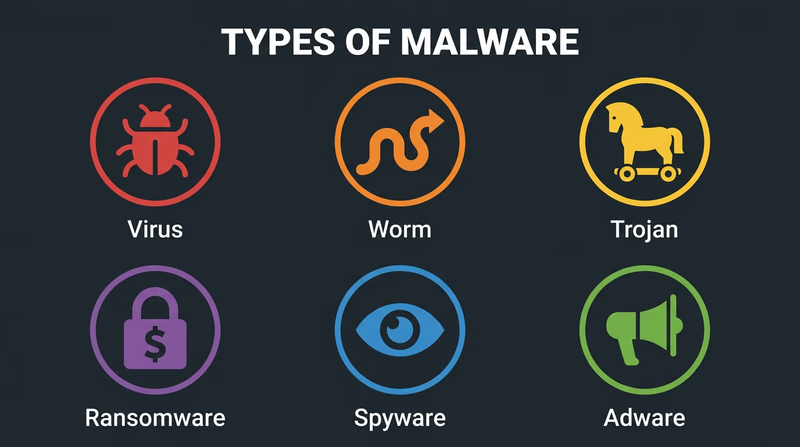
Types of Malware
Viruses attach themselves to legitimate files or programs. When you open the infected file, the virus activates and can spread to other files on your device or to other devices on your network. Like a biological virus, it needs a “host” to spread.
Worms are similar to viruses but do not need a host file. They spread automatically across networks by exploiting security vulnerabilities. A worm can infect thousands of devices without anyone clicking or downloading anything.
Trojans (named after the Trojan Horse) disguise themselves as useful or harmless programs. You download what looks like a free game or helpful utility, but hidden inside is malicious code that steals data, installs other malware, or gives an attacker remote access to your device.
Ransomware encrypts your files — photos, documents, everything — and demands payment (usually in cryptocurrency) for the decryption key. Even if you pay, there is no guarantee you will get your files back.
Spyware secretly monitors your activity — tracking which websites you visit, recording your keystrokes (to steal passwords), and sometimes activating your camera or microphone without your knowledge.
Adware bombards you with unwanted advertisements and pop-ups. While less dangerous than other types, it slows your device and can serve as a gateway for more serious malware.
How Malware Gets In
Understanding infection methods helps you avoid them:
- Phishing emails and messages — Fake emails that look like they come from trusted sources (your bank, a teacher, a shipping company) with links to malicious websites or infected attachments
- Malicious downloads — Software from unofficial sources, pirated games, or “free” versions of paid apps
- Infected websites — Visiting compromised websites that automatically attempt to install malware (called “drive-by downloads”)
- Removable media — USB drives found in public places that contain malware (a surprisingly common attack method)
- Unpatched software — Old software with known security holes that attackers target
How to Protect Your Devices
Keep Software Updated
Software updates often include security patches that fix vulnerabilities. When your phone or computer asks you to install an update, do it promptly. The WannaCry attack succeeded because organizations had not installed a patch that Microsoft had released two months earlier.
Use Strong, Unique Passwords
- Make passwords at least 12 characters long
- Use a mix of uppercase letters, lowercase letters, numbers, and symbols
- Never reuse the same password across multiple accounts
- Consider using a password manager to generate and store unique passwords for every account
Enable Two-Factor Authentication (2FA)
Two-factor authentication requires something you know (your password) and something you have (a code sent to your phone or generated by an app). Even if someone steals your password, they cannot access your account without the second factor.
Install and Update Antivirus Software
Antivirus programs scan your device for known malware, block suspicious downloads, and quarantine infected files. Keep the antivirus definitions updated so it can recognize the latest threats.
Be Skeptical of Links and Downloads
- Do not click links in unexpected emails or messages, even if they appear to come from someone you know
- Download software only from official app stores or trusted websites
- If an offer seems too good to be true (free premium software, “you won a prize”), it almost certainly is
Back Up Your Data
Regular backups protect you against ransomware and hardware failure. Use both:
- Cloud backups (iCloud, Google Drive, OneDrive) for automatic, continuous protection
- Local backups (external hard drive) for an offline copy that ransomware cannot reach
Device Security Checklist
Review these regularly
- Operating system is set to auto-update
- Antivirus software is installed and current
- Two-factor authentication is enabled on important accounts
- Passwords are strong, unique, and stored in a password manager
- Data is backed up in at least two locations
- Bluetooth and Wi-Fi are turned off when not in use
- Unknown USB drives are never plugged into your devices
You know how to protect your devices. Now let’s explore a different kind of digital technology you encounter every day — the codes and tags embedded in the products around you.