Req 5c — HTTPS & Security Certificates
Every time you log into a website, check your grades, or buy something online, you are trusting that nobody in between — no hacker at the coffee shop, no rogue network operator — can read what you are sending. That trust rests on a system called HTTPS and the security certificates that power it.
What Is HTTPS?
HTTPS stands for HyperText Transfer Protocol Secure. It is the secure version of HTTP, the protocol your browser uses to communicate with websites. The “S” at the end stands for “Secure” — and it makes a critical difference.
When you visit a website using plain HTTP:
- Data travels between your browser and the server as plain text
- Anyone monitoring the network (on the same Wi-Fi, for example) could potentially read your passwords, messages, and personal information
- There is no verification that the website is actually who it claims to be
When you visit a website using HTTPS:
- All data is encrypted — scrambled into unreadable code that only your browser and the server can decode
- Even if someone intercepts the data, they see gibberish instead of your password
- The website’s identity is verified through a security certificate
How to Check for HTTPS
Identifying a secure connection is straightforward:
- Look at the URL: It should start with
https://(not justhttp://) - Look for the lock icon: Most browsers display a padlock icon in the address bar next to secure URLs
- Click the lock: Clicking the padlock icon reveals details about the security certificate — who issued it, who it was issued to, and when it expires
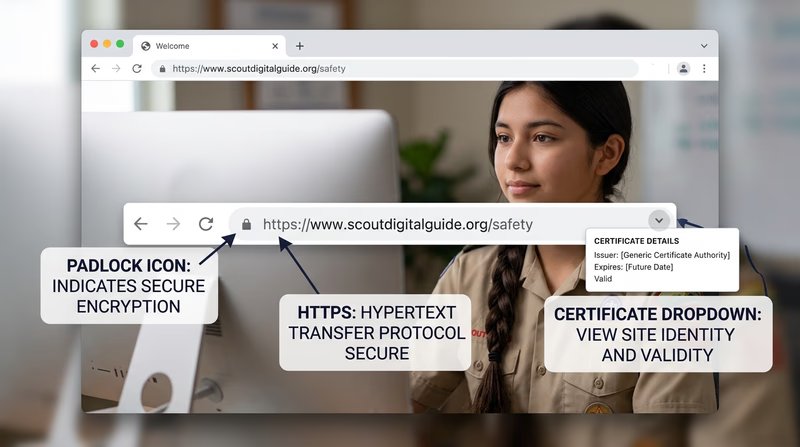
What Is a Security Certificate?
A security certificate (also called an SSL/TLS certificate) is a digital document that proves a website is who it claims to be. Think of it like a driver’s license for websites — it is issued by a trusted authority and confirms the website’s identity.
A certificate contains:
- The domain name the certificate was issued for (e.g.,
www.google.com) - The organization that owns the website
- The Certificate Authority (CA) that issued it — a trusted organization like Let’s Encrypt, DigiCert, or Comodo that verifies website identities
- The expiration date — certificates are valid for a limited time and must be renewed
- The public encryption key used to establish the secure connection
How to Tell If a Certificate Can Be Trusted
Not all certificates are equally trustworthy. Here is what to check:
Signs of a Trustworthy Certificate
Certificate Trust Checklist
Verify these before entering sensitive information
- The padlock icon appears with no warnings or errors
- The certificate has not expired (check the valid dates)
- The domain name on the certificate matches the website you intended to visit
- The certificate was issued by a recognized Certificate Authority (CA)
- Your browser does not display any security warnings or error pages
Warning Signs
- “Not Secure” warning: Your browser explicitly warns you the site is not using HTTPS — avoid entering passwords or personal information
- Certificate error page: Your browser blocks the page and shows a warning like “Your connection is not private.” This can mean the certificate is expired, the domain does not match, or the certificate was issued by an untrusted authority.
- Mismatched domain: The certificate says
secure-banking.example.combut you are visitingsecure-bankng.example.com(notice the typo) — this is a common phishing technique
How Encryption Works (Simplified)
When your browser connects to an HTTPS website, they perform a “handshake” to establish a secure connection:
- Your browser says “I want a secure connection” and sends a list of encryption methods it supports
- The server responds with its security certificate and chosen encryption method
- Your browser verifies the certificate with the Certificate Authority
- If the certificate checks out, your browser and the server exchange encryption keys
- From this point on, all data between you and the server is encrypted — unreadable to anyone who intercepts it
This entire handshake happens in milliseconds, before the webpage even starts loading.
Try It Yourself
To prepare for this requirement, practice viewing a certificate:
- Open your browser and navigate to any HTTPS website (try
https://www.google.com) - Click the padlock icon in the address bar
- Look for an option like “Certificate” or “Connection is secure” and click it
- Review the certificate details: who issued it, who it was issued to, and the expiration date
- Try visiting a site with a known bad certificate (your school IT department may be able to demonstrate this) and notice how your browser warns you
You now understand how the internet keeps your data safe. Time to put your digital skills to work on some hands-on projects.