Req 6 — Hands-On Digital Projects
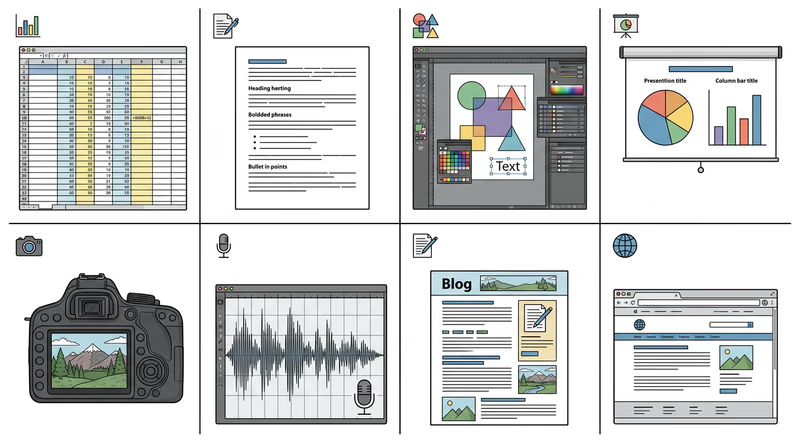
This is the hands-on heart of the Digital Technology merit badge. You will choose three of the eight options below and create real digital projects. Each one builds practical skills with different types of software. Remember: for every project, you must back up your files to a separate device (USB drive, cloud storage, or external hard drive) and share the finished work with your counselor.
Option A: Spreadsheet or Database Project
Tools you can use: Google Sheets, Microsoft Excel, LibreOffice Calc, Apple Numbers
For the food budget:
- List every meal (Friday dinner through Sunday breakfast)
- Include ingredients, quantities, and costs
- Use formulas to calculate totals per meal and a grand total
- Consider per-person costs by dividing by the number of patrol members
For the troop roster:
- Create columns for Name, Rank, Patrol, and Phone Number
- Enter data for your troop (or create sample data with at least 10–15 entries)
- Demonstrate sorting by rank, by patrol, and alphabetically by name
- Consider using data validation or dropdown lists for rank and patrol fields
Option B: Word Processing Letter
Tools you can use: Google Docs, Microsoft Word, LibreOffice Writer, Apple Pages
Your letter should include:
- A proper header with your troop number and contact information
- The date and a greeting
- Clear details: What is the event? When and where is it? What should families bring?
- A call to action (RSVP instructions)
- Professional formatting: consistent fonts, appropriate spacing, and a polished appearance
Focus on using word processing features like headers, bold/italic text, bulleted lists, and spell check. A well-formatted letter shows real word processing skills.
Option C: Graphics Design Project
Tools you can use: Google Drawings, Canva, Microsoft Publisher, GIMP (free), Adobe Express
For the campsite plan:
- Draw a bird’s-eye view of the campsite layout
- Include tent locations, fire ring, cooking area, water source, latrine, and gathering area
- Add labels and a simple legend
- Consider compass orientation and spacing between elements
For the event flyer:
- Include a catchy headline, event details (date, time, location), and contact information
- Add at least one image or illustration
- Use design principles: clear hierarchy, readable fonts, contrasting colors
- Make it something you would actually want to post on a bulletin board
Option D: Presentation
Tools you can use: Google Slides, Microsoft PowerPoint, Apple Keynote, LibreOffice Impress
Strong presentation tips:
- Keep text minimal — bullet points, not paragraphs. Your slides should support your speaking, not replace it.
- Every slide needs at least one visual element (photo, diagram, chart, or illustration)
- Use a consistent design theme across all slides
- Include a title slide and a conclusion or summary slide
- Pick a topic you are passionate about — it will show in your presentation
Option E: Digital Photography
What you will demonstrate:
- Taking a clear, well-composed photograph of a real troop activity
- Transferring the photo from one device to another (phone to computer, for example)
- Methods: email attachment, AirDrop/Nearby Share, USB cable, cloud upload, or messaging app
This is the most straightforward option, but take it seriously — focus on getting a good photo with clear composition and adequate lighting, not just a quick snapshot.
Option F: Voice Recording
Tools you can use: Voice Memos (iPhone), Sound Recorder (Android/Windows), Audacity (free, all platforms)
What to record: Consider recording something useful — a patrol meeting summary, a trail description, or a reflection on a Scouting experience. Make sure the recording is clear and audible.
Transfer methods: Email the file, upload to cloud storage, transfer via USB, use AirDrop/Nearby Share, or use a messaging app.
Option G: Blog
Tools you can use: WordPress.com, Blogger, Google Sites, Wix, or even a Google Doc formatted as a blog
Your blog needs:
- At least five entries covering different Scouting activities
- At least two photographs or illustrations
- Each entry should have a date, a title, and substantive content (not just “We went camping. It was fun.”)
Option H: Webpage
Tools you can use: Google Sites, WordPress.com, Wix, or even hand-coded HTML in a text editor
Your webpage needs:
- At least three articles (about your troop’s activities, upcoming events, history, etc.)
- At least two photographs or illustrations
- At least one external link to a relevant website
- A clean, organized layout that is easy to navigate
The same safety rules apply — get parent and counselor approval before publishing online.
For All Projects: Back Up Your Work
No matter which three options you choose, you must back up your files to a separate device. This reinforces the data protection principles from Req 4c. Options include:
- USB flash drive — copy files directly
- Cloud storage — Google Drive, iCloud, OneDrive, Dropbox
- Email to yourself — simple but effective for small files
- External hard drive — for larger projects
You have built real digital projects. Now let’s make sure you understand the laws that protect the digital work of others — and your own.